Go to Settings → Agent Availability.
From here, choose your leasing setup:
Centralized Mode – Tours are automatically assigned to multiple agents.
Non-Centralized Mode – Agents receive tours individually. (By default)
Enable/Disable Piggy Back tours (multiple tours at the same property at the same time)
Set your tour settings
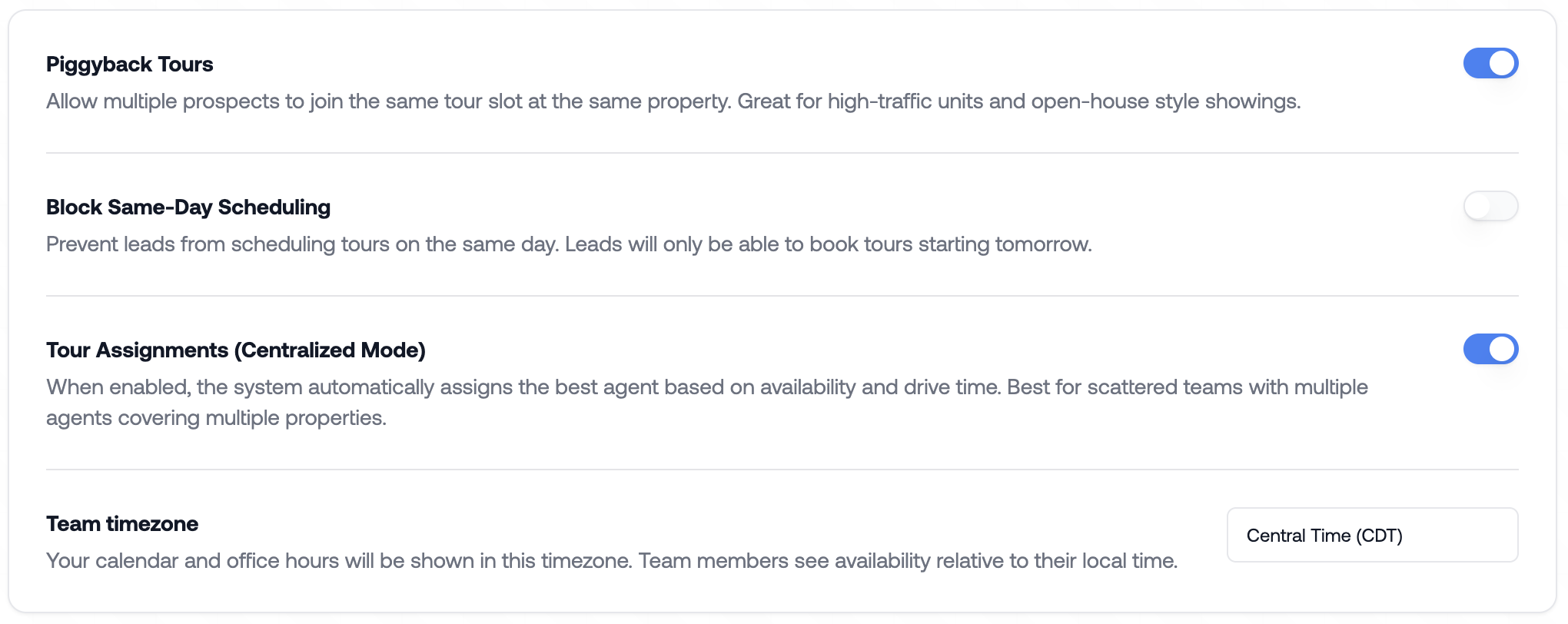
Drive Time & Tour Buffers: RentBamboo automatically accounts for travel time between properties and adds buffers so agents can arrive on time.
Working Hours & Blocks: If you are an admin, you can:
Set your team’s working hours.
Block off unavailable times.
View scheduled tours for each team member by toggling through their profiles.
We’ll dive deeper into tour scheduling on the next guide, but ensure your tour mode is selected.
Go to the Properties page in RentBamboo.
Click on the property you want to configure.
Multifamily: Click on the specific unit.
Single-family: Go to Assigned Member.
You can also select all to mass edit
Depending on your tour set up you can assign multiple agents to a property/unit
RentBamboo will automatically distribute leads to team members
Tour Scheduling:
If you want RentBamboo to schedule tours in your PMS or external system, enter your preferred tour link. Otherwise, leave this blank to use RentBamboo’s full tour system.
Applications:
If you want RentBamboo to automate sending applications, ensure your Application URL is correct.
Ensure the property is marked as Public in the property settings so that RentBamboo can start routing leads effectively.