Navigate to the Property page in RentBamboo. Here, you'll see a list of properties currently connected to your account.
If you don't see your properties listed, reach out to [email protected] and our team can help get them connected.
Select the property you'd like to configure and navigate to its Settings page.
Within the Property Settings page, you'll find several options that control how RentBamboo manages and advertises your property. Below, we'll walk through each setting.
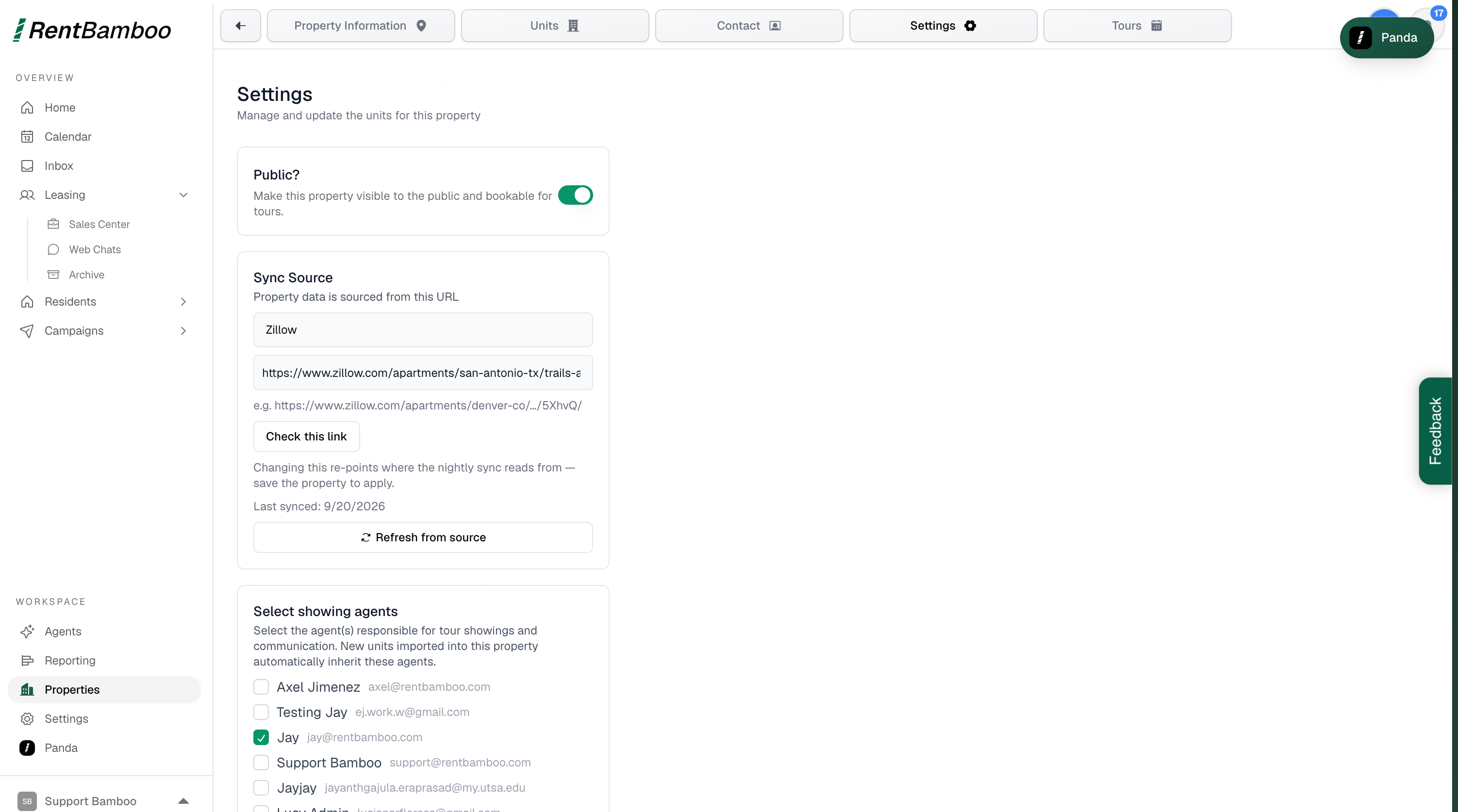
The Public setting determines whether your property is publicly visible and available for prospects to book tours.
We recommend keeping this enabled so your AI agent can access the property's information and promote it to prospective residents.
If a property isn't public, prospects won't be able to access its public page or book tours through RentBamboo.
The Sync Source setting determines where your property's information is being pulled from and synced.
This identifies the source RentBamboo uses to keep your property information up to date.
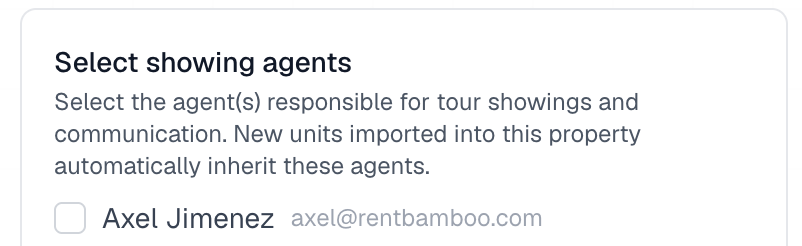
The Showing Agents section allows you to select which team members are responsible for conducting property tours.
This is an important step because RentBamboo uses the selected agents' availability calendars when coordinating tours with prospects.
Select all team members who should be available to conduct showings.
New units imported into the property will automatically inherit the selected showing agents.

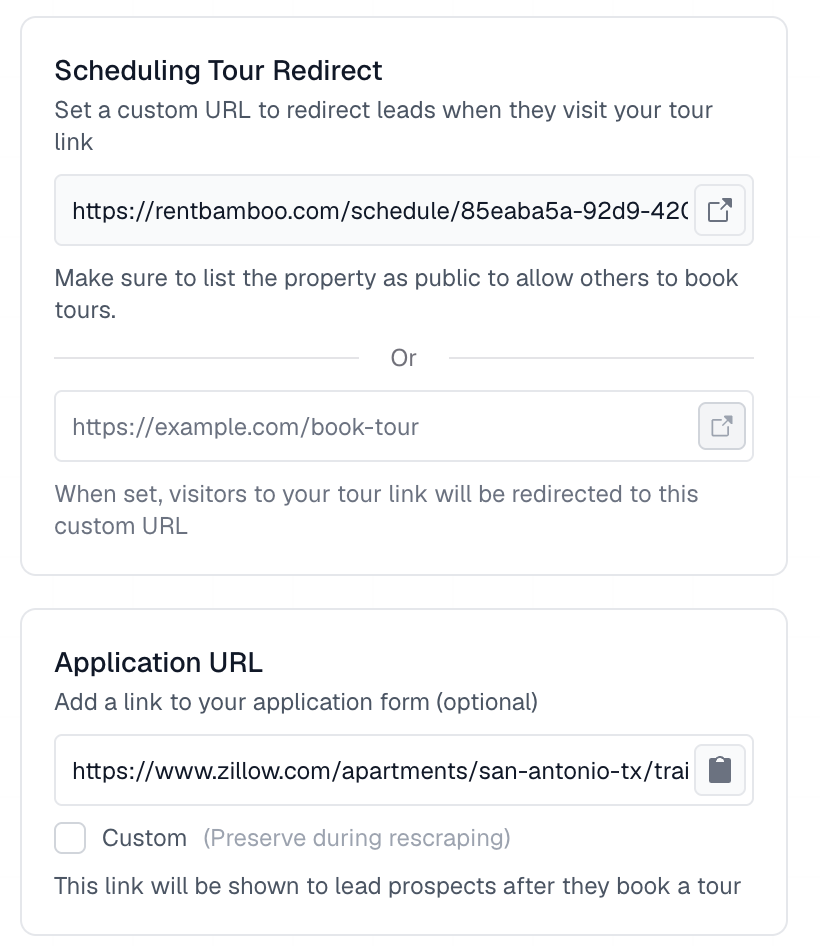
Next, you'll configure where prospects are directed when they want to schedule a tour or submit an application.
You can enter a custom URL to redirect prospects when they select the tour scheduling link.
If you're using RentBamboo's built-in tour scheduling system, leave this field blank. RentBamboo will handle the scheduling process directly.
Enter the direct application link for the property. This should be the URL prospects use to begin their rental application.
If needed, you can enable the Custom option to use a different application URL.
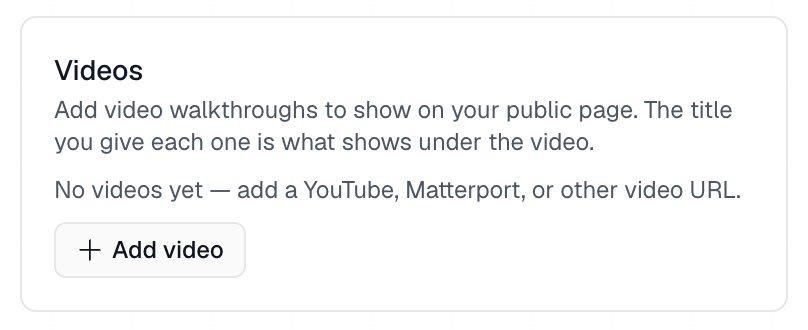
In the Videos section, you can add virtual tour links to give prospects a better look at your property.
You can add videos from platforms such as:
Matterport
YouTube
Other supported video hosting platforms
Simply add the video URL and give it a title. The title you provide will appear alongside the video.
These videos can be displayed on your property's public page and referenced by your AI when communicating with prospects.
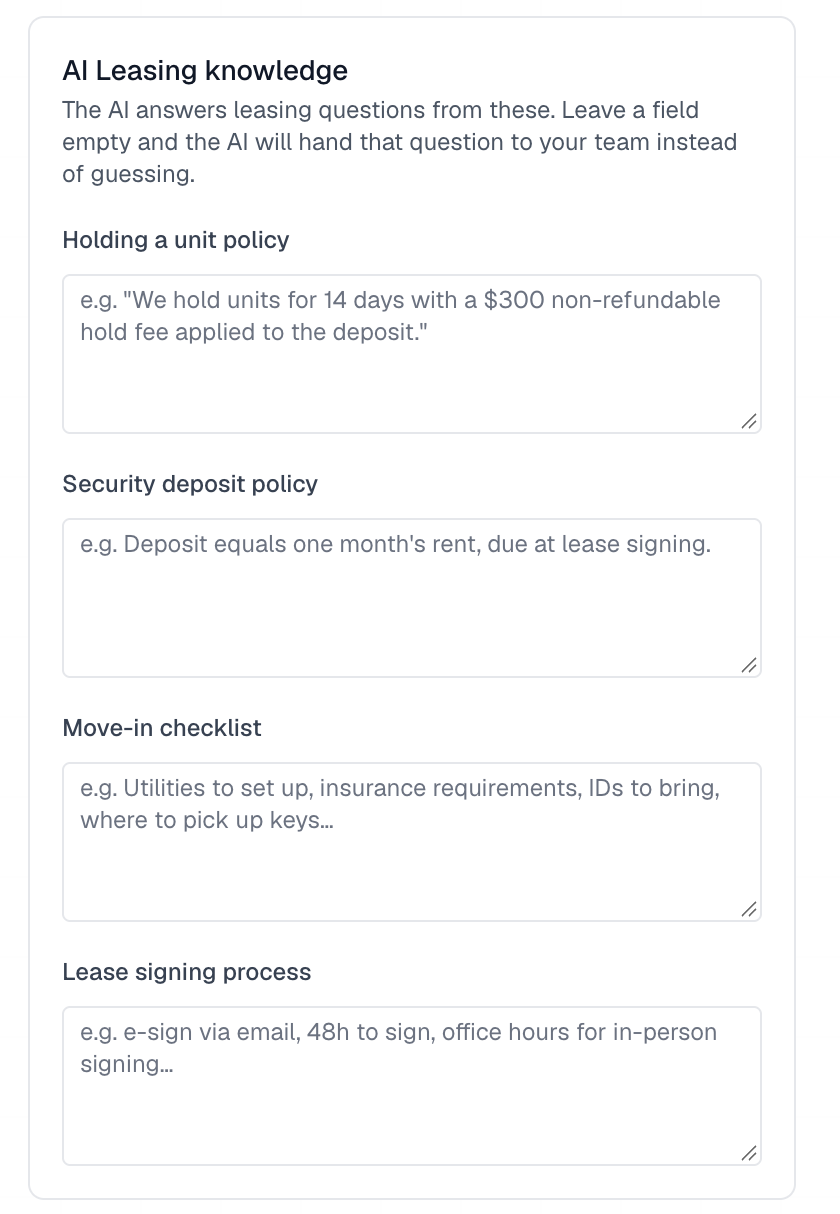
Lastly, you can provide additional property-specific information to help your AI answer more detailed leasing questions.
This section allows you to establish policies and procedures that may not be included in your standard property listings or general AI training.
We recommend providing information about:
HOLDING A UNIT: Explain your property's policy for holding available units and any associated requirements.
SECURITY DEPOSITS: Include deposit amounts, payment requirements, and applicable policies.
MOVE-IN CHECKLIST: Outline the steps and requirements prospects must complete before moving in.
LEASE SIGNING PROCESS: Explain how leases are prepared, signed, and finalized.
The AI will use this information when responding to relevant leasing questions.