The Agents page is where you’ll manage and configure your AI agents and control how they operate.
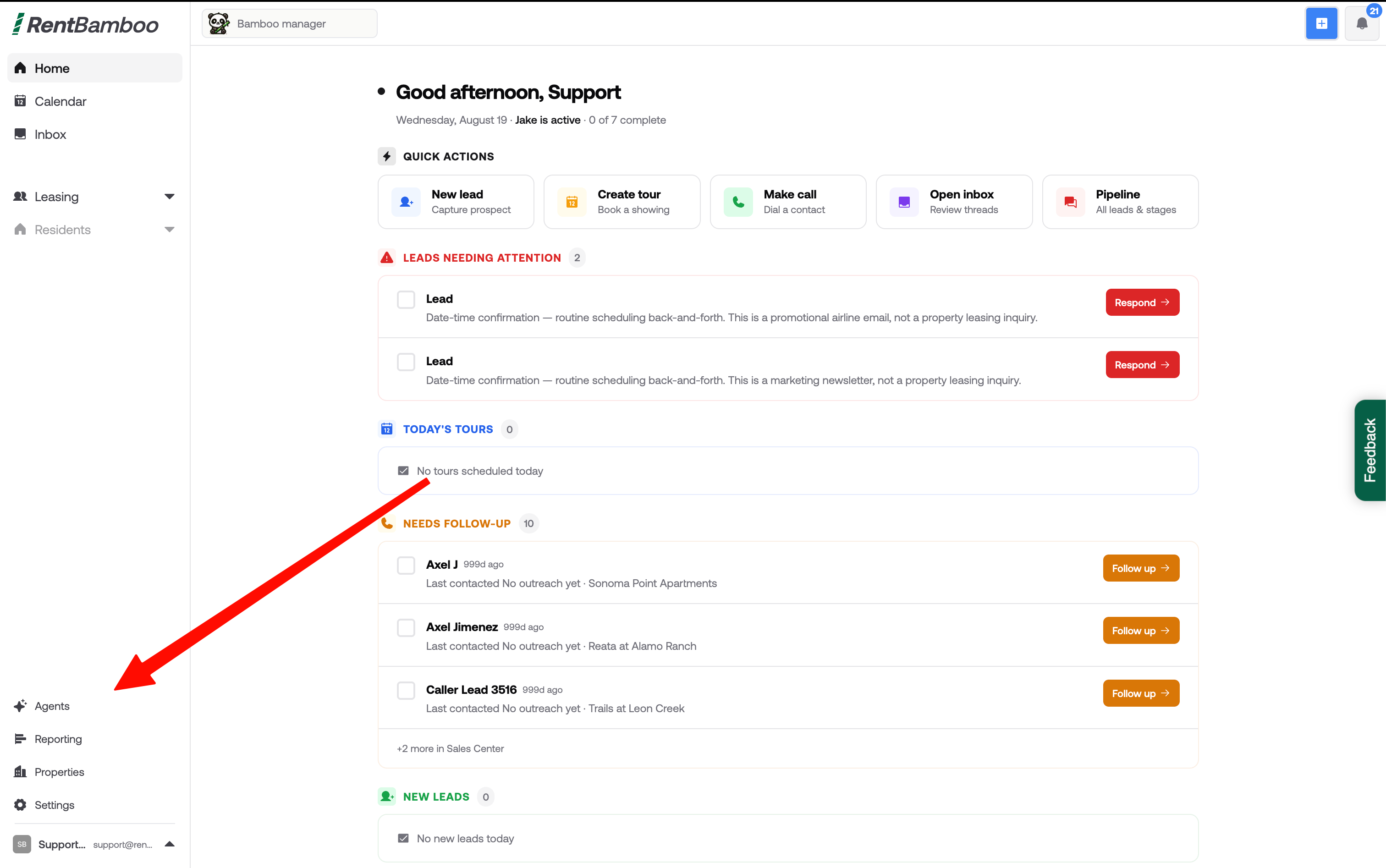
Start by navigating to the Leasing tab. Here, you’ll train your AI agent on your property's leasing operations and define how it should interact with prospective residents.
Feel free to use the example training below for inspiration.
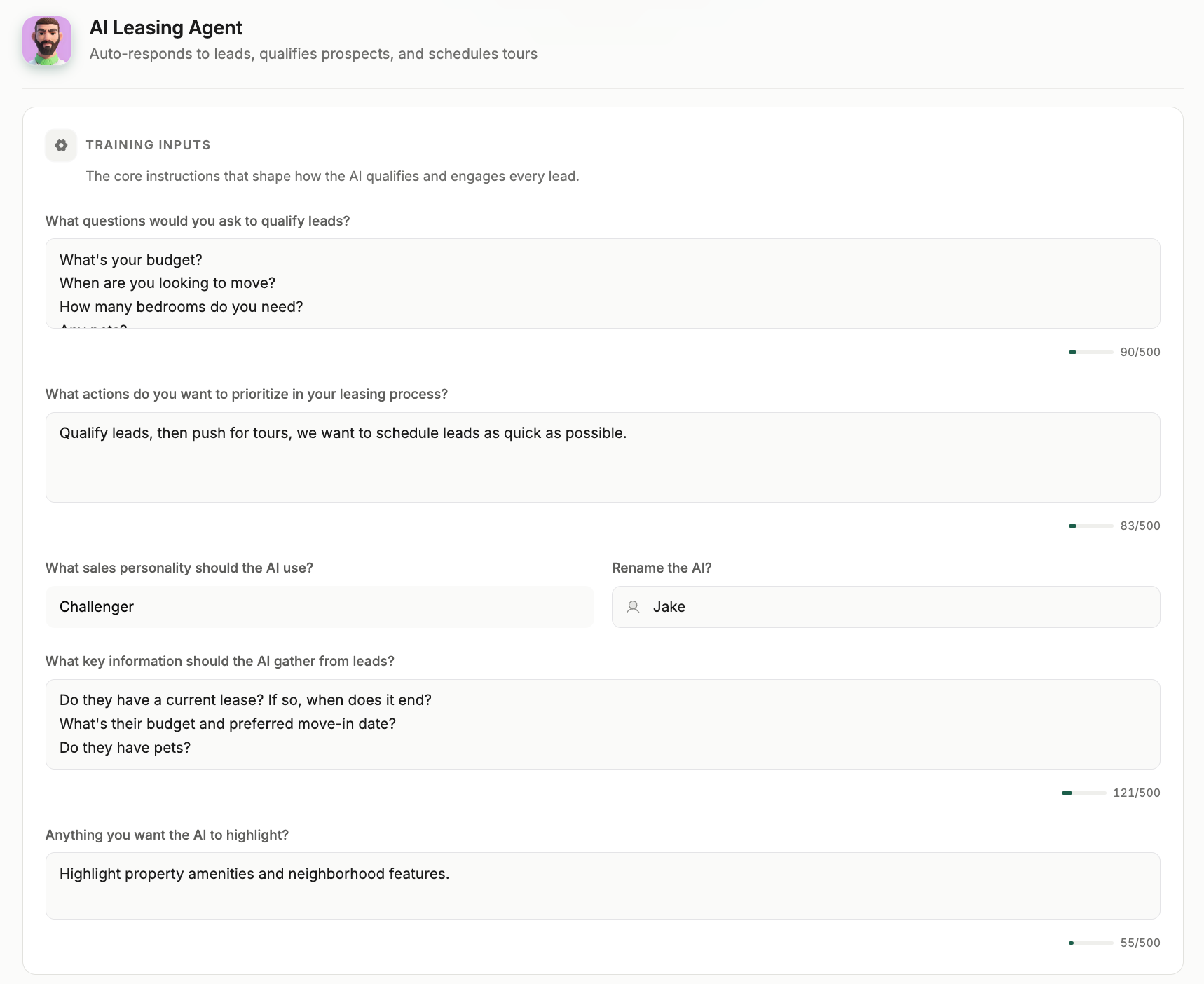
In the Training Inputs tab, you’ll provide high-level instructions for your AI agent. This includes qualification questions, key information to gather from prospects, customizing the agent’s name, and other general instructions.
We recommend making this information as detailed as possible. Avoid including information that changes frequently, such as current specials or concessions, since the AI can automatically pull that information from your property listings.
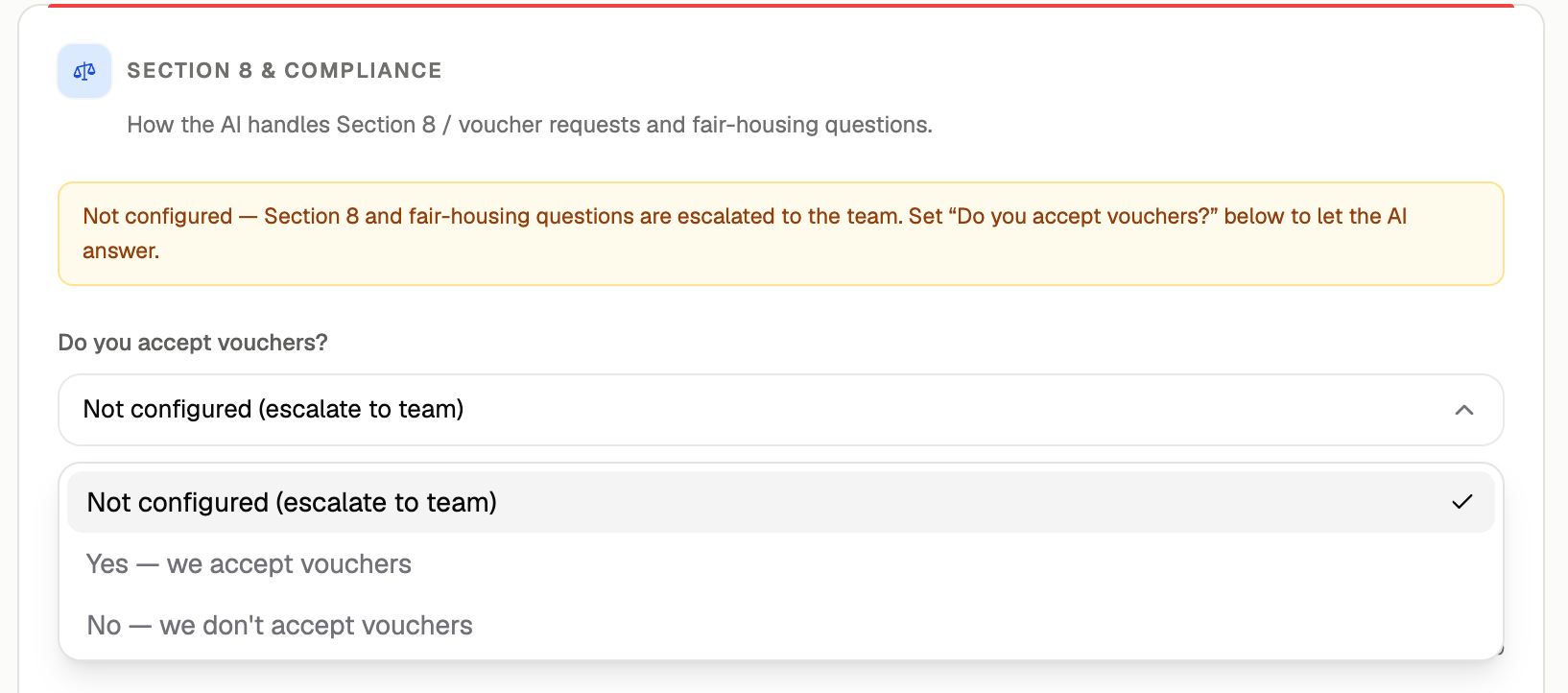
Next, configure how your AI agent handles questions about Section 8 and Housing Choice Vouchers.
Here, you can train the AI on your property's established policies and procedures for handling voucher-related inquiries.
If you want your team to handle these questions directly, leave this section unconfigured. When a prospect asks about Section 8 or housing vouchers, the AI will notify your team so they can respond according to your property's policies and applicable requirements.
If you select Yes, enter your property's policies and instructions in the Section 8 Training section. The AI will use this information when responding to Section 8 and voucher-related questions.
The AI should only communicate your property's established policies and requirements. It will not make eligibility, screening, or exception decisions on behalf of your team.
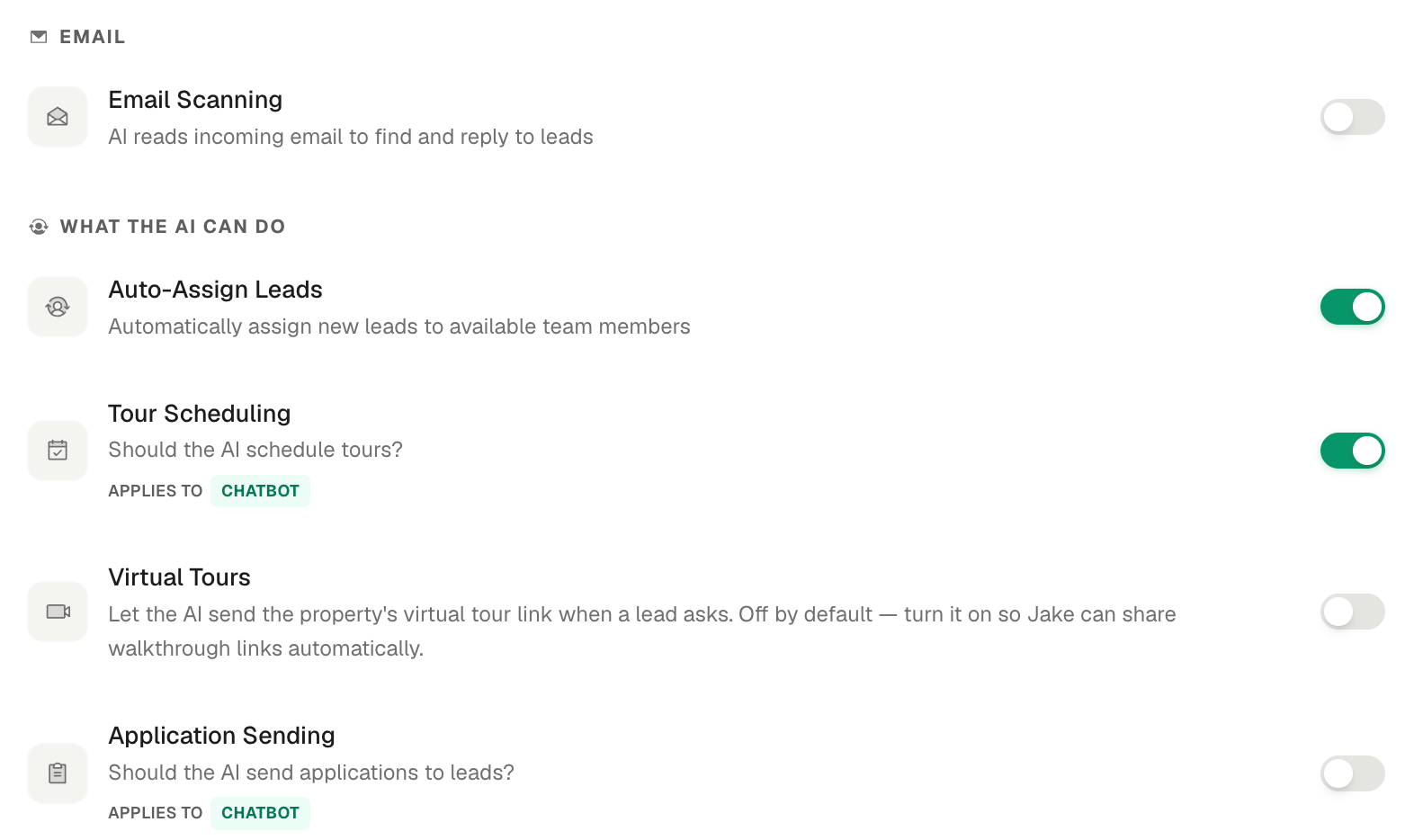
In the Channels and Automation sections, you can control which communication channels your AI can access and which tasks it can automate.
We recommend keeping both SMS and Email enabled so your AI can communicate with prospects across both channels.
We also recommend enabling Tour Scheduling and Applications to help prospects move through the leasing process.
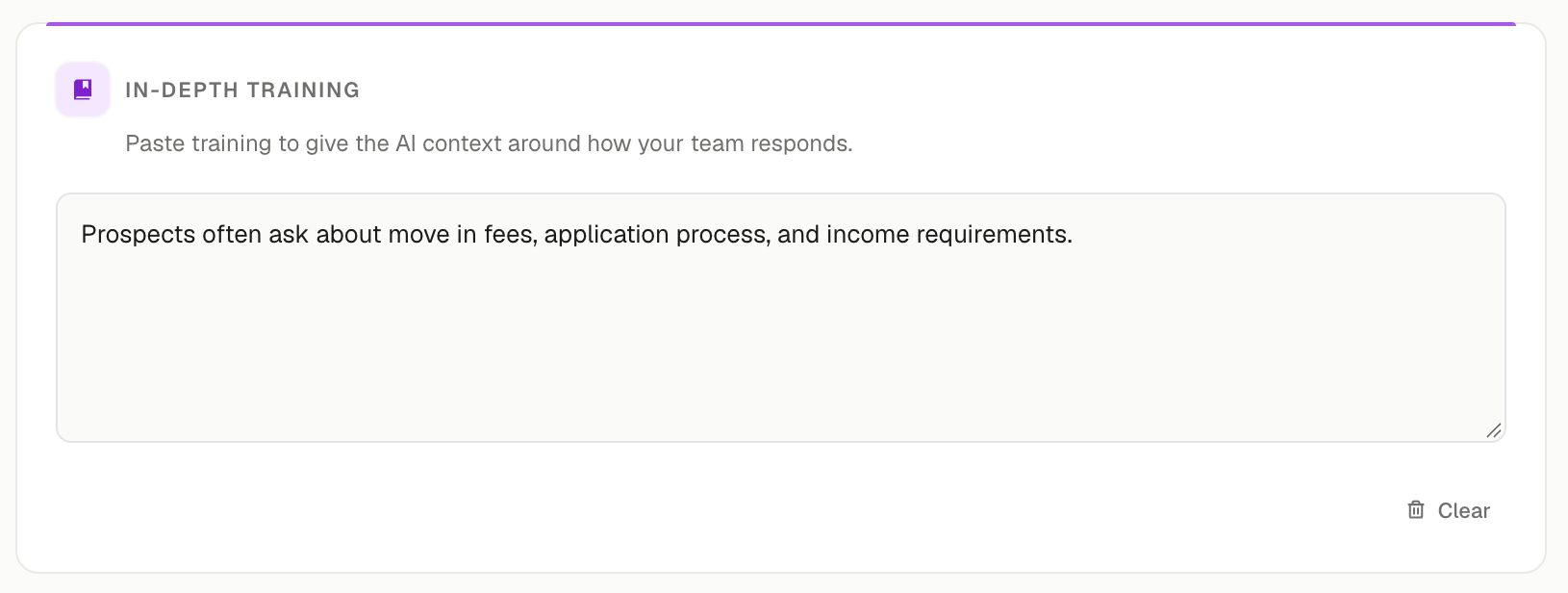
In the In-Depth Training section, you can provide the AI with specific facts, policies, and details about your property.
We recommend including information such as lease terms, application requirements, move-in fees, income requirements, and other important property details.
You can also include frequently asked questions, property-specific procedures, and examples of how your team typically responds to prospects.
The more relevant information you provide, the better equipped your AI will be to answer prospect questions accurately.
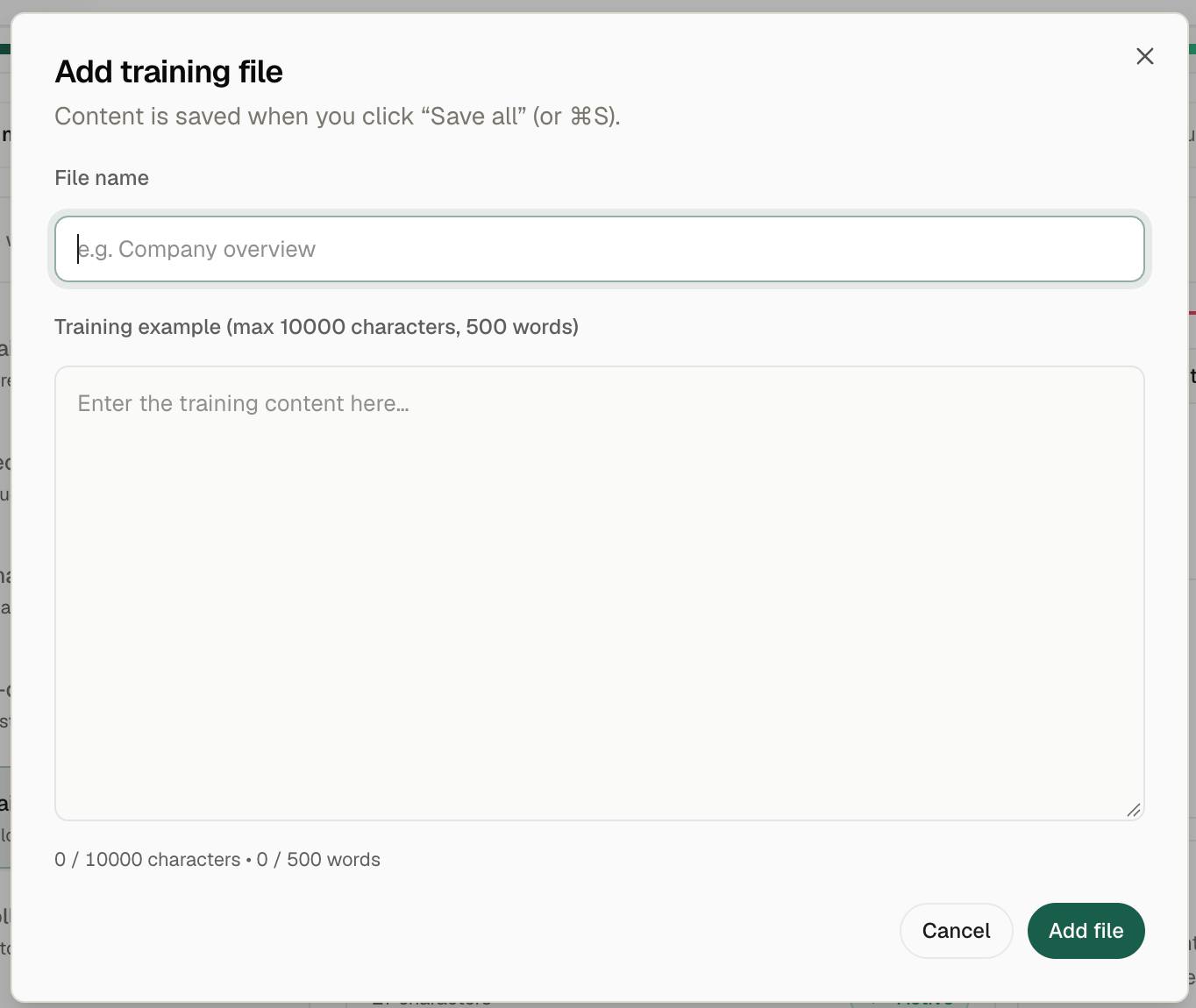
You can also upload documents and templates that your AI should reference when responding to prospects.
We recommend uploading relevant PDF documents, such as:
Move-in fee sheets
Lease agreements
Leasing SOPs
Application guidelines
Property FAQs
Company or property overviews
These files give your AI additional context and help ensure its responses align with your team's established processes.
Next, configure how frequently your AI follows up with prospects and when prospects should automatically be moved to the Lost stage.
RentBamboo comes with preset follow-up settings, but we recommend customizing these based on your team's leasing processes.
You can also:
Customize follow-up frequency and timing.
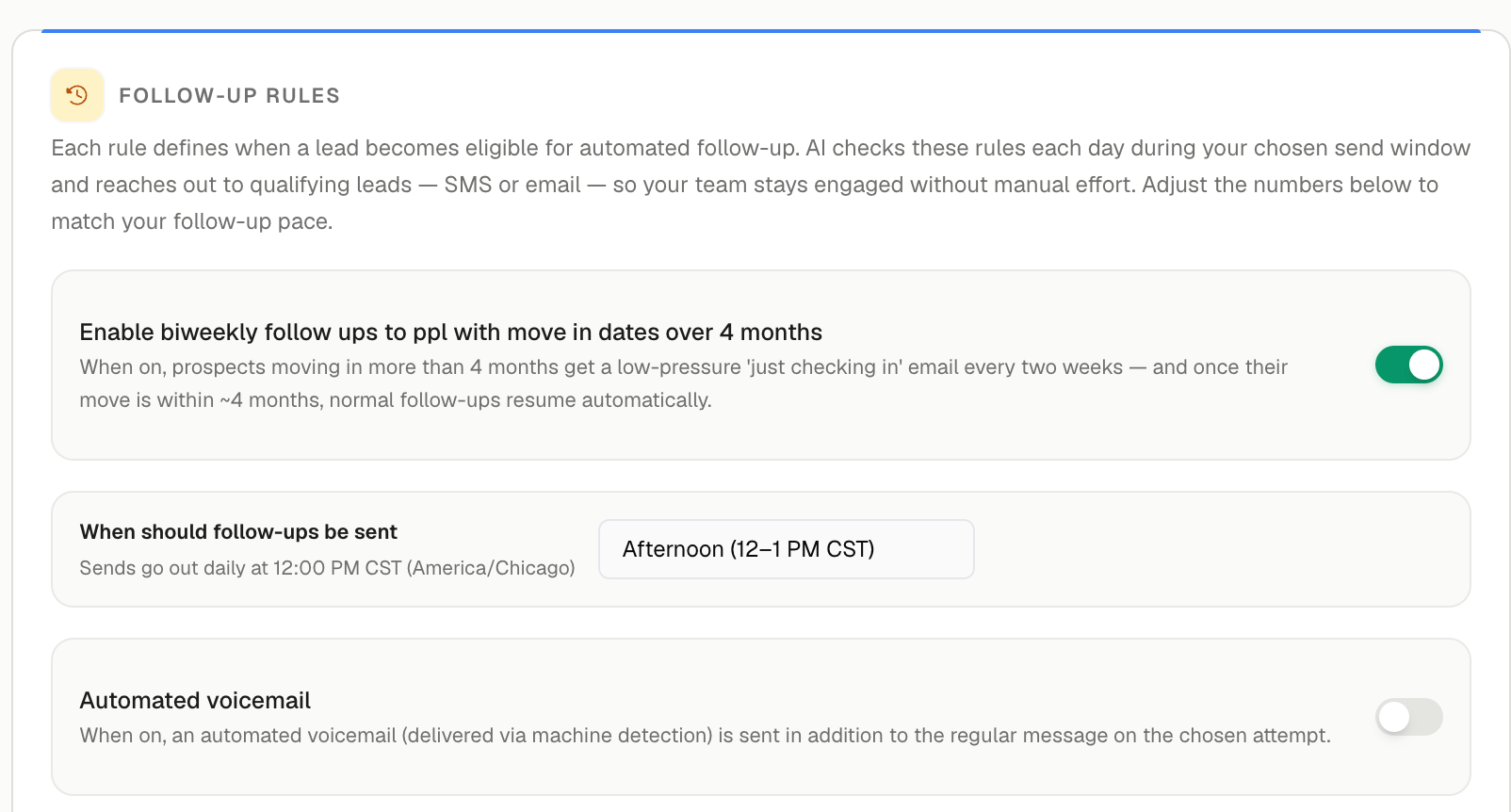
Enable or disable biweekly follow-ups for prospects with future move-in dates.
Configure automated voicemail follow-ups.
You can enable or disable default actions and customize when your AI sends follow-ups.
For example, you can enable biweekly follow-ups for prospects with move-in dates more than four months away, select the time of day follow-ups are sent, and decide whether the AI should leave automated voicemails.
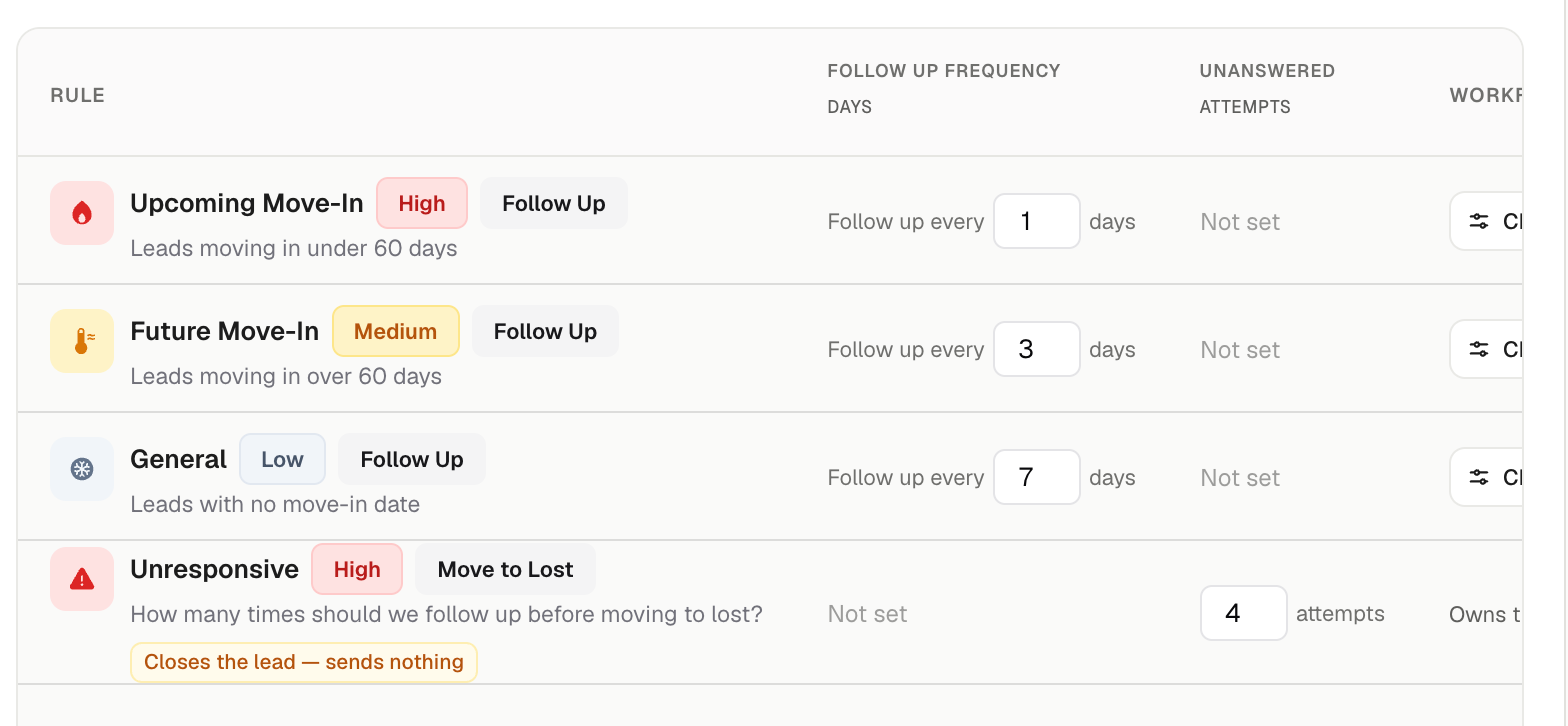
Under Follow-Up Rules, you can customize how frequently RentBamboo follows up with prospects based on their move-in timeline and engagement.
RentBamboo organizes prospects into the following categories:
UPCOMING MOVE-IN: Prospects with a move-in date within the next 60 days.
FUTURE MOVE-IN: Prospects with a move-in date more than 60 days away.
GENERAL: Prospects who haven't provided a move-in date.
UNRESPONSIVE: Prospects who haven't responded to previous outreach attempts.
For each category, you can customize:
How frequently follow-up messages are sent.
The number of unanswered attempts.
When prospects should automatically be moved to the Lost stage.
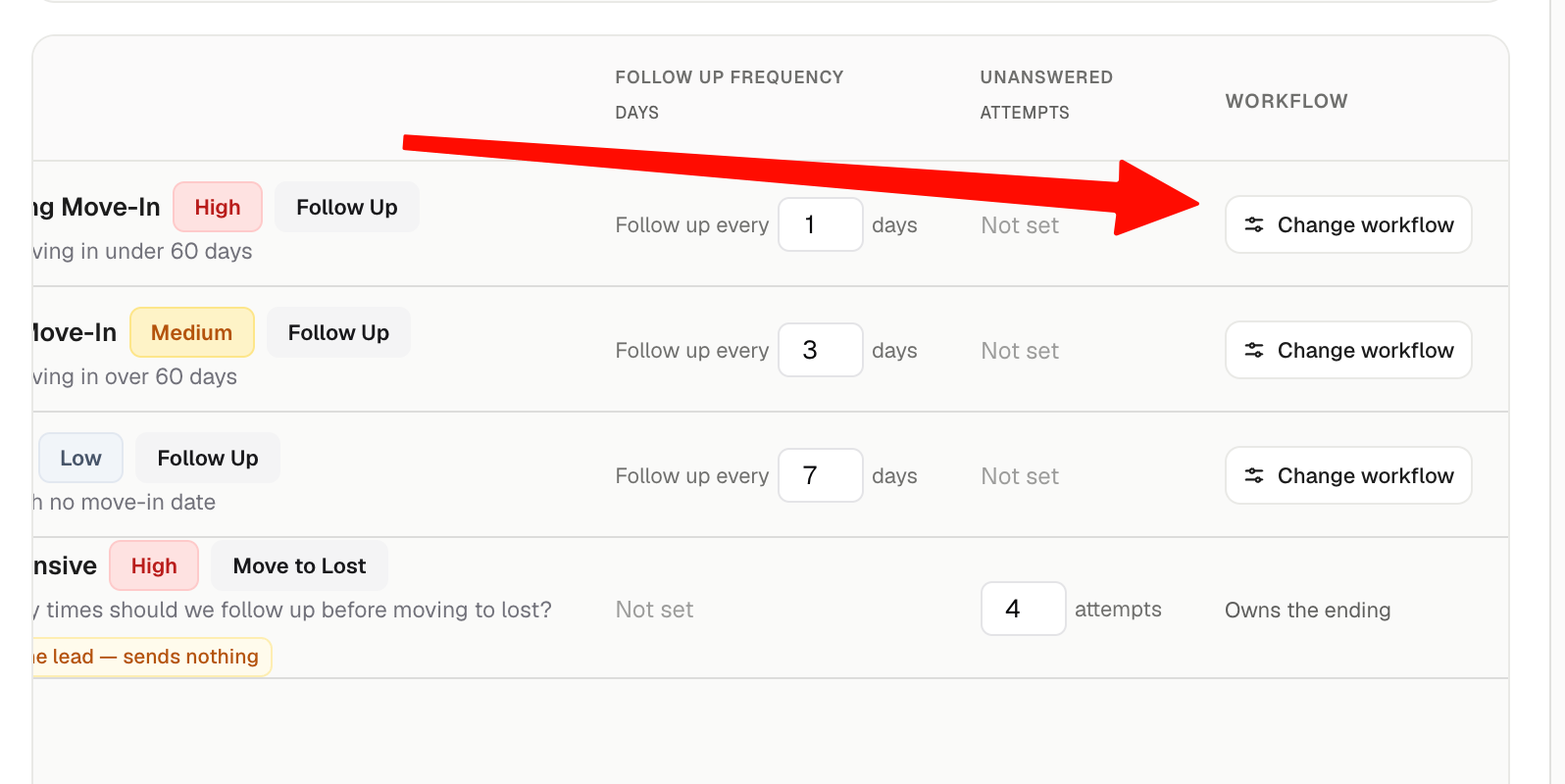
For even more control over your leasing funnel, you can customize the actual workflow behind each follow-up category.
Simply select Change Workflow within any follow-up category to open the workflow builder.
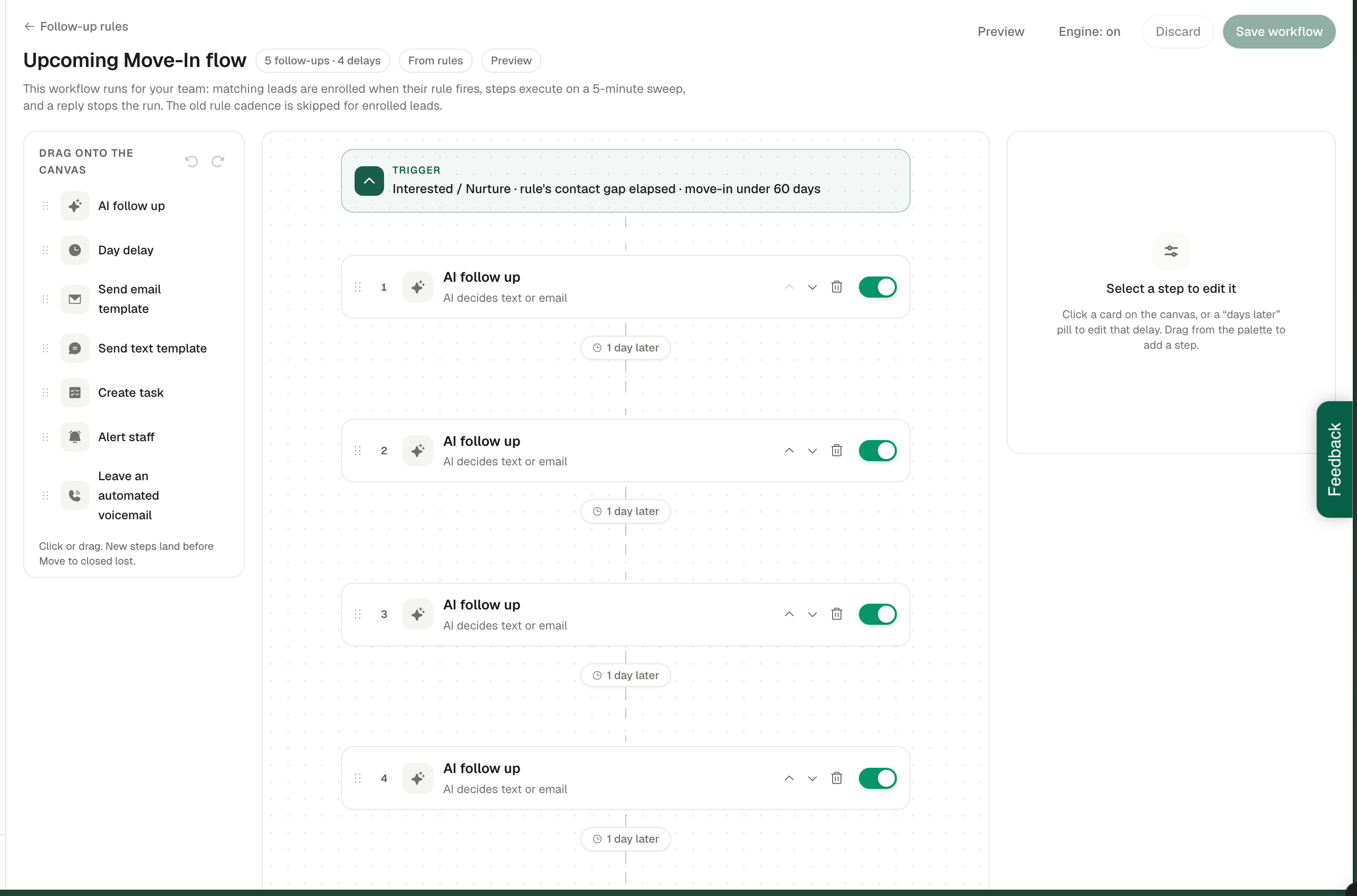
The workflow builder allows you to create fully customized follow-up sequences by dragging and dropping different actions into your workflow.
Available actions include:
TEMPLATES: Send predefined SMS or email templates.
AI FOLLOW-UPS: Have your AI generate and send personalized follow-up messages.
DELAYS: Set time intervals between actions.
TASKS: Create tasks for your team.
EMAIL ALERTS: Notify team members when specific actions occur.
You can arrange these actions in any order to match your team's leasing process.
Once you've finished customizing your workflow, select Save in the upper-right corner.
Your customized workflow will override the default RentBamboo workflow for that specific follow-up category.
You can repeat this process for each category, including Upcoming Move-In, Future Move-In, General, and Unresponsive.
You're all set! Your AI leasing agent is now trained and your follow-up workflows are configured.
IMPORTANT: Be sure to repeat these configuration steps for each team in RentBamboo to ensure every property or team has the appropriate training, automation settings, and follow-up workflows.