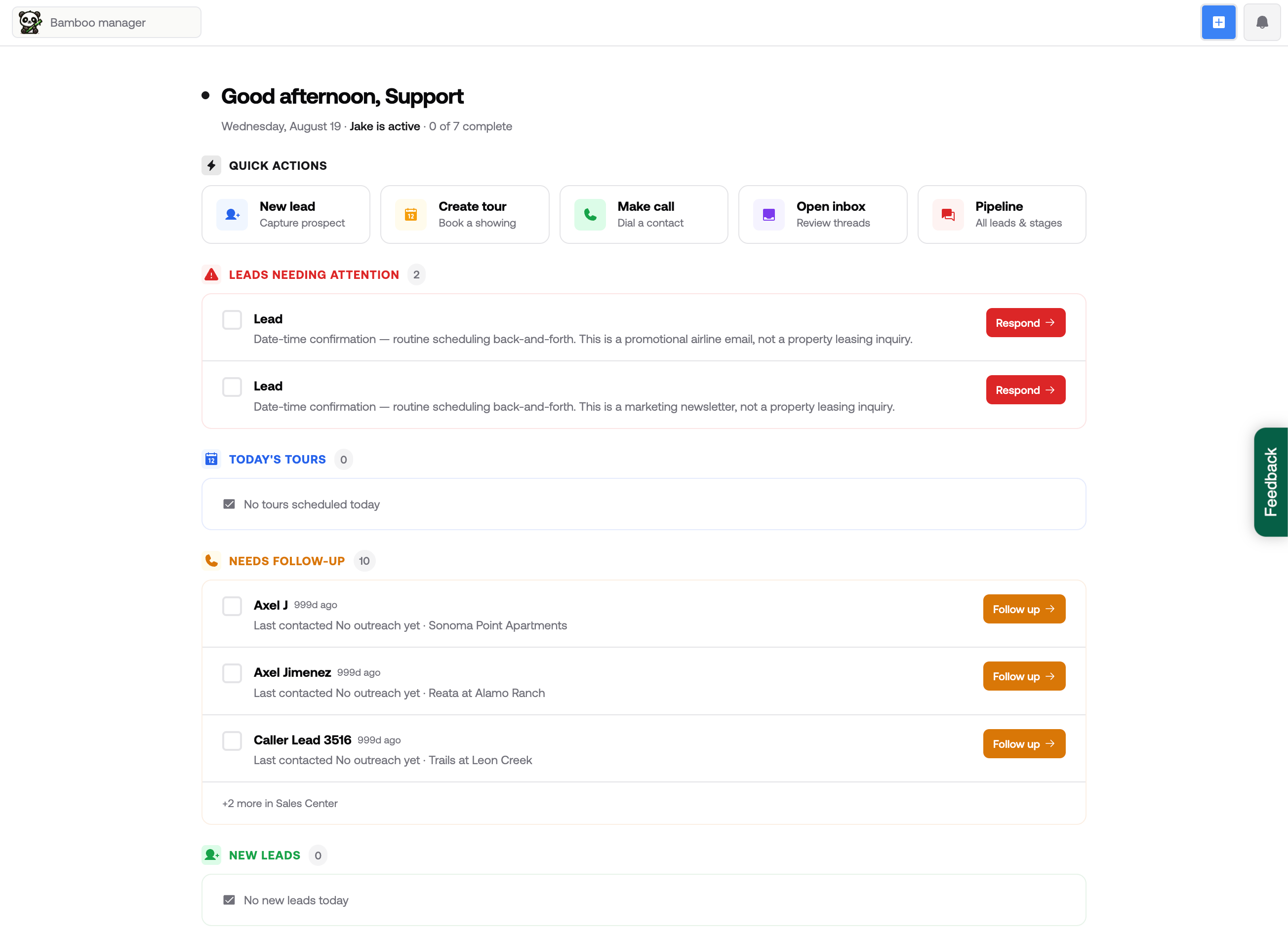
When you first sign in, you’ll be taken to the RentBamboo dashboard. Here, you can view your to-do list with high-priority items that need your attention in RentBamboo.
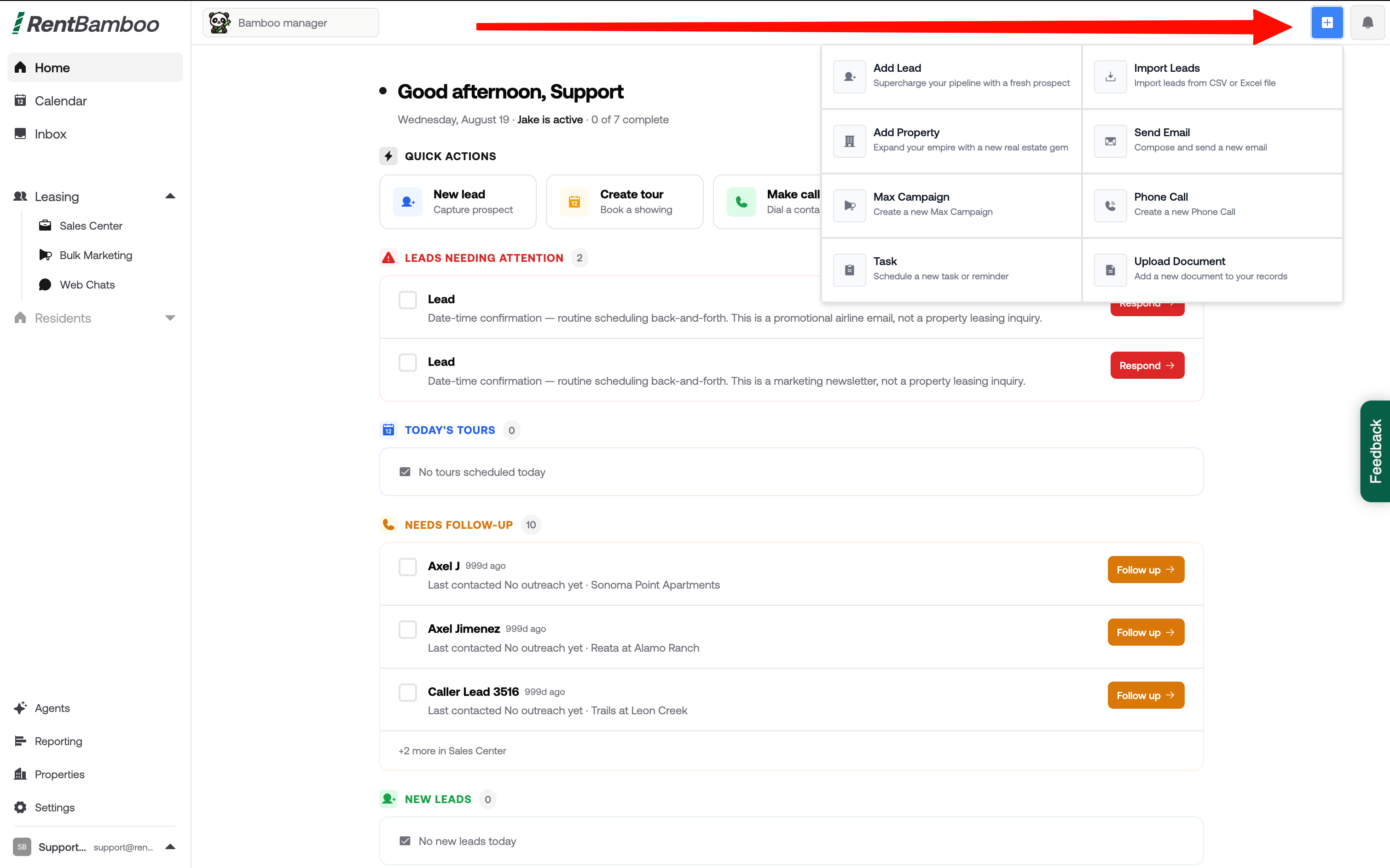
Click the blue button in the top-right corner to view menu options and shortcuts.
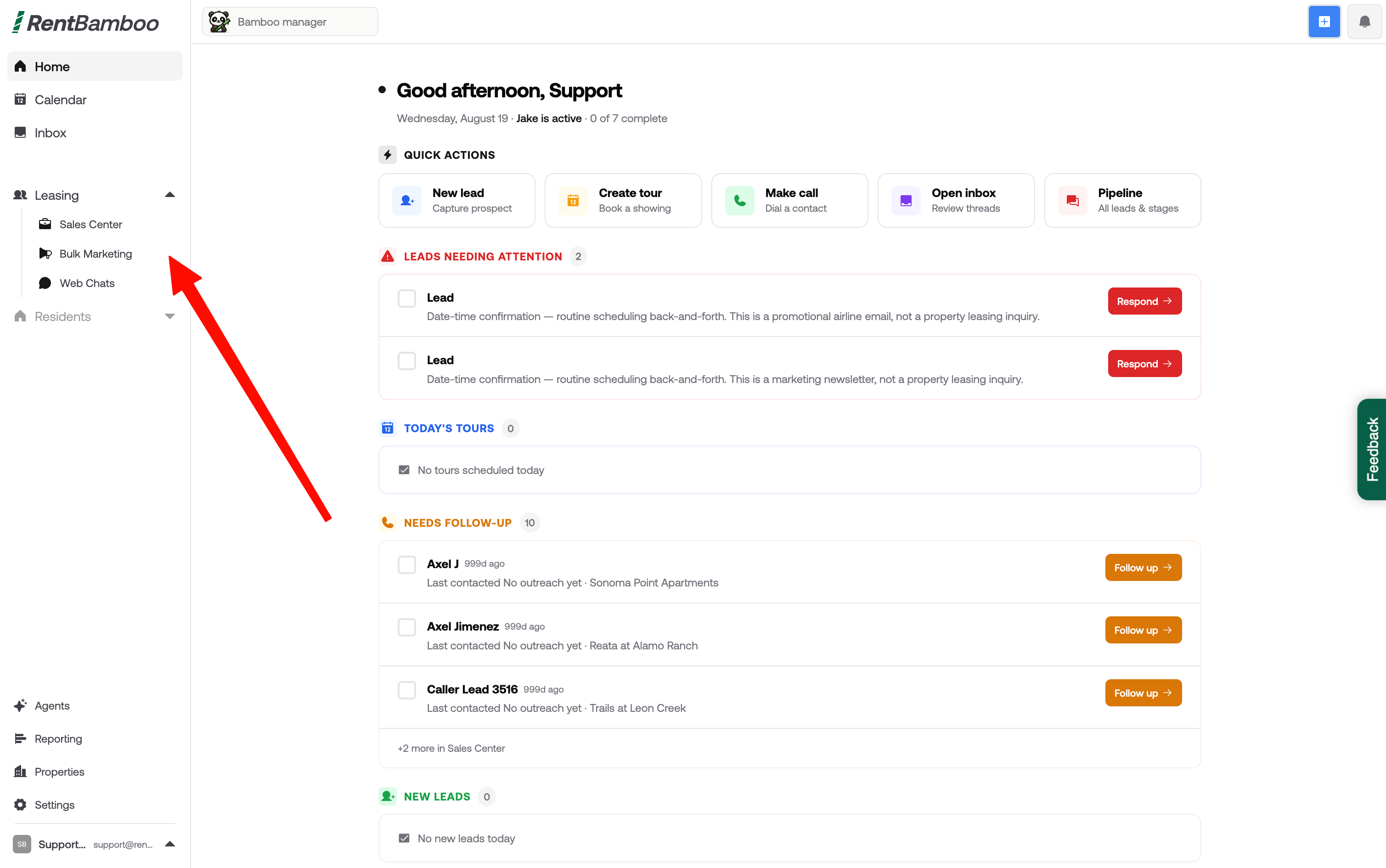
The side menu includes a range of options and dropdowns. From here, you can navigate to different areas of RentBamboo, including the Sales Center.
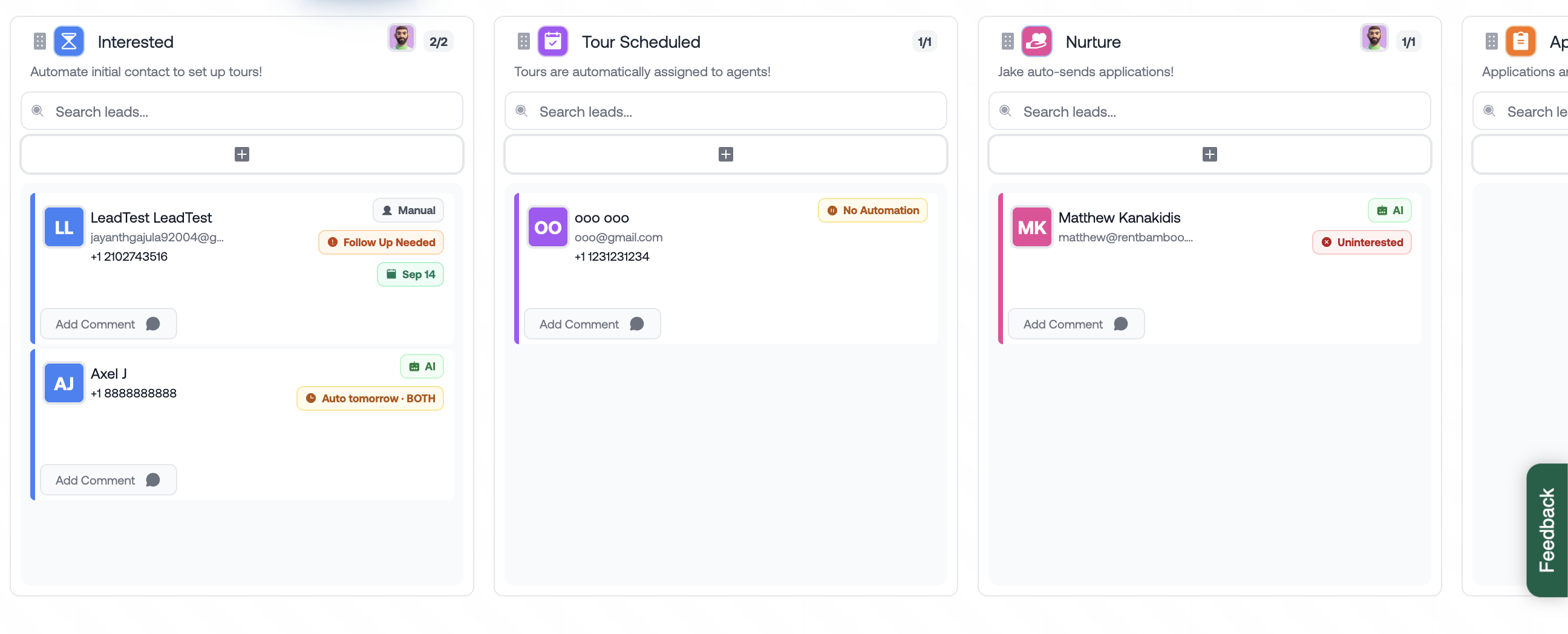
In the Sales Center, you’ll find leads and prospects that need action. You’ll also see badges showing when RentBamboo will follow up or when a prospect has a pending message.
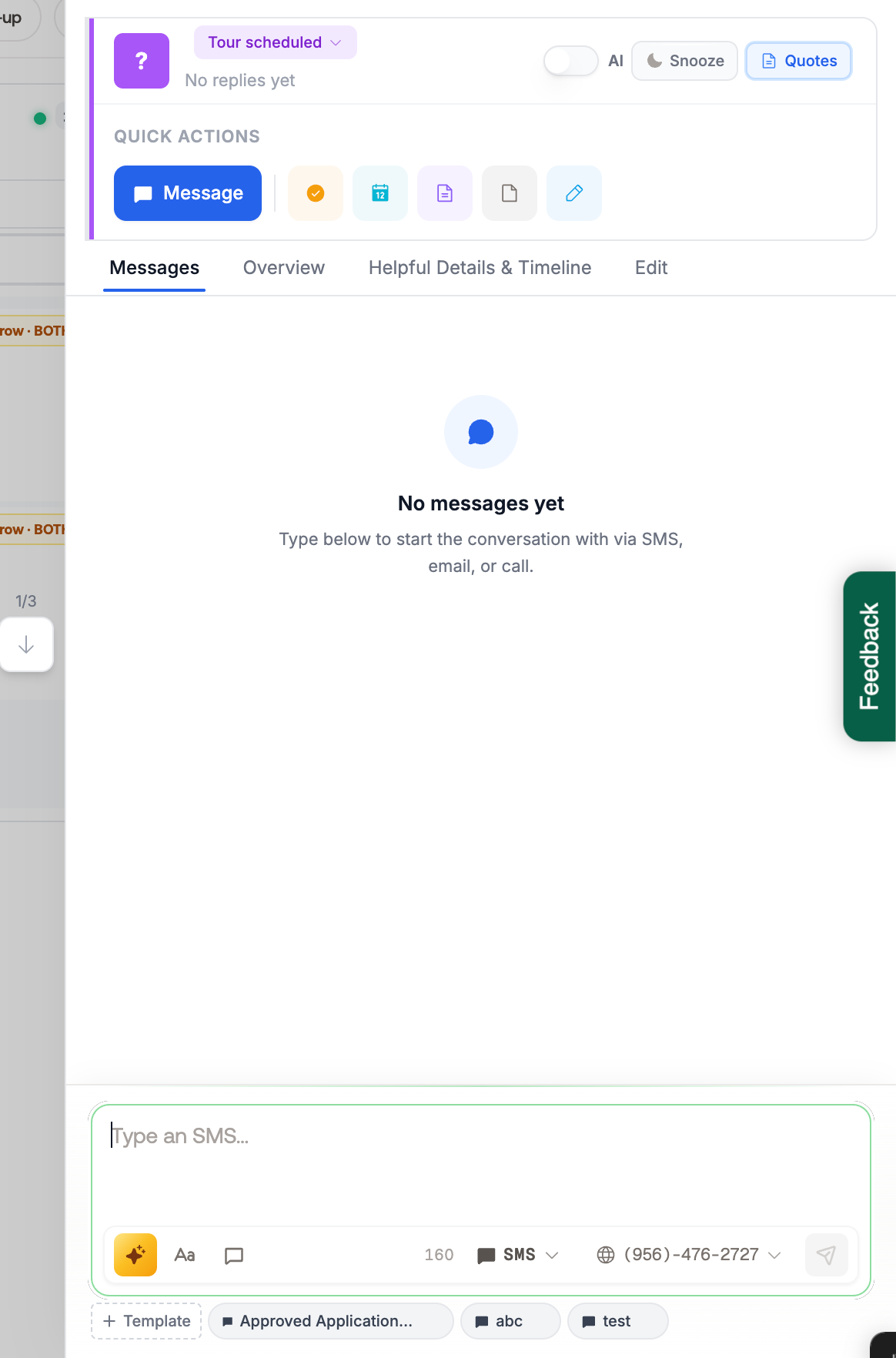
On the lead card, you’ll find options to snooze the AI, turn the AI on or off, message the prospect directly, and more. Scroll down to view additional lead details and communication history.
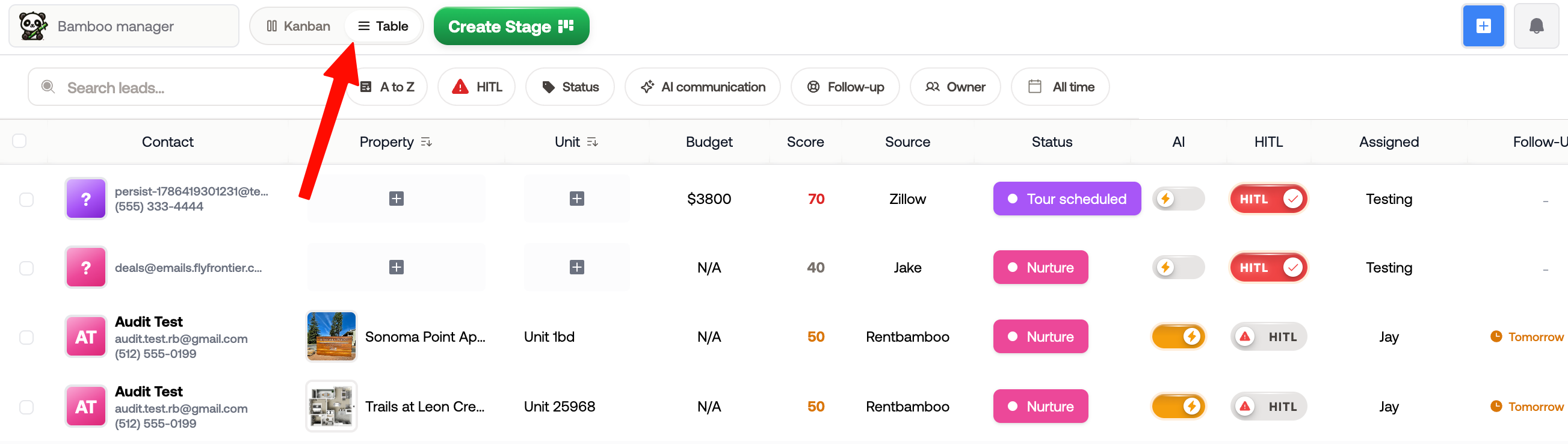
Navigate to lead table by clicking the table view next to the “Create Stage” button. Here, you’ll find quick filters for HITL (leads that need your attention), new leads, and more. You can also view prospects and manage AI communication by turning HITL and auto respond on or off.
Here, you’ll see all inboxes connected to RentBamboo.
The leads inbox shows all leads RentBamboo is communicating with. You can message prospects directly by text, phone, or email. You can also filter prospects, create tours, and turn the AI off.
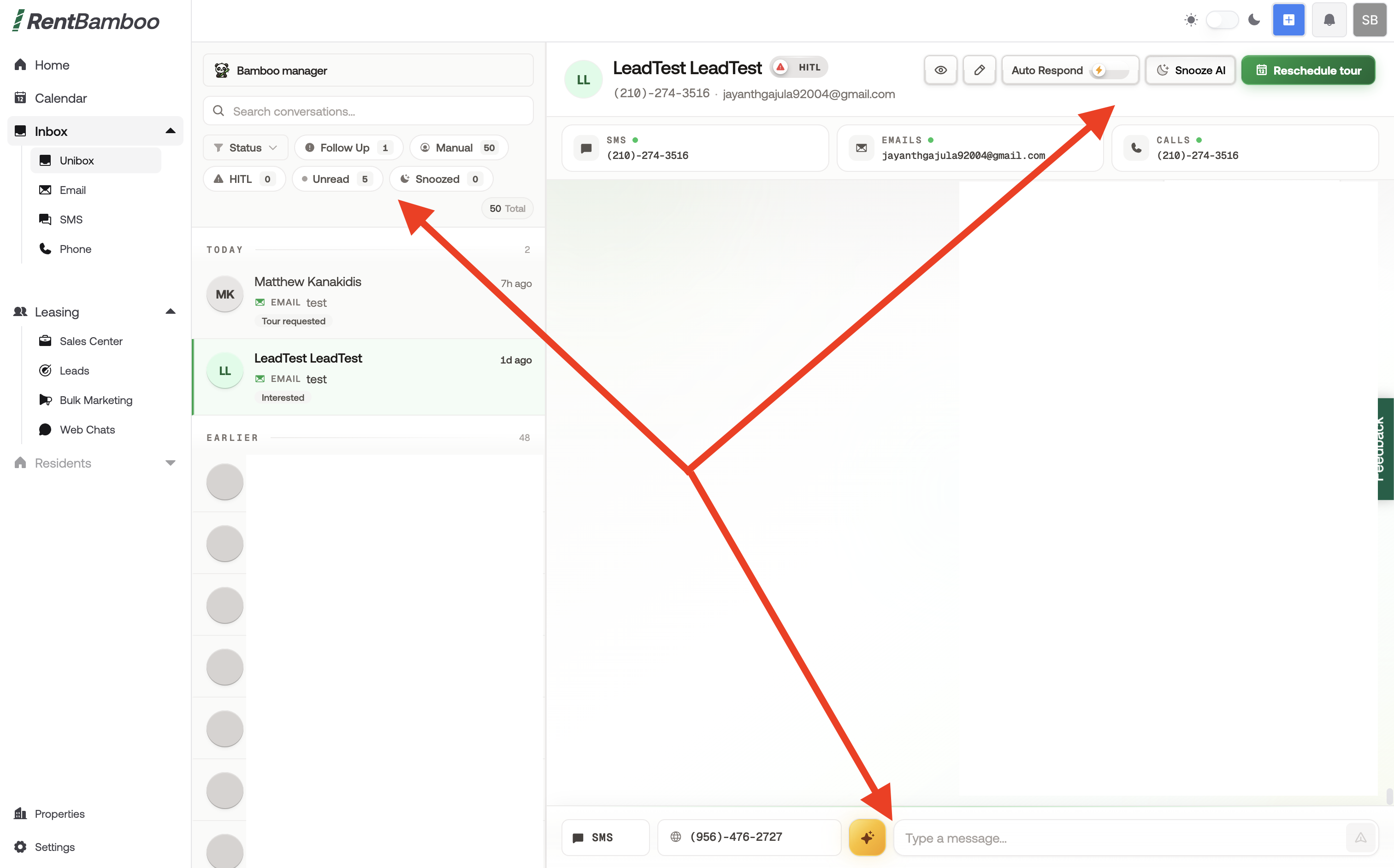
You can also view individual inboxes for text, phone, and email by clicking on the filters.
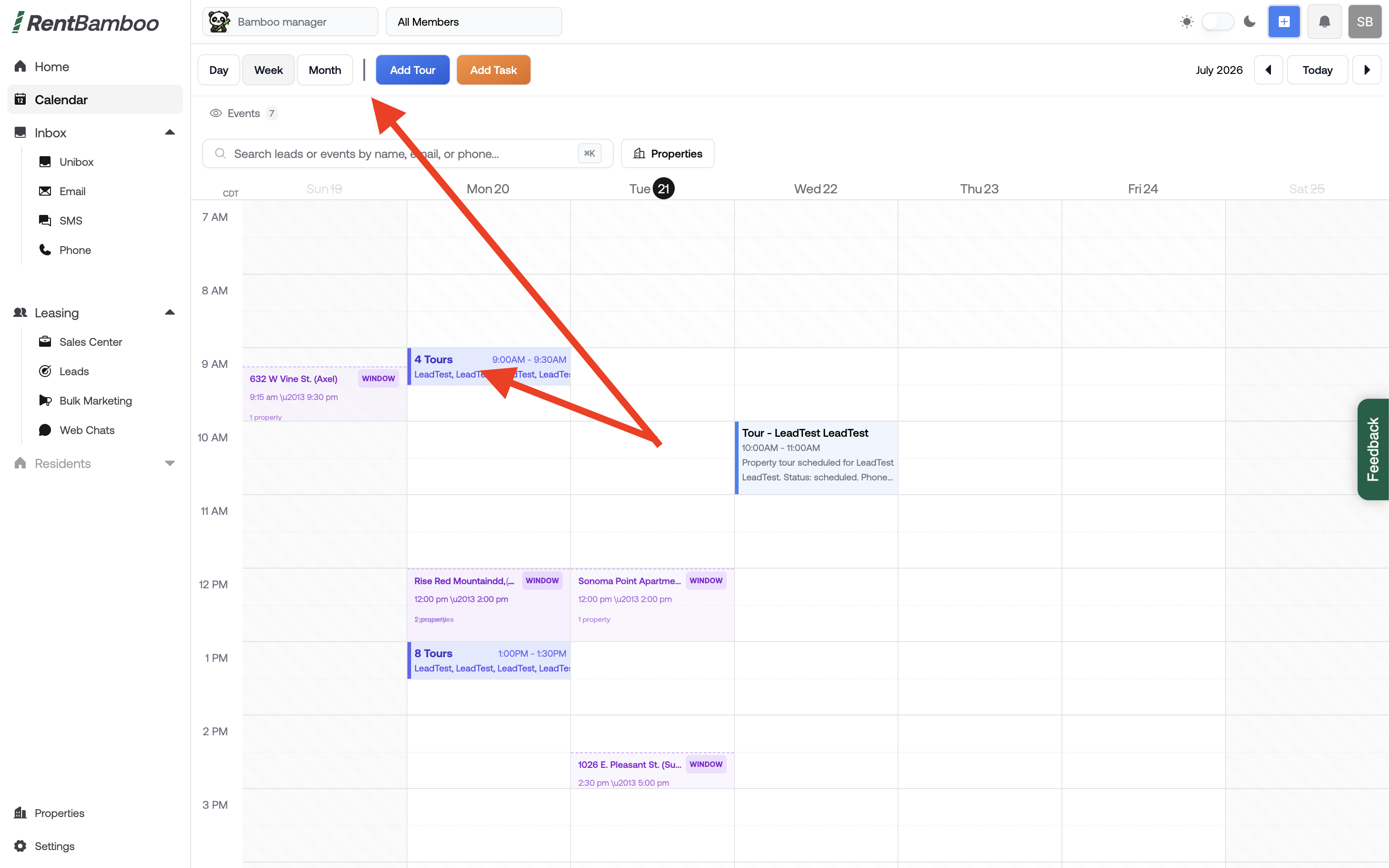
In the Calendar tab, you can view upcoming tours, create tours and tasks, filter by property, and more. Click on a tour to reschedule or cancel it.