RentBamboo is built to save leasing teams as much time as possible. This guide walks you through how to use RentBamboo each day and where to look.
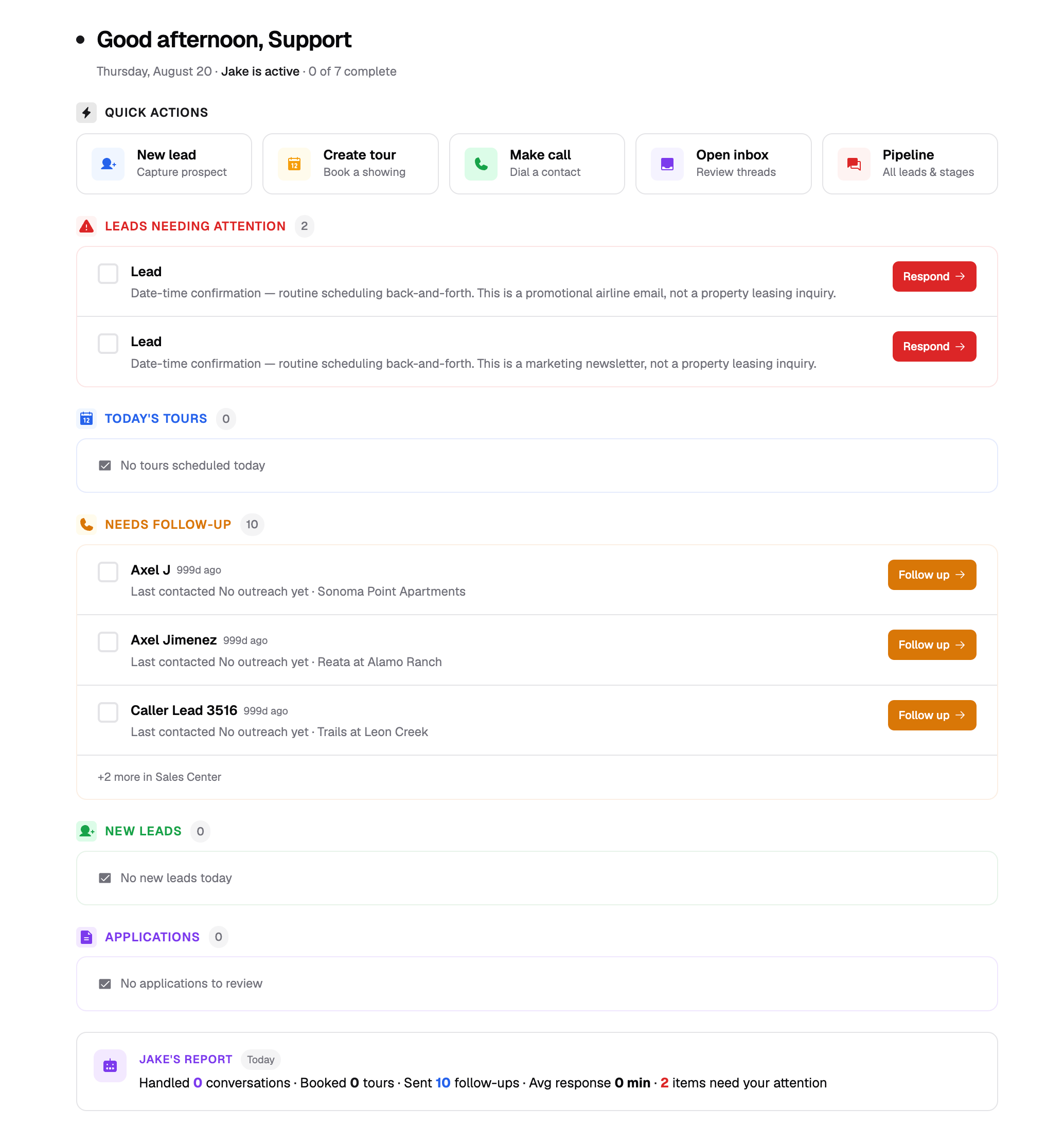
Your dashboard is a central overview of RentBamboo. From here, you can take quick actions like creating new leads, scheduling tours, or jumping to important pages.
In the first section of the dashboard, you’ll see leads that need your attention. Click View More to jump directly to the Sales Center and take action on these prospects.
In the second section, you’ll see all of your tours for the day. You can also view prospects that the AI is currently following up with.
Lastly, you can jump directly to the Sales Center to view New Leads and Applications by clicking the icons.
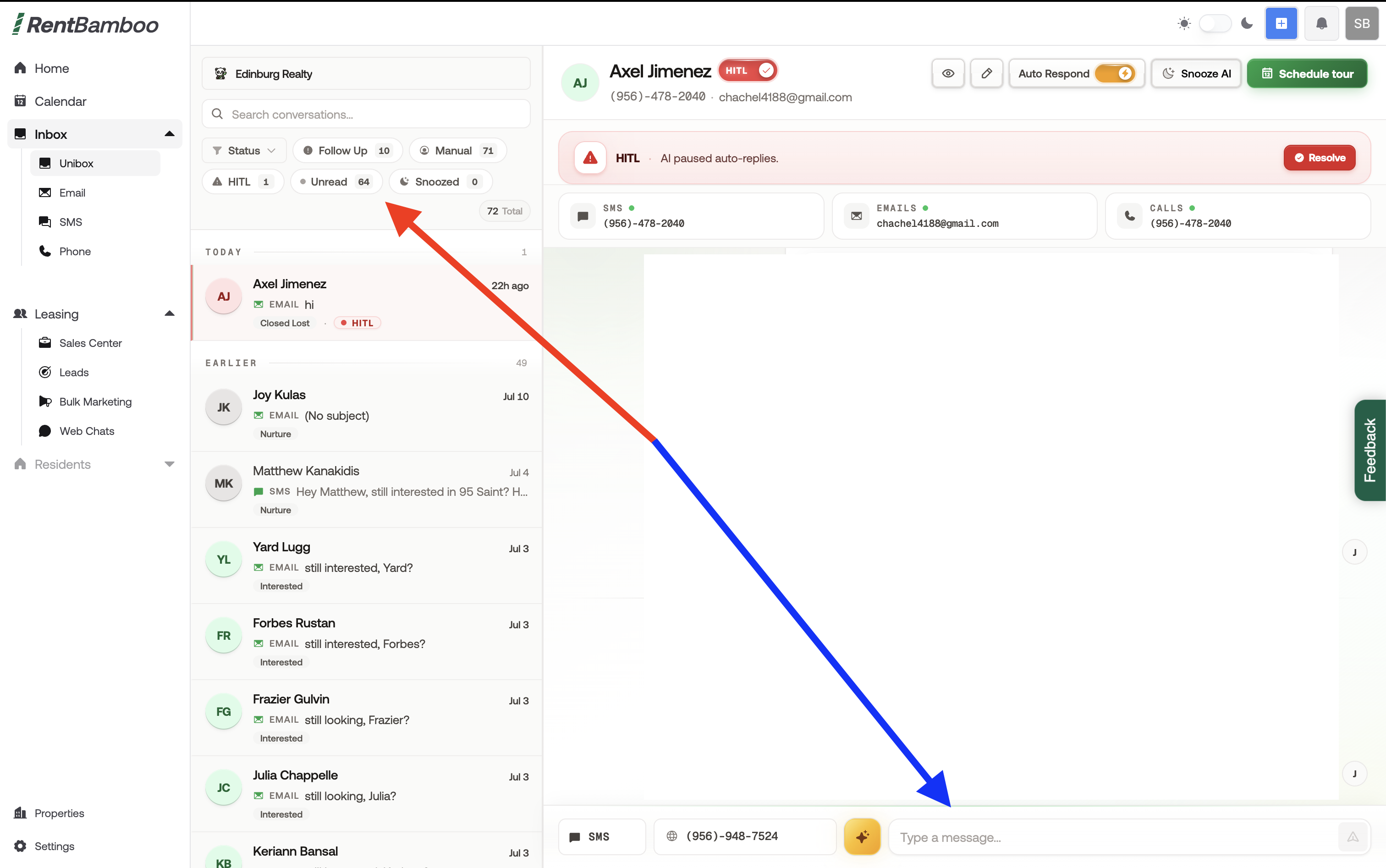
Here you can view all prospects you’re From the side menu, open the Inbox to view all prospects you’re communicating with.
The Inbox is your most important inbox because it centralizes prospect messages in one place. From here, you can filter leads and message prospects directly.
Be sure to monitor your Inbox for incoming prospect messages. You can also see incoming messages in the Recent Activity section of your dashboard.
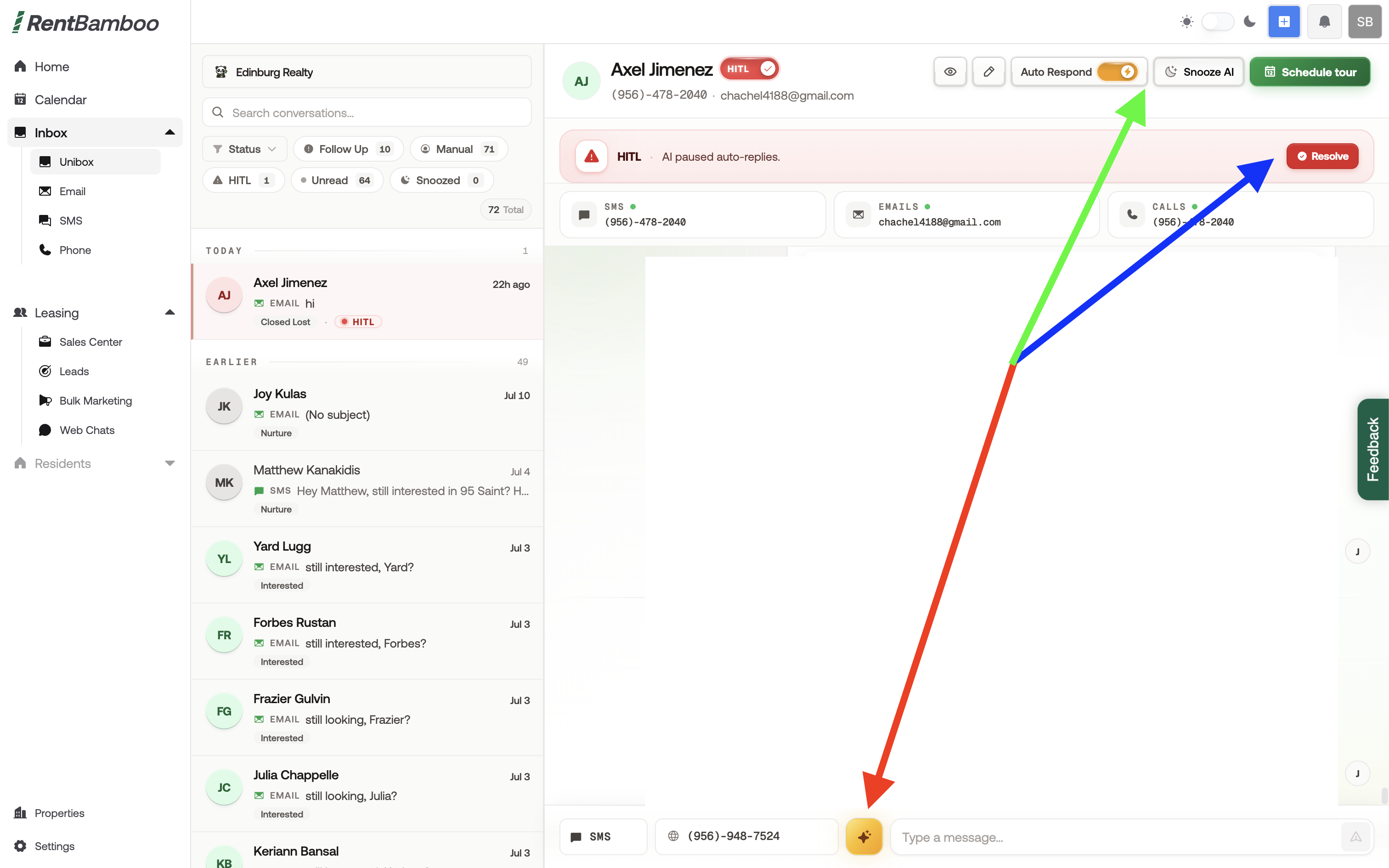
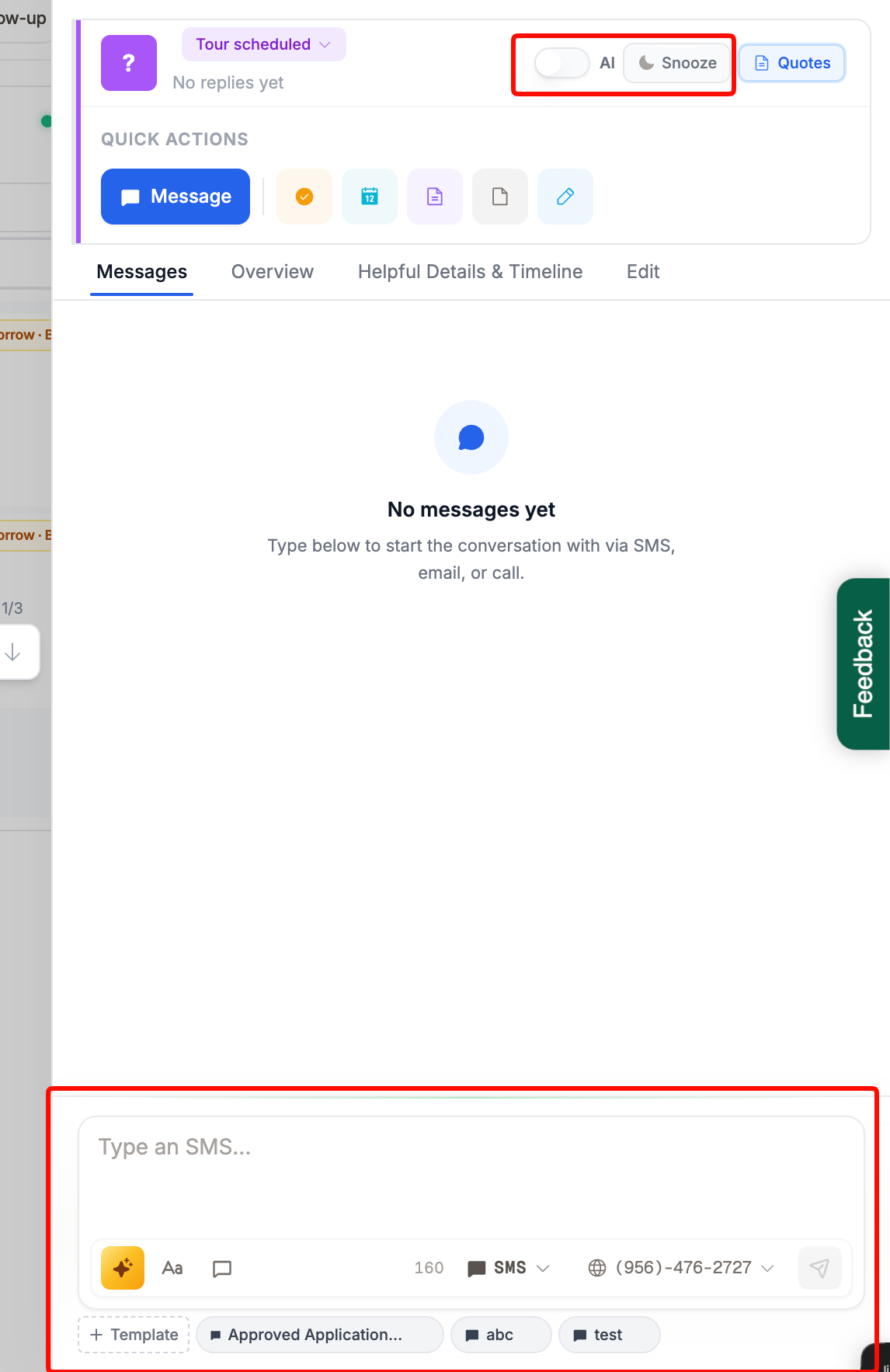
Turn the AI on or off
Snooze the AI
Resolve HITL messages
Get AI message suggestions
And more
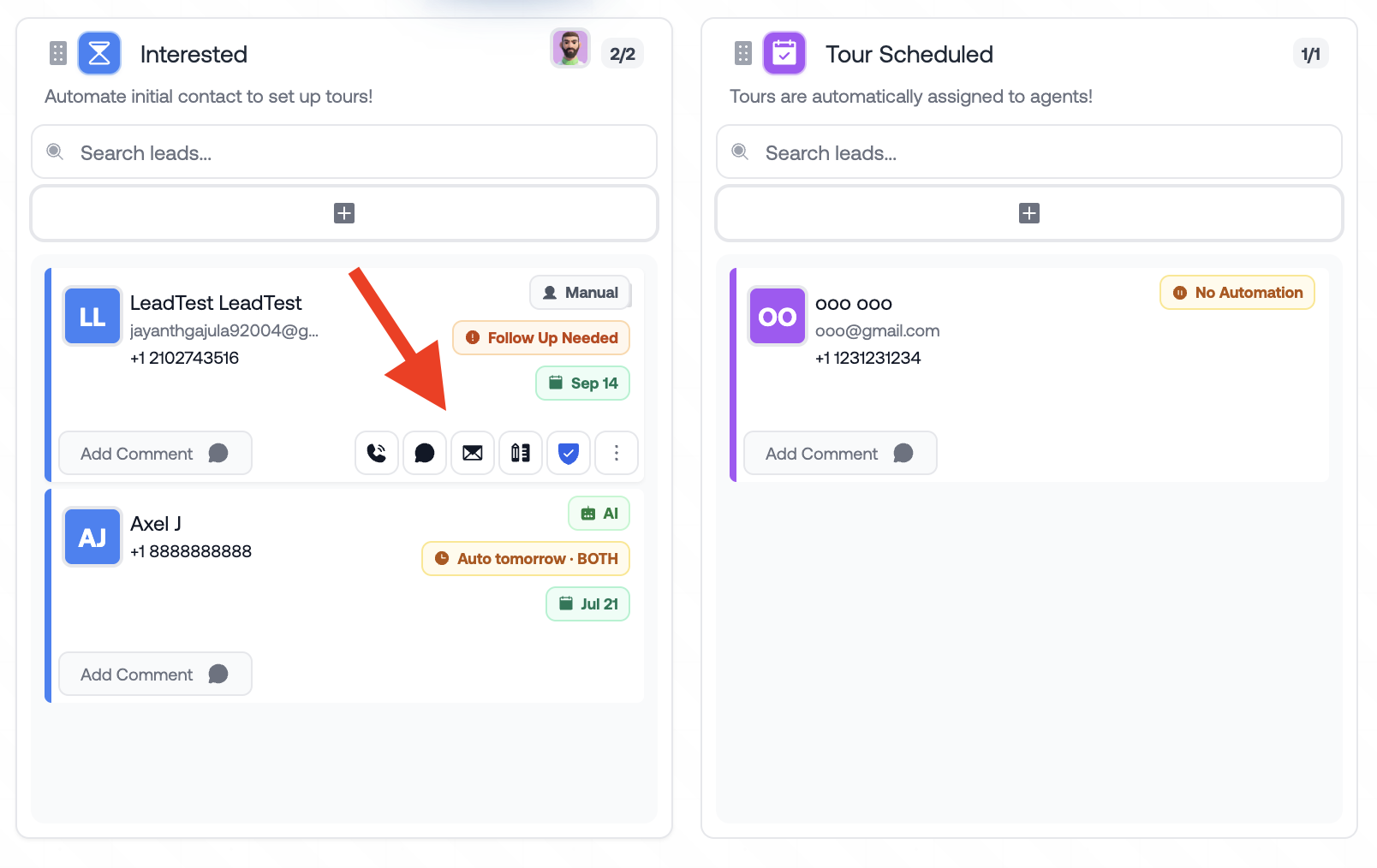
The Sales Center gives you an overview of your leasing pipeline. Here, you can view all prospects and see badges on each lead card based on their current status.
You can take action by dragging leads to different stages, messaging prospects directly, or opening a lead card.
When you open a lead card, you can quickly navigate to other prospects, take quick actions, control the AI, or message the prospect directly.
On the overview tab you can see an overview of the prospects lead card, and the ability to create tours/task.
Helpful Details section to view additional prospect information. You can also add or edit information about the prospect.
The AI uses this information to better understand the prospect and personalize its communication.
Now that you know how to manage your Dashboard, Sales Center, and Inbox, you should be ready to manage your leasing pipeline with RentBamboo.
Check out our other guides in this collection to learn more about tours, availability, and other RentBamboo features.
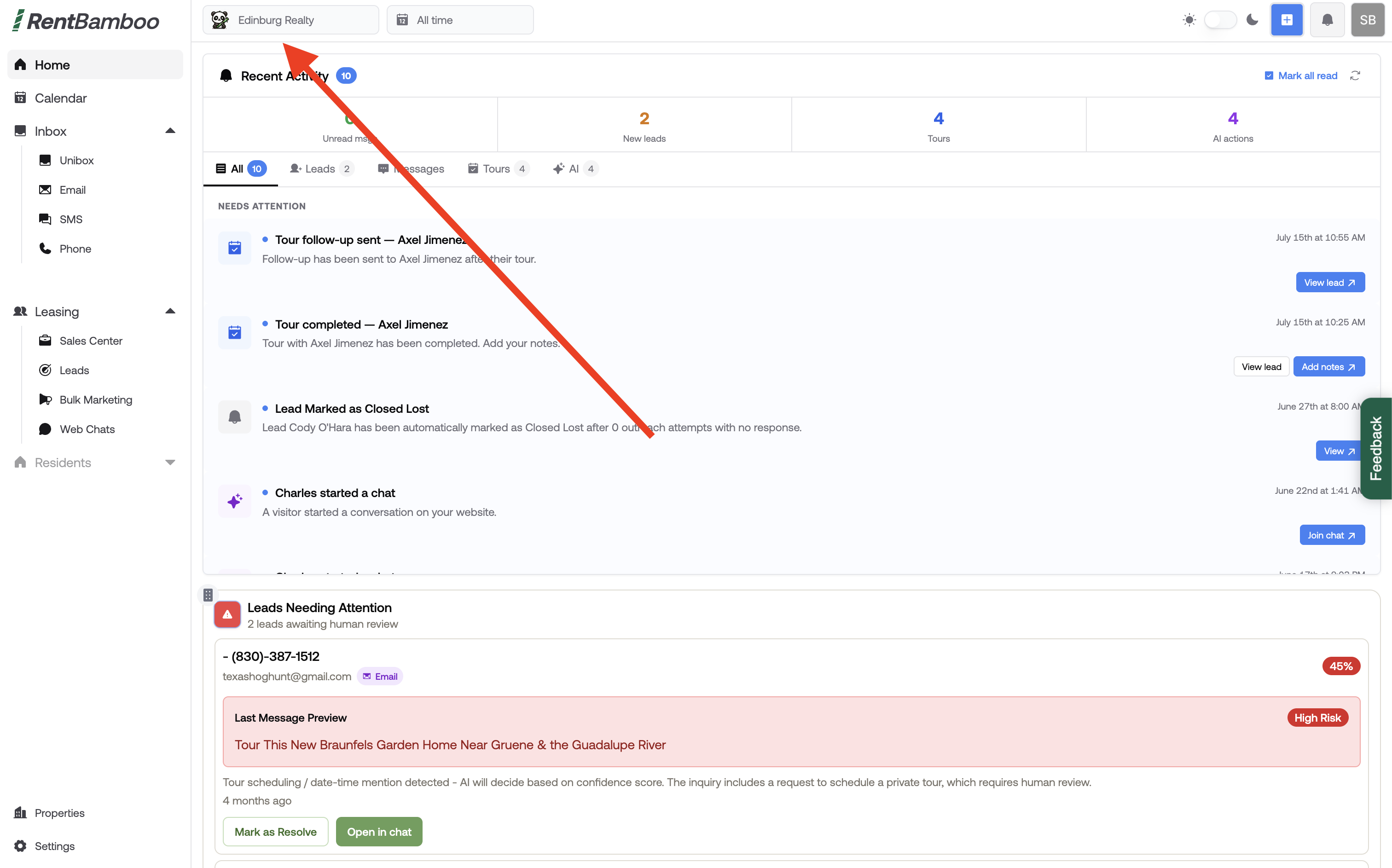
You can switch between teams by clicking the Teams dropdown at the top of your screen on any page.