The tour settings are important for teams using RentBamboo's tour links. These settings allow you to customize how prospects schedule tours.
You can find these settings under Agent Availability in Settings.
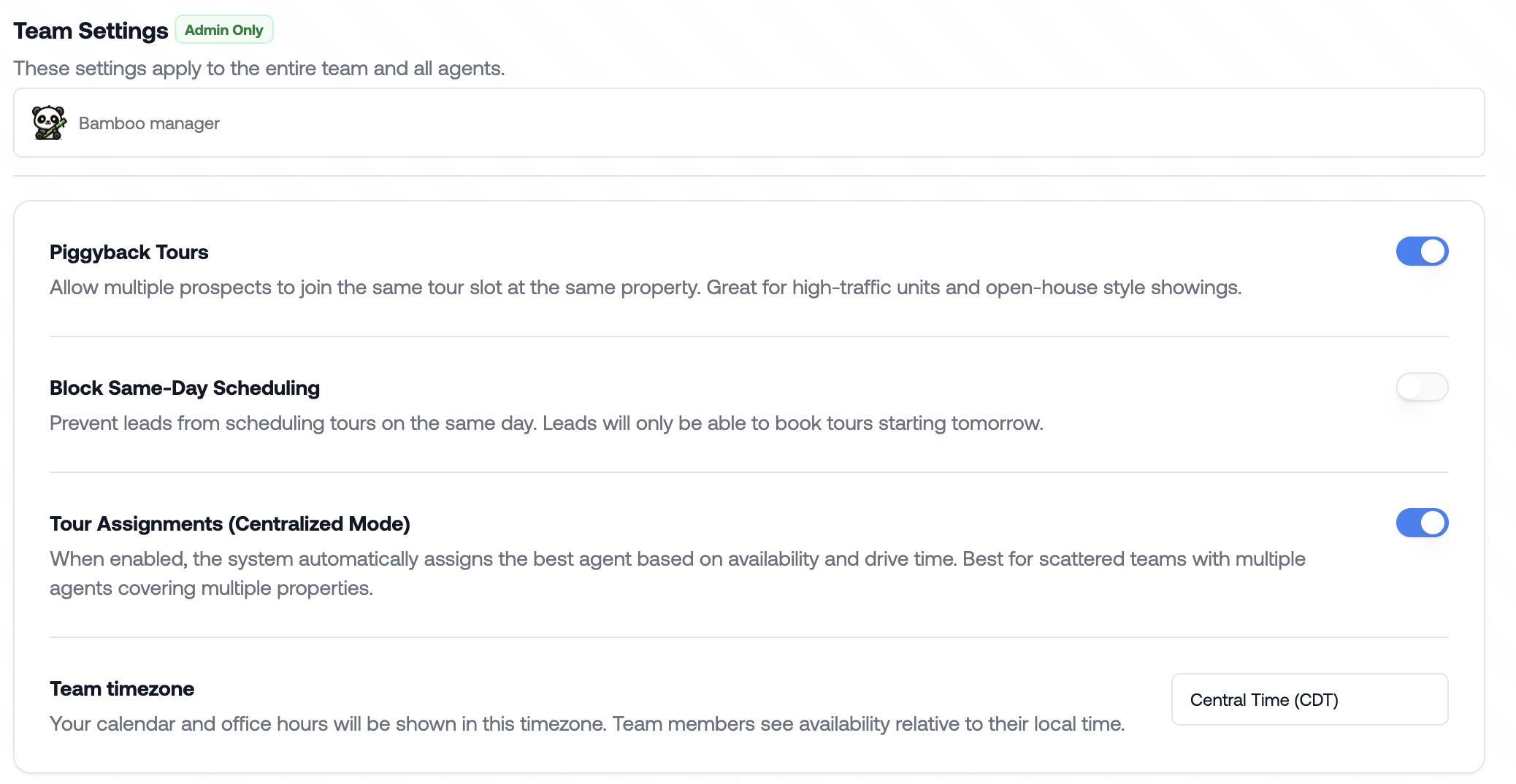
Piggyback Tours: Allow multiple prospects to tour the same property at the same time. This is useful for open-house-style showings.
Block Same-Day Scheduling: Prevent prospects from scheduling tours on the same day.
Tour Assignments: Allow multiple agents to be assigned to the same property or unit. When enabled, RentBamboo uses round-robin assignment to distribute leads and tours.
Team Timezone: Set your team's timezone for communication and tour scheduling.
These settings are typically configured once during setup and don't need to be changed often.
Here, you can set your general tour schedule and limit tours to specific properties or cities on certain days.
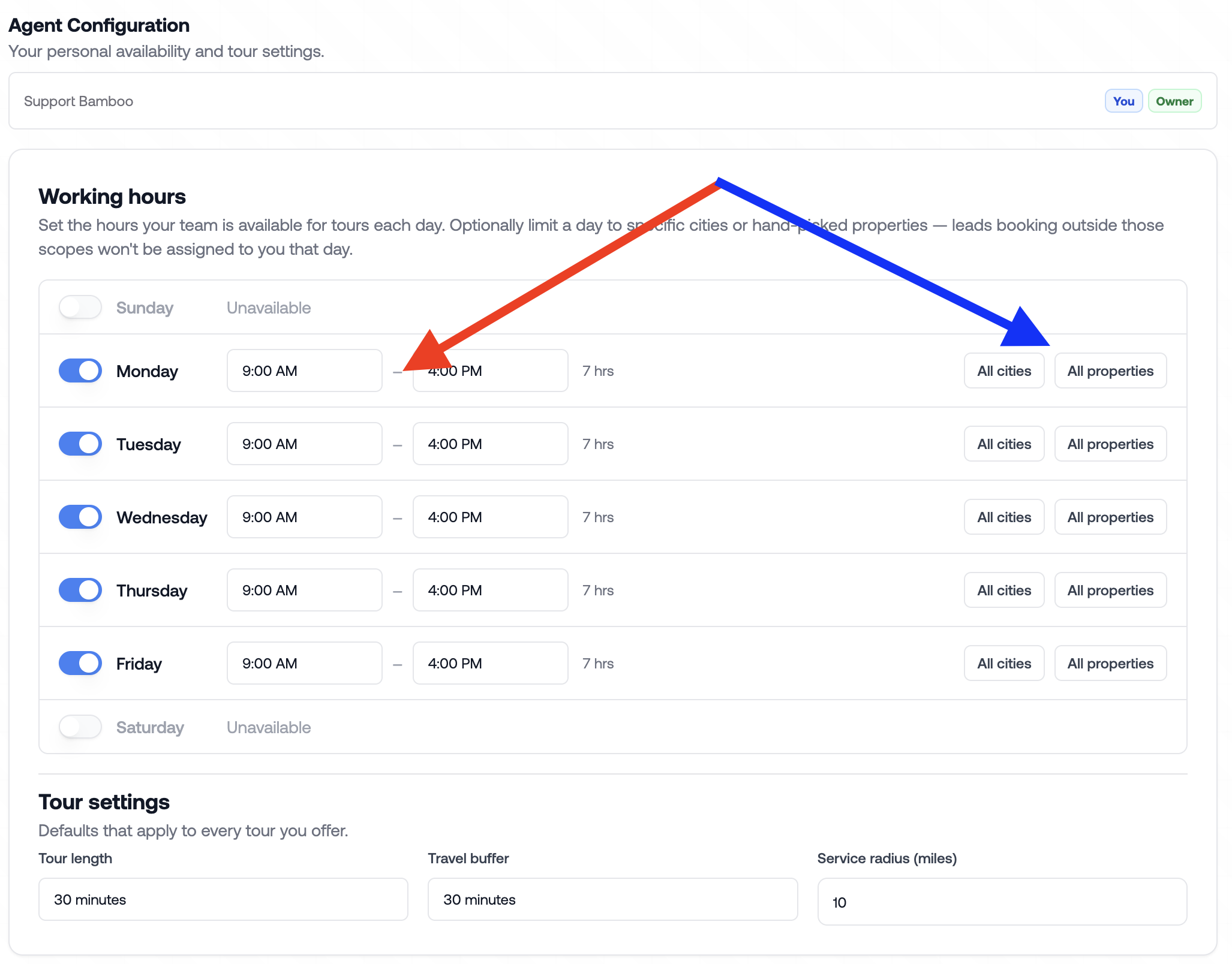
Set your working hours to control when the AI can schedule tours.
In Tour Settings, you can also adjust:
Tour length
Travel buffer
Service radius
In Weekly Availability, you can create preferred showing windows or block off times when you're unavailable.

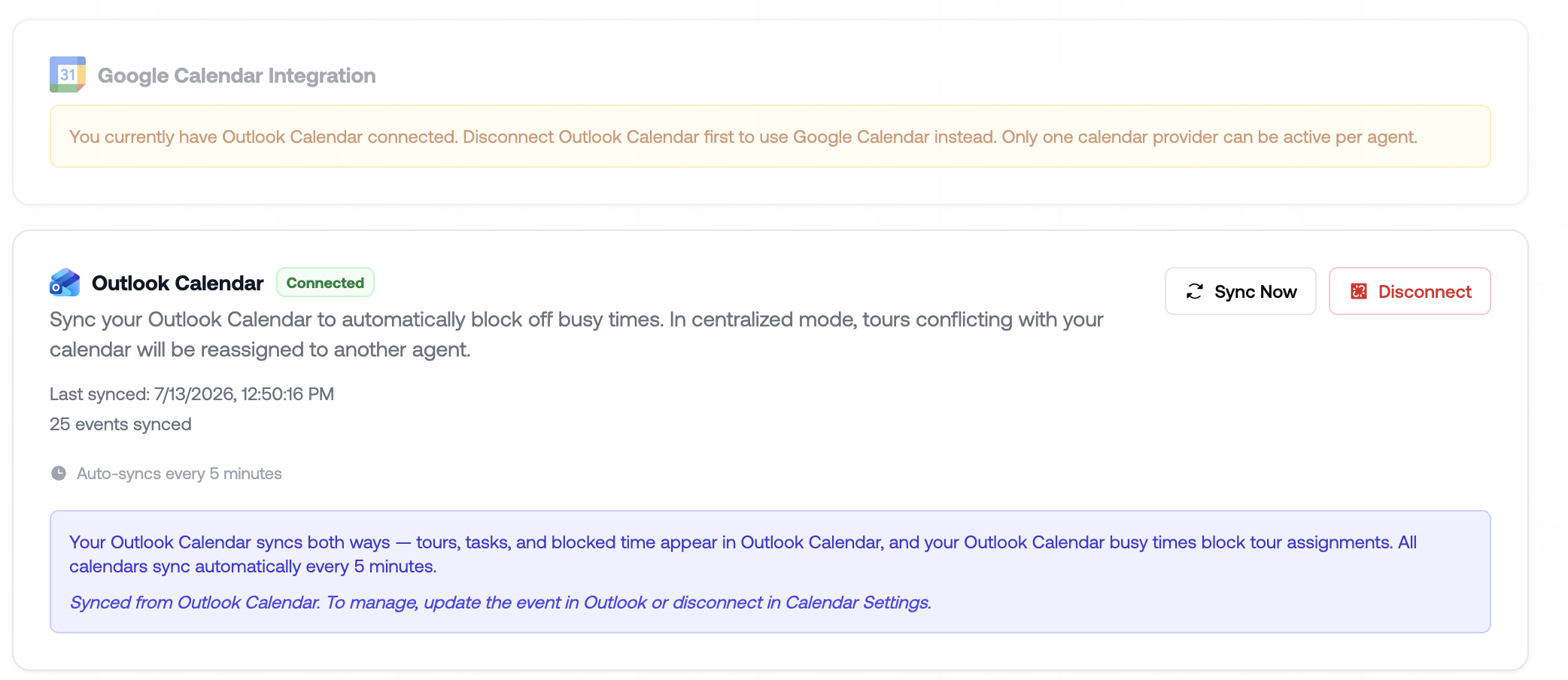
You can connect your Gmail or Outlook calendar so busy times automatically sync with RentBamboo.
Set your team's office hours so the AI can provide prospects with accurate information when they ask.
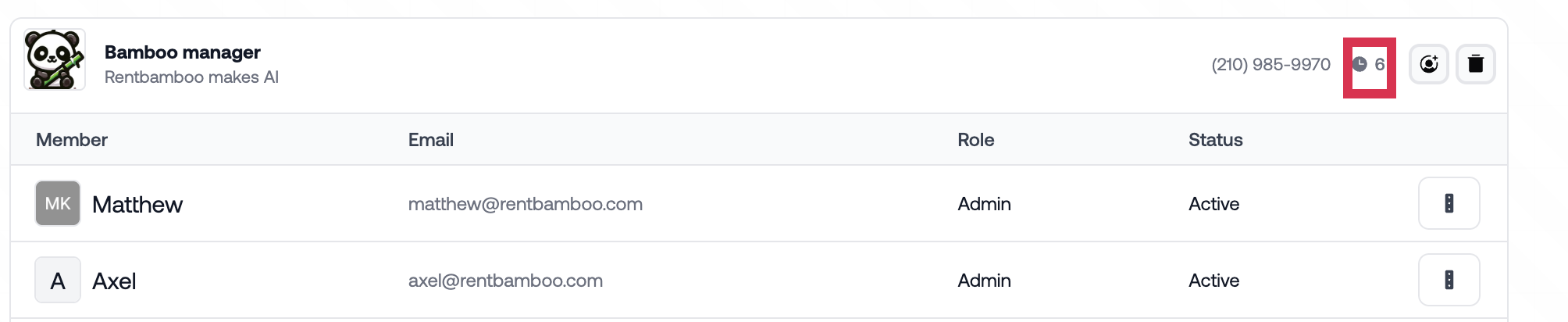
Go to Team Settings and click the clock icon. From here, you can select the days and hours your office is open.
In the Calendar tab, you can add tours and tasks or view upcoming tours.
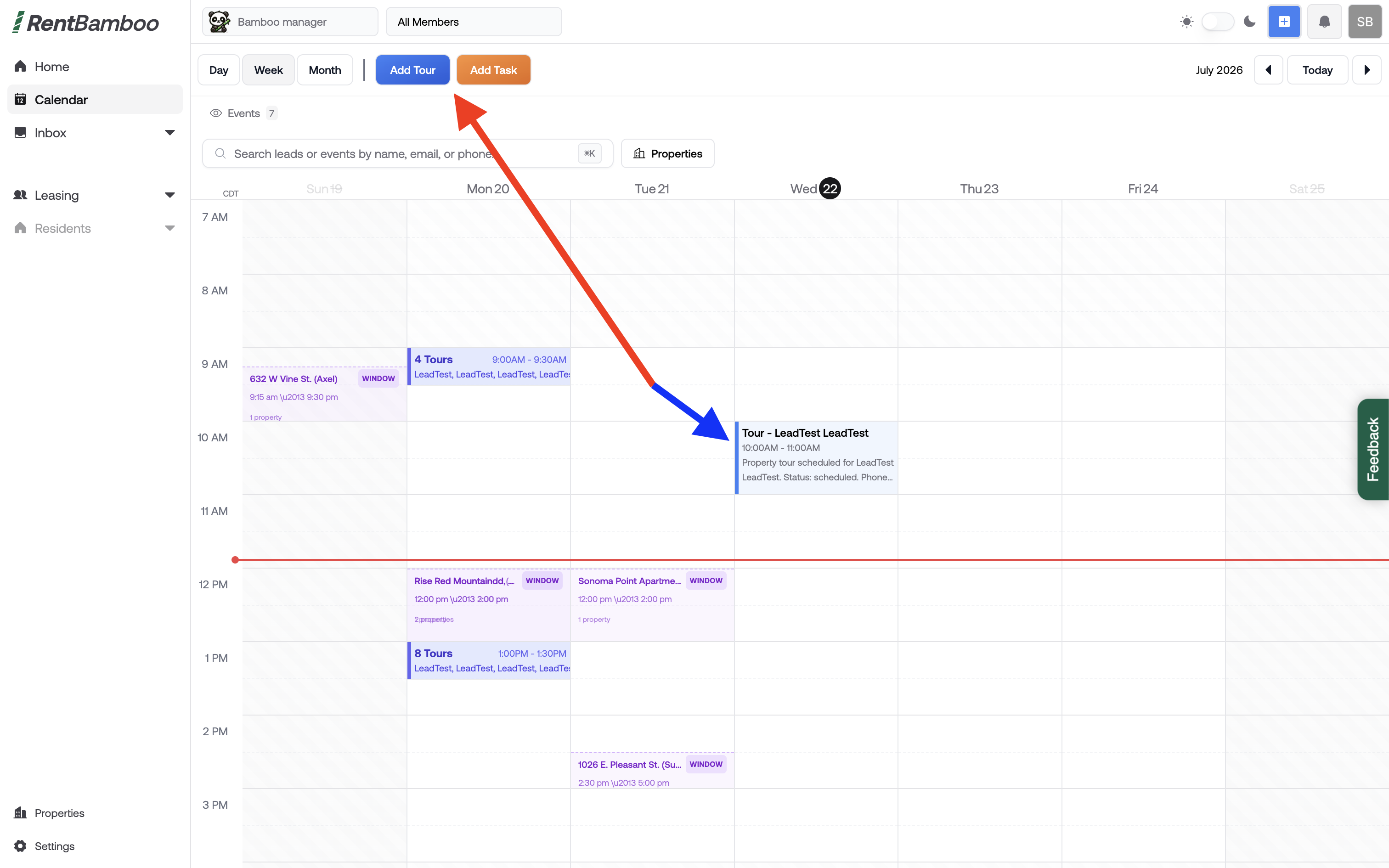
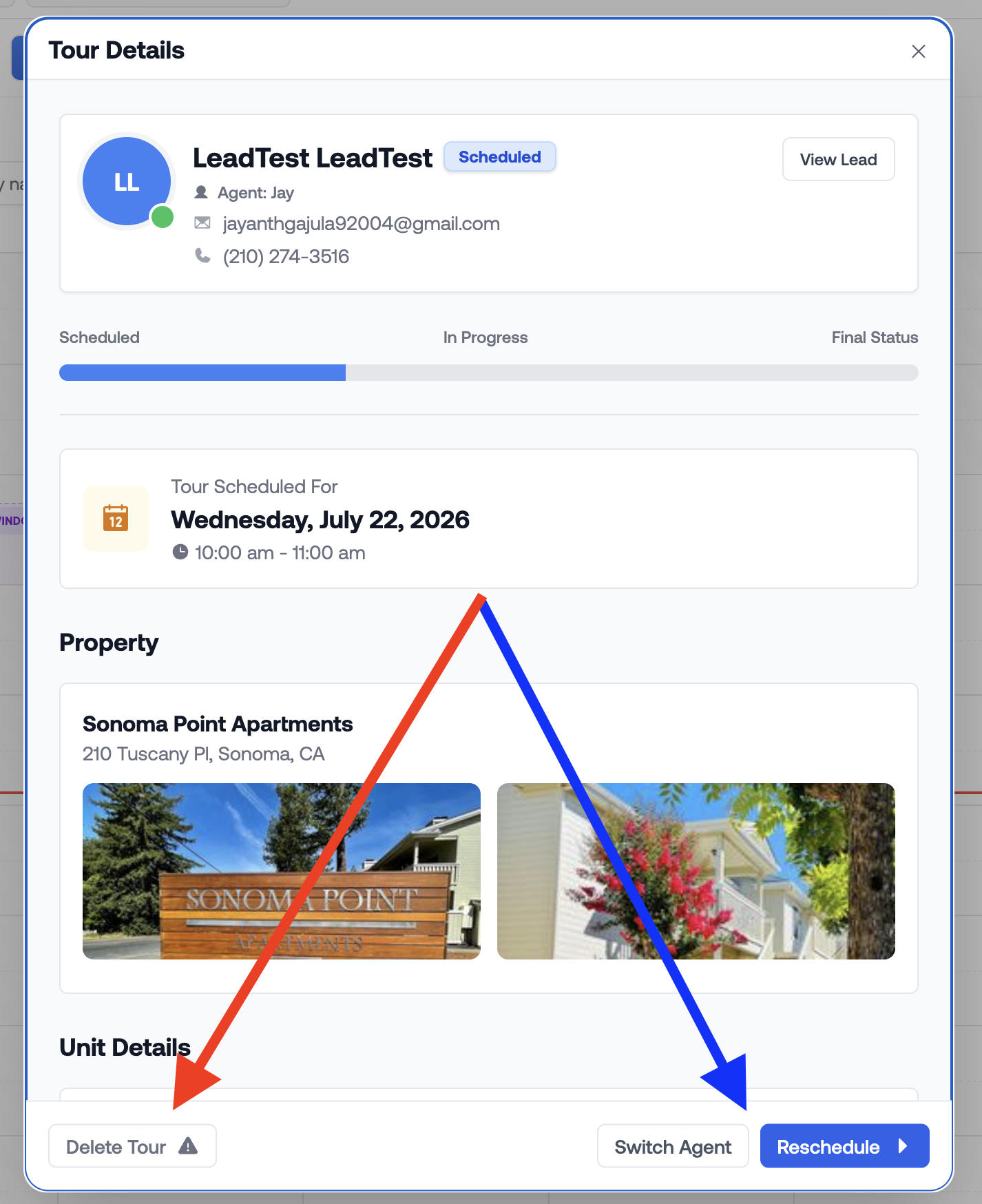
Click on a tour to view the prospect's scheduled tour time. You can also change the assigned agent, reschedule the tour, or delete it.