There are a few ways to create tours in RentBamboo, but this guide will focus on automated tours and manually created tours.
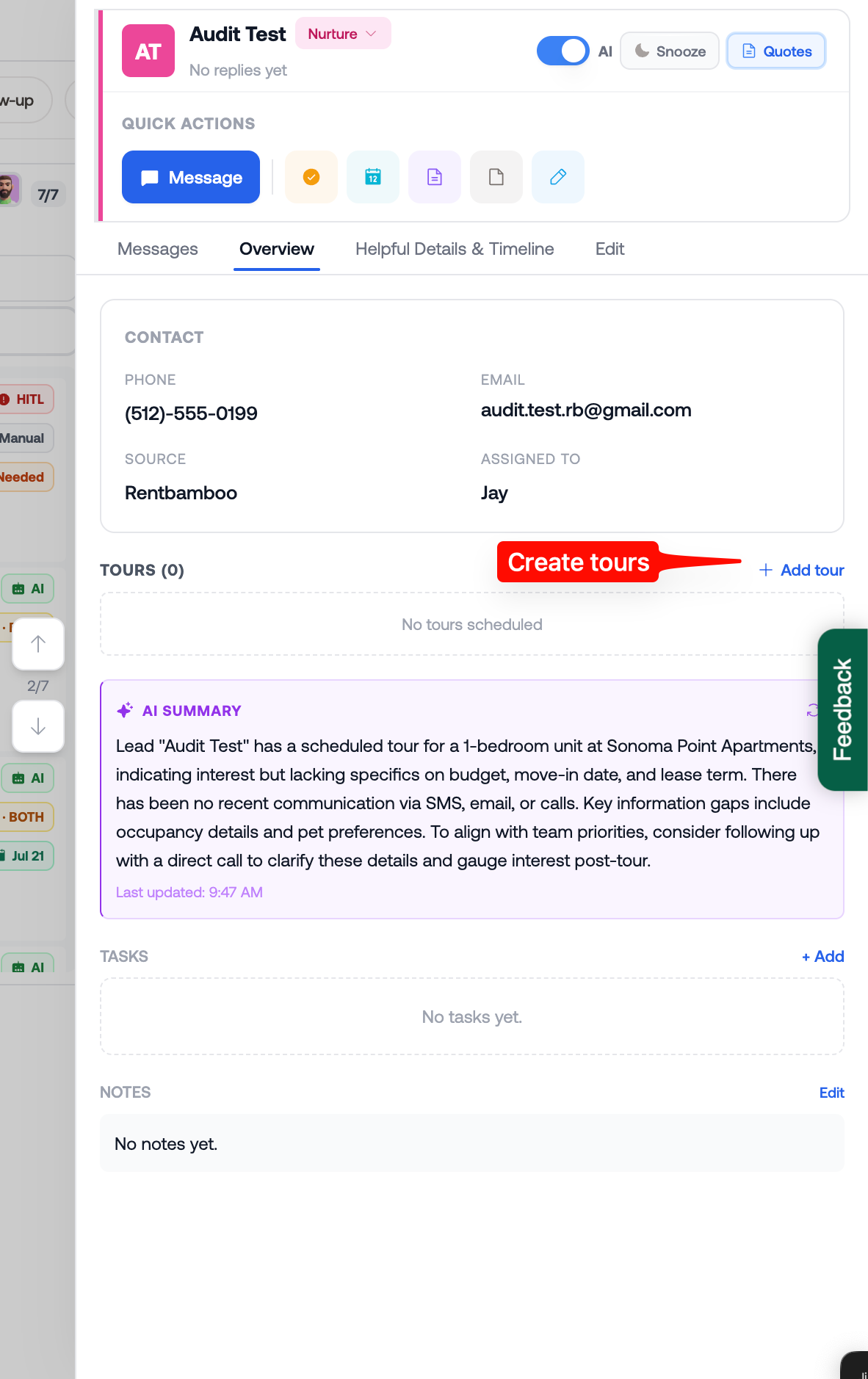
You can create a tour at any time from the Calendar or directly from a prospect’s Lead Card in the Overview tab.
Automated tours will automatically appear in the Tours Scheduled tab of the Sales Center. You can also use the Calendar to view upcoming tours and manage your schedule.
RentBamboo automatically sends tour confirmation messages to prospects 1 day before and 2 hours before their scheduled tour.
Before the tour, review the prospect’s AI Summary and Overview tab. This gives you important context about the prospect, their needs, and their conversations with RentBamboo so you can walk into the tour prepared.
Once the tour is complete, click the tour from the Calendar to jump directly to the prospect’s Lead Card.
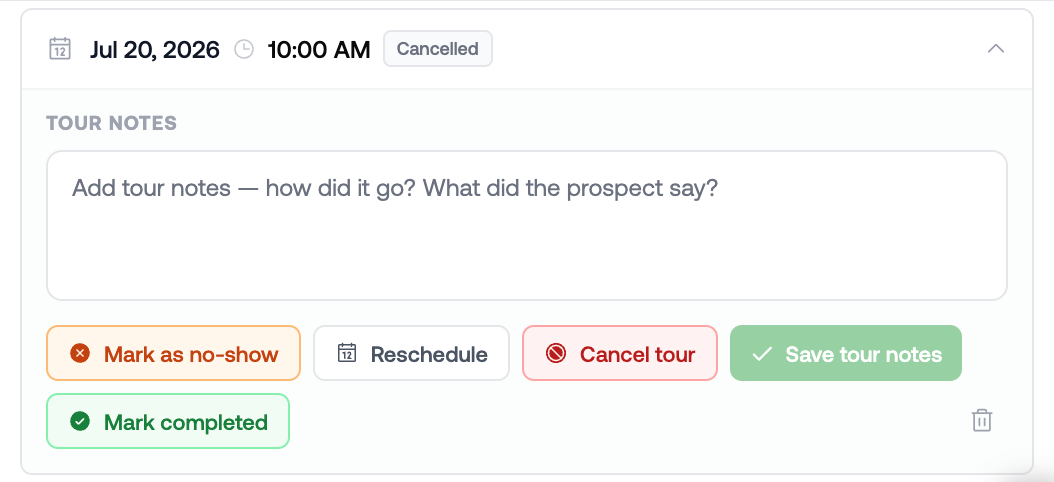
From the Lead Card, you can:
Add notes about how the tour went, this adds additional context for the AI to use when following up
Mark the prospect as a No-Show or mark the tour complete
You don't have to worry about manually following up after tours. RentBamboo automatically sends a follow-up 15–30 minutes after the scheduled tour time.
The follow-up is based on your notes and the prospect's previous conversations. After the follow-up, RentBamboo will automatically move the prospect into the appropriate Nurture workflow.
If the prospect was a No-Show, RentBamboo will move them into the Interested tab and begin reaching out to help reschedule the tour.