
Recurring Reports allow you to automatically send reports to your team on a schedule you choose. Set the report type, delivery cadence, time, and recipient once, and RentBamboo will send the report automatically.
1. Go to the Reporting Page
From your RentBamboo dashboard, navigate to the Reporting page.
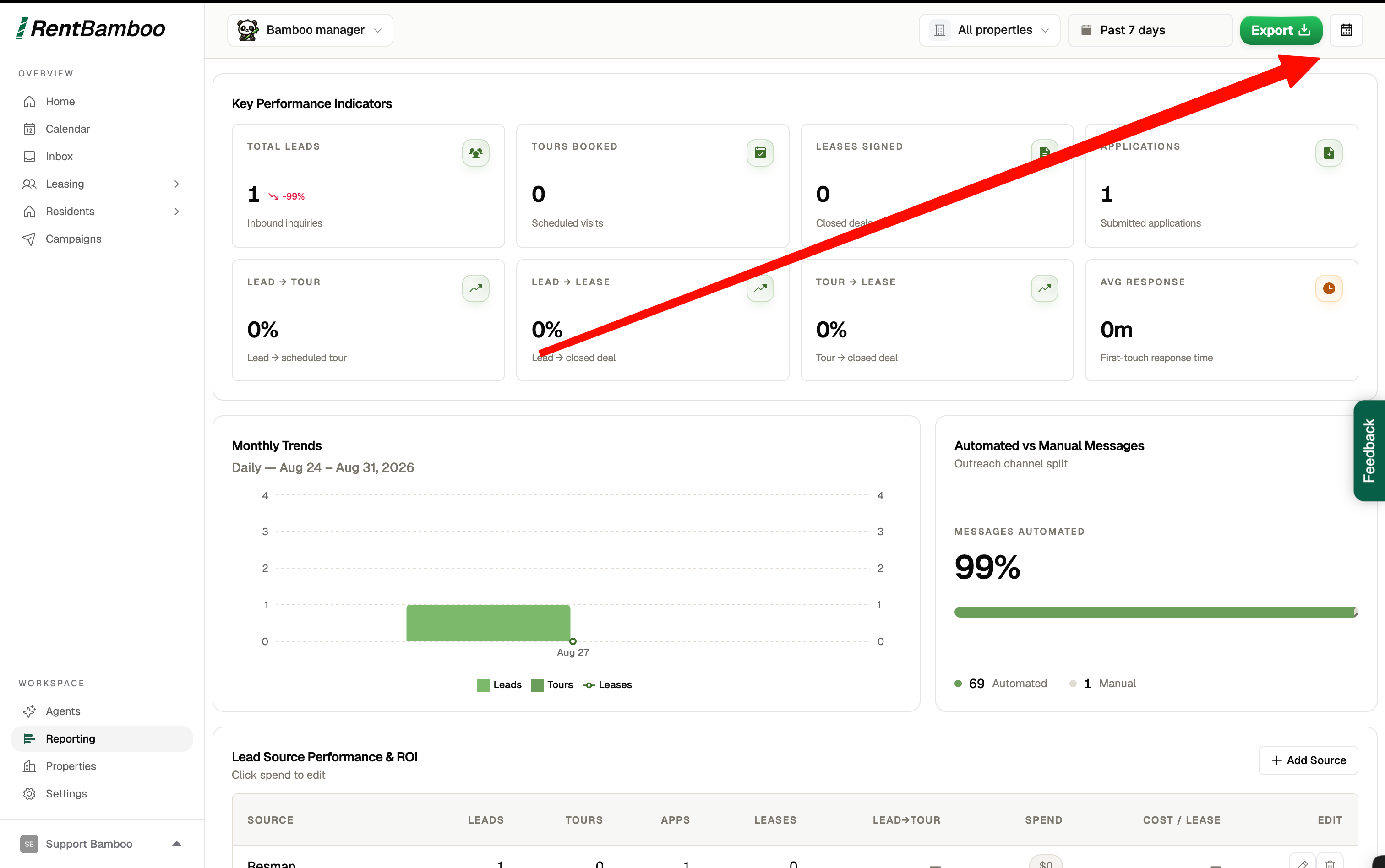
In the upper-right corner of the page, look for the calendar icon. Click the icon to open the Recurring Report Setup section.
2. Create Your Report
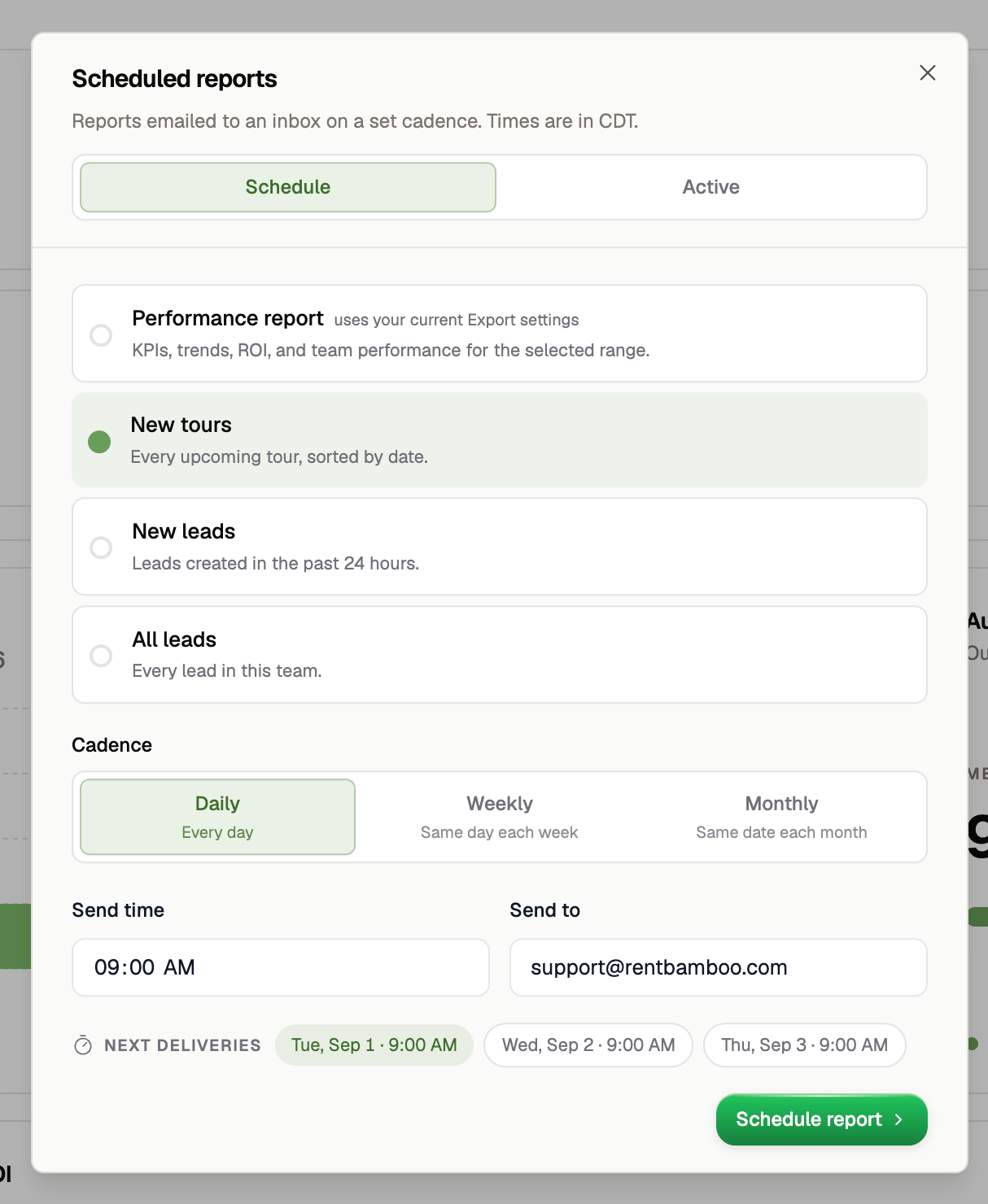
From the Recurring Report Setup section, select the options for your report:
Report Type: Choose the report you want to receive.
Cadence: Select how often the report should be sent.
Send Time: Choose the time you want the report delivered.
Email: Enter the email address where you want the report sent.
You can schedule multiple reports to be sent to the same email address. For example, you can schedule a weekly leasing report and a monthly performance report to both be delivered to the same recipient.
Once you've selected your settings, save the recurring report to activate the schedule.
3. Edit or Cancel a Report
After a report has been scheduled, you can manage it from the Recurring Report Setup section.
To cancel an active recurring report, find the report you want to stop and click the Active tab. This will allow you to deactivate the scheduled report so it will no longer be sent.
If you need to make changes to a scheduled report, you can update its settings and save the changes to reflect the new schedule.
Tip
Use recurring reports to keep your team up to date without having to manually generate and send reports. Set up the reports your team reviews most often and let RentBamboo handle the delivery automatically.