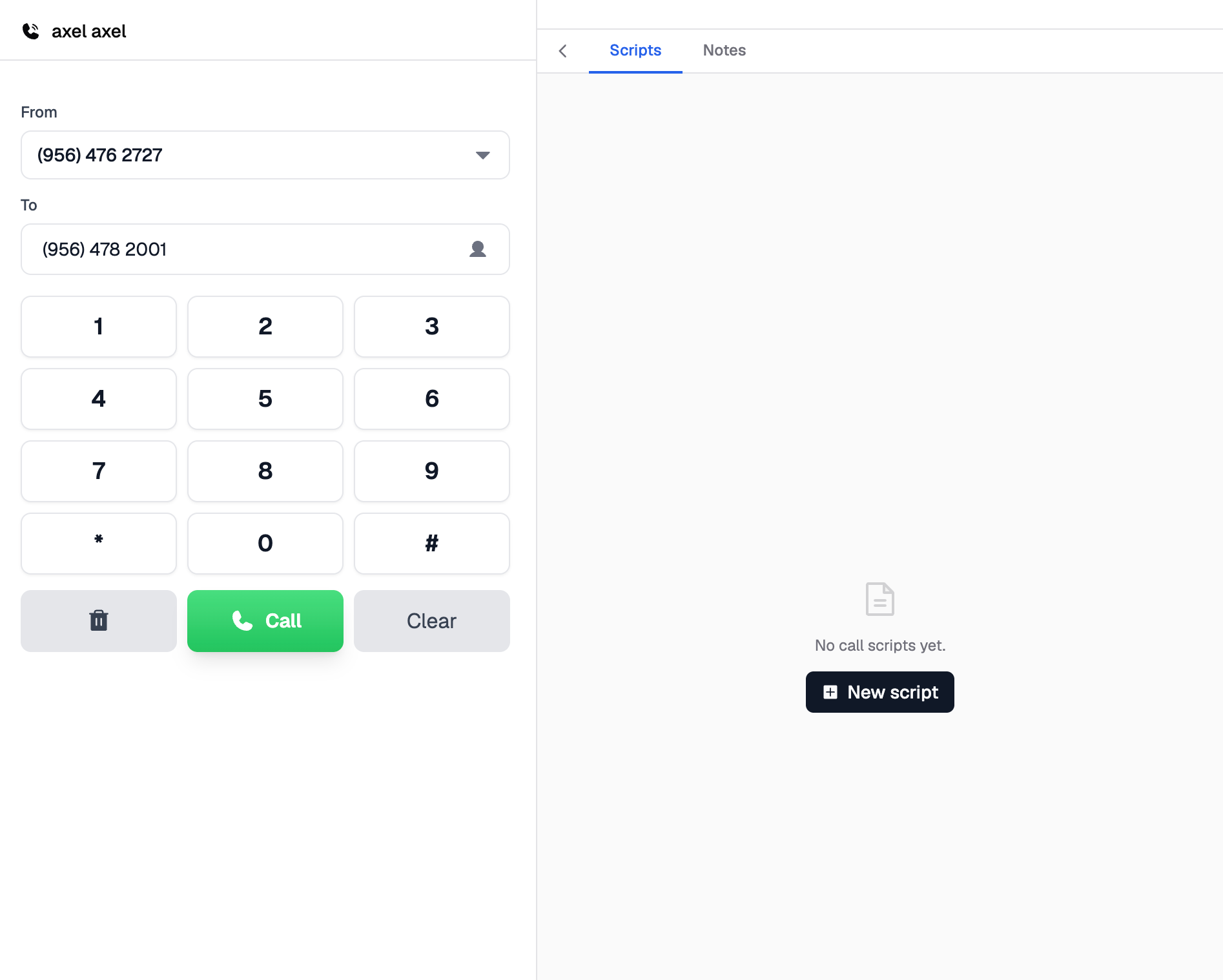
RentBamboo gives your team multiple ways to make calls, review call recordings, and access your call script while speaking with prospects.
Making Calls in RentBamboo
There are three ways to make calls in RentBamboo.
Option 1: From the Sales Center
In the Sales Center, click the call icon on a prospect to start a call.
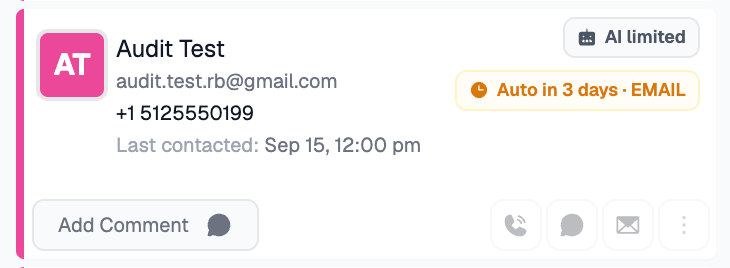
Option 2: From the Lead Card
Open a prospect's Lead Card and select the Calls communication channel to make a call.
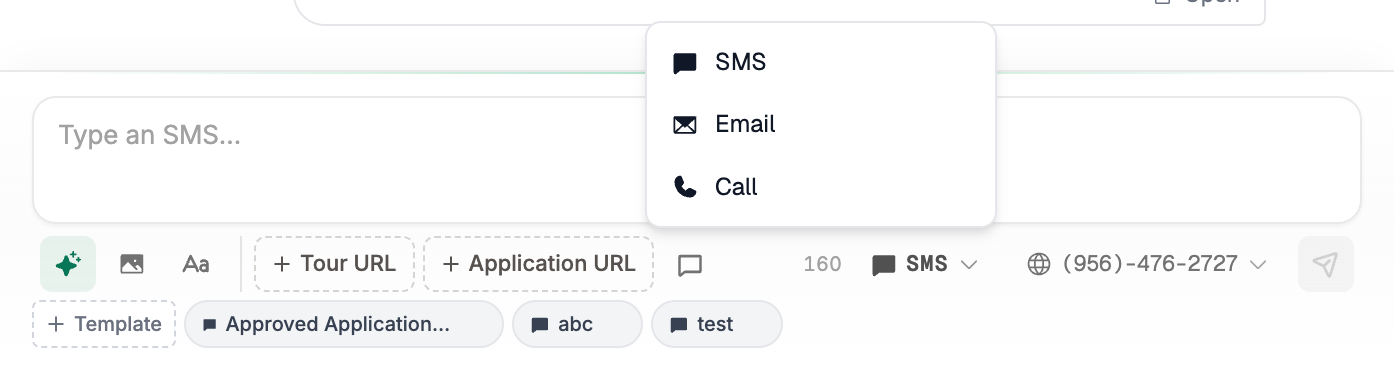
Option 3: From the Inbox
In the Inbox, select the communication channel and choose Call to contact a prospect.
You can also select Voice from the Inbox to view your team's call history.
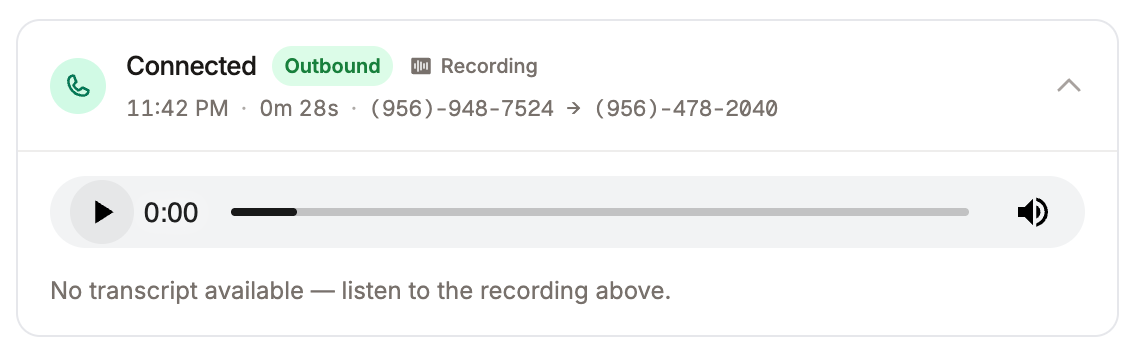
Viewing Call Recordings
You can view recorded calls from either Voice in the Inbox or directly from a prospect's Lead Card.
From a Lead Card, select the Call filter to view the prospect's call history and access recordings.
Adding a Call Script
RentBamboo lets you create call scripts that your team can reference while speaking with prospects.
To add a call script:
Select a prospect.
Click Workspace.
Select New Script.
Enter a title for your script.
Paste or type your call script into the editor.