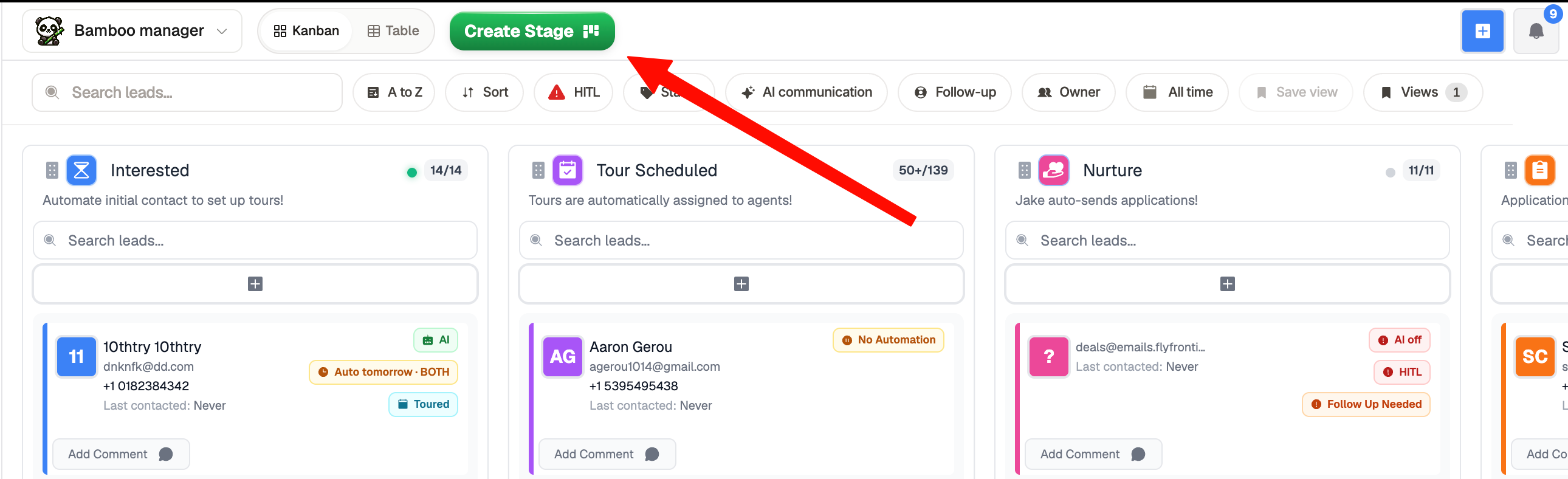
Step 1: Create a new stage
Go to the Sales Center and click Custom Stage.
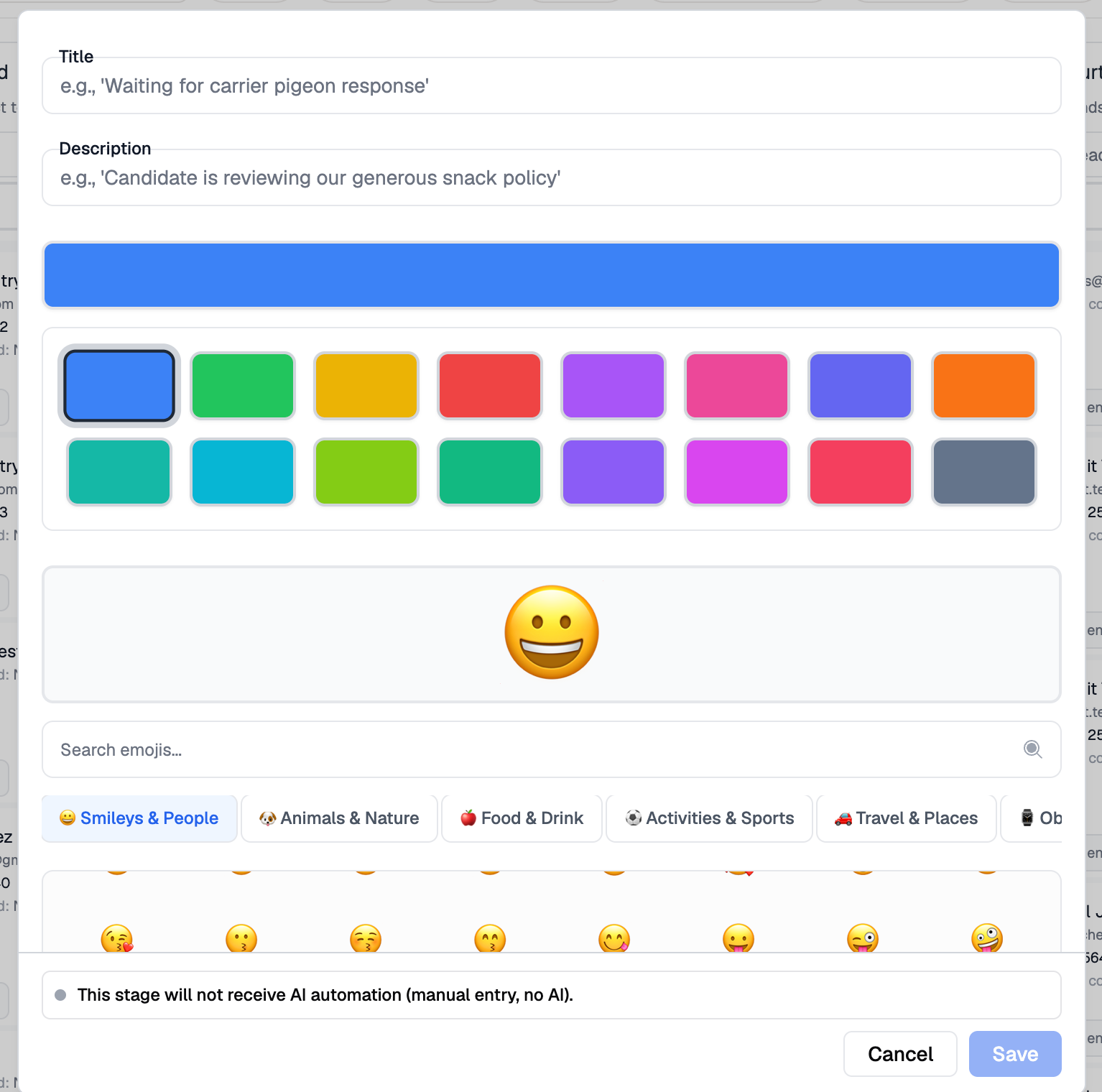
Step 2: Set up the basics
Give your stage a title, description, color, and icon so your team can recognize it at a glance.
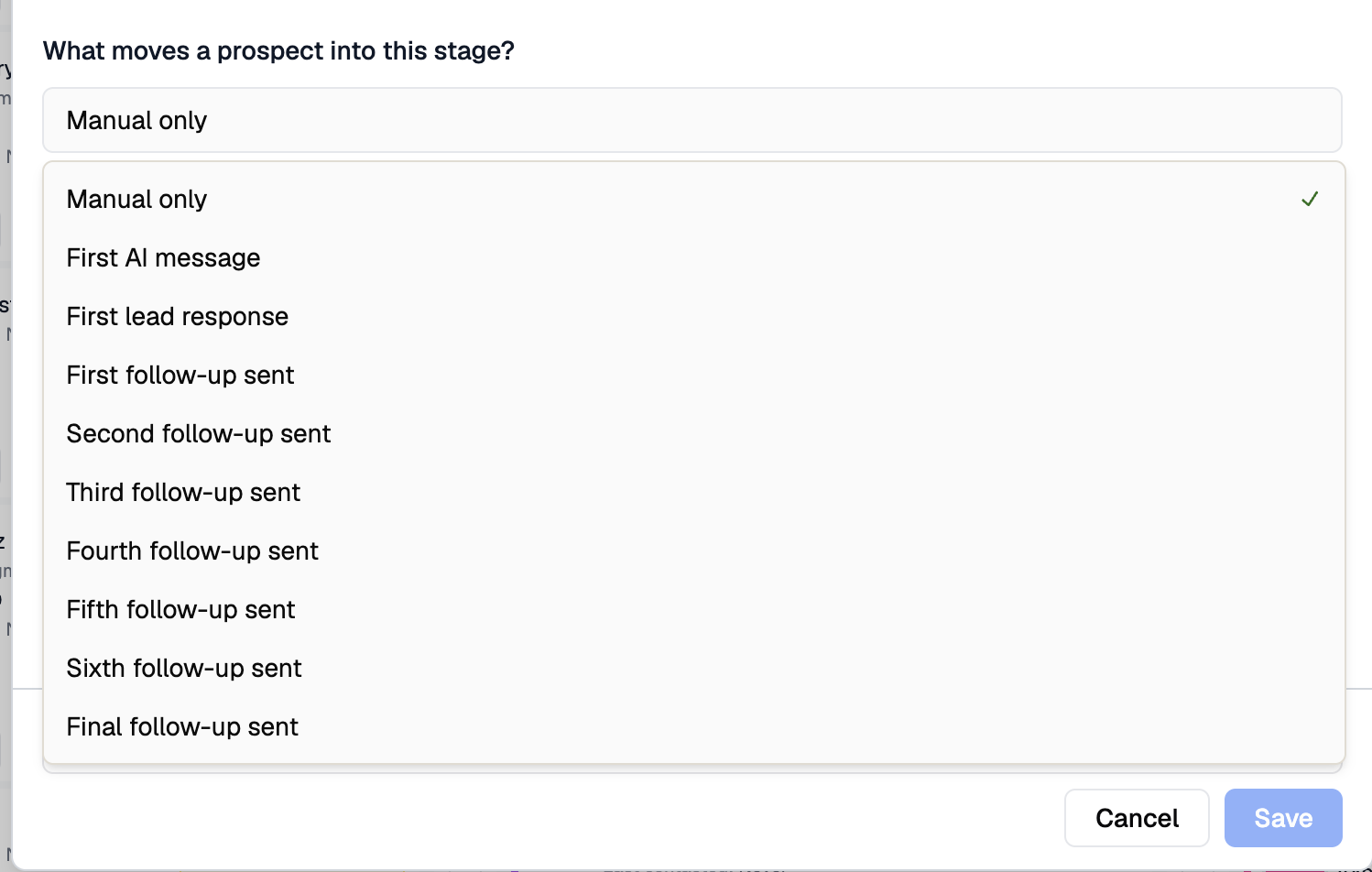
Step 3: Configure the stage behavior
Prospect movement: Choose whether RentBamboo automatically moves prospects into this stage or whether your team moves them manually.
Communication: Choose whether messages in this stage are sent automatically by RentBamboo or manually by your team.
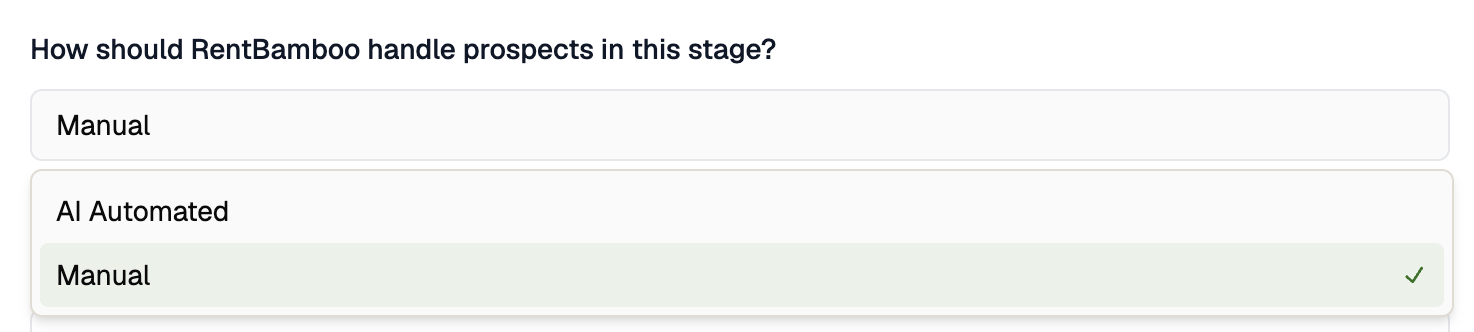
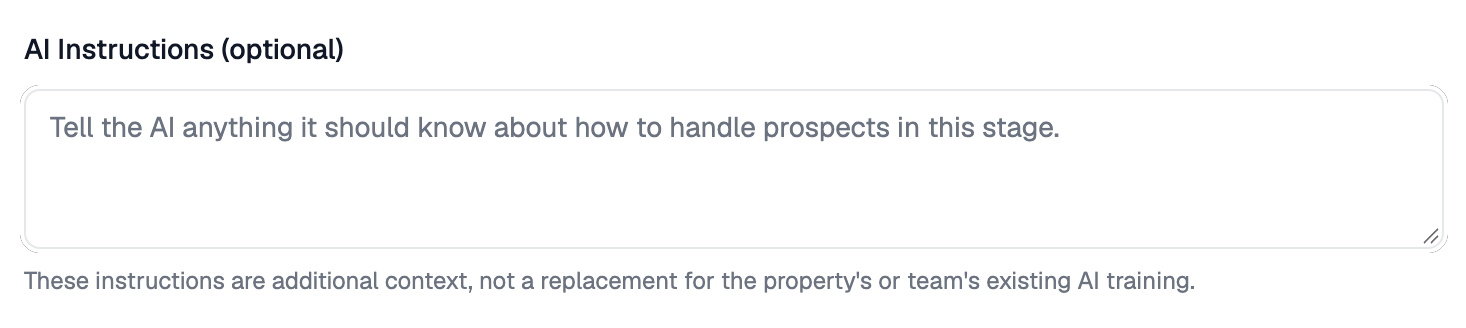
AI instructions (automated stages only): This step matters most. Tell the AI what the stage is for and how it should behave. The more specific you are, the better it performs.
Example: "This stage is for prospects who toured but haven't applied. Follow up with the prospects, answer any questions about the unit, and encourage them to submit an application. Keep the tone friendly and brief."