SETTING UP AND SHARING VIRTUAL TOUR LINKS
Virtual tours make it easier for prospects to explore your property before scheduling an in-person visit. You can add video walkthroughs to your property's public page and easily share them with prospects directly through RentBamboo.
STEP 1: ADD VIRTUAL TOUR VIDEOS TO YOUR PROPERTY
Navigate to the Properties tab.
Select the property you want to update.
Open Settings.
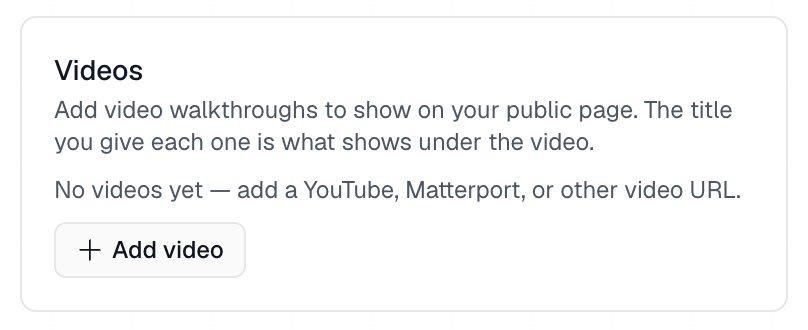
Scroll down to the Videos section.
In the Videos section, you can add virtual tours and video walkthroughs from platforms such as:
Matterport
YouTube
Other supported video hosting platforms
To add a video, enter its URL and provide a title. The title you enter will appear underneath the video when it is displayed on your property's public page.
Once you've added and saved your videos, they'll be available to share with prospects through the Sales Center.
STEP 2: SHARE VIRTUAL TOURS WITH PROSPECTS
After adding your virtual tour links, you can easily share them while messaging prospects.
Navigate to the Sales Center.
Open the prospect's lead card.
Go to the Messages tab.
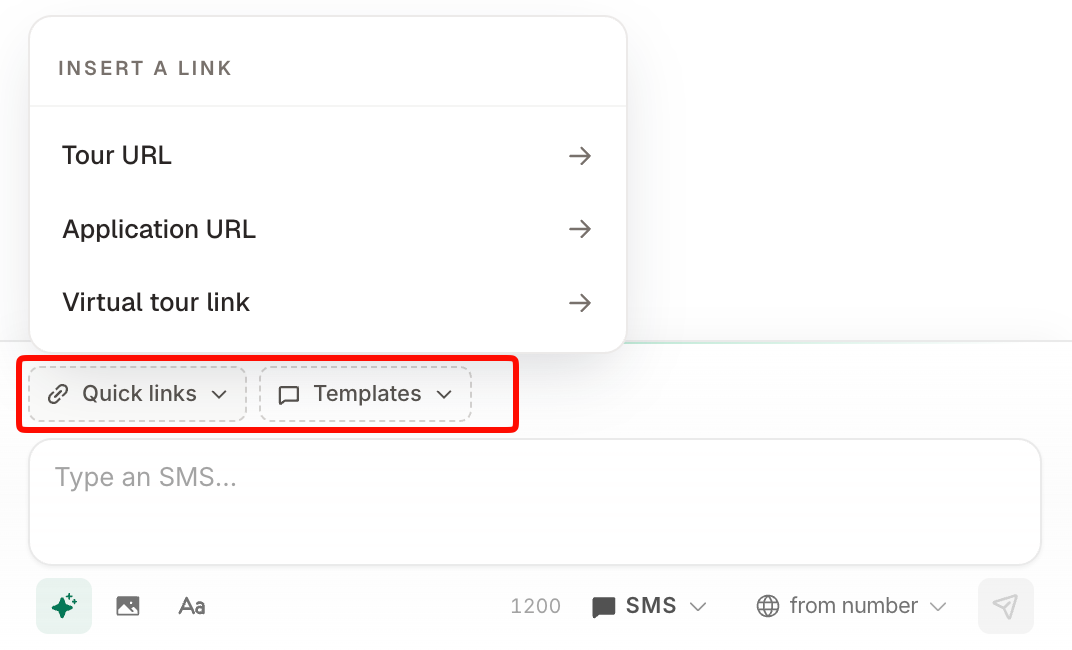
Locate Quick Links & Templates above the message composer.
Select Quick Links to view your available links.
QUICK LINKS
Quick Links gives your team a convenient way to share important property information without manually copying and pasting URLs.
Available links include:
Tour URL — Share a link to schedule a property tour.
Application URL — Direct prospects to the property's application.
Virtual Tour Link — Share one of the virtual tours you've added to the property.