The Sales Center is where you'll manage your prospects, communicate with leads, monitor AI activity, and take action throughout the leasing process.
To get started, navigate to the Sales Center in RentBamboo.
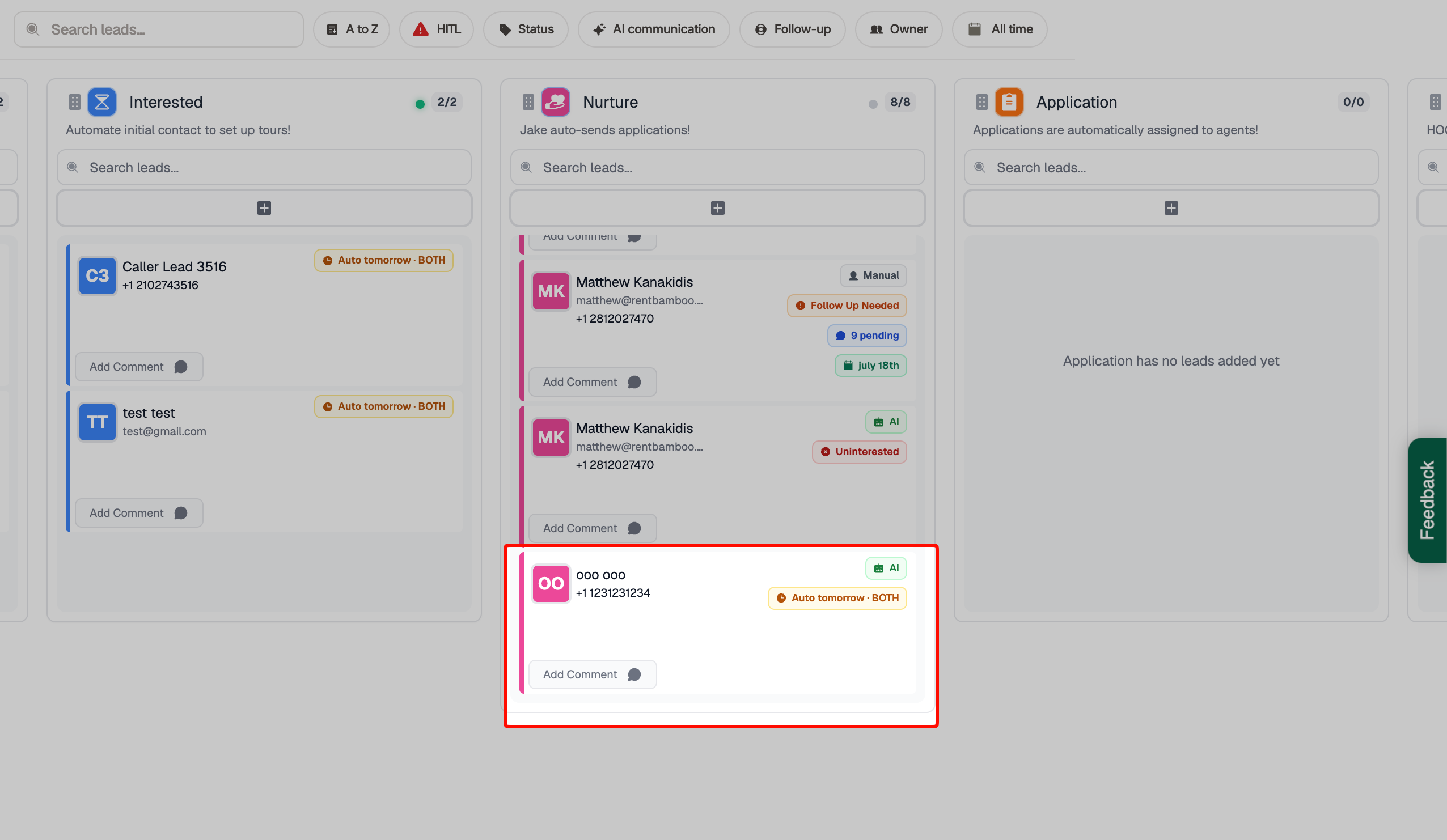
Click on any lead card to open the prospect's profile.
Inside each lead card, you'll find several tabs and tools that allow you to communicate with prospects, manage AI behavior, schedule tours, create tasks, update prospect information, and more.
The Messages tab is the primary workspace for communicating with prospects and managing their interactions with RentBamboo.
Below, we'll walk through each section and explain how to use the available features.
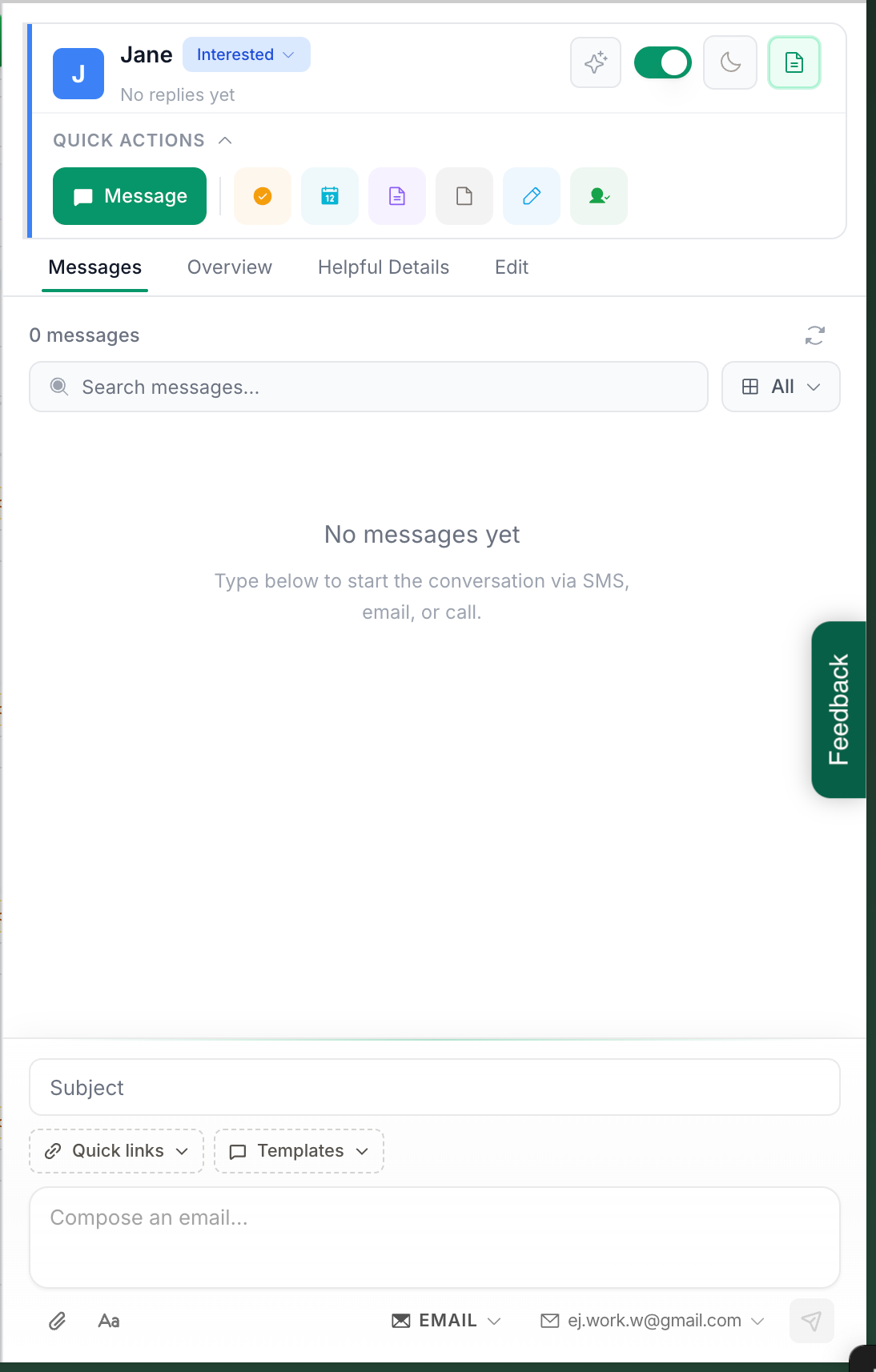
When you open a lead card, you'll land on the prospect's Messages tab.
At the top-right of the lead card, you'll find four primary AI controls that allow you to manage how the AI interacts with that specific prospect.
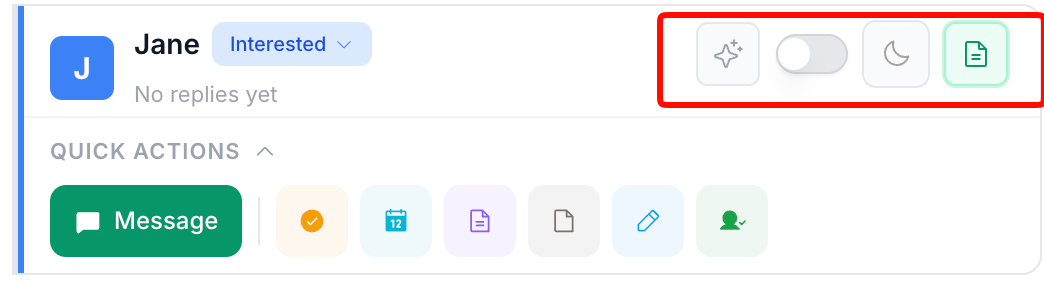
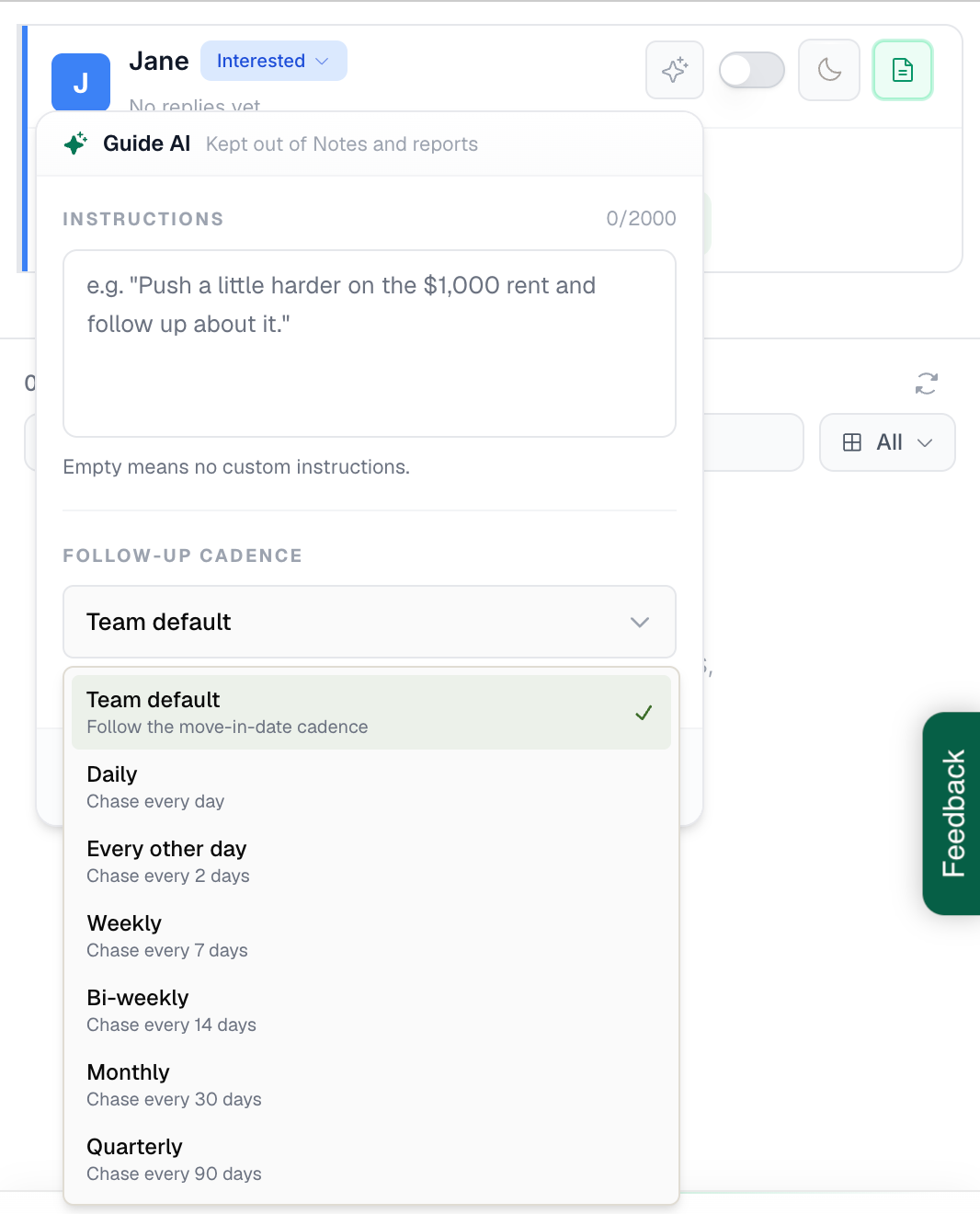
The Guide AI feature allows you to provide custom instructions for how the AI should handle an individual prospect.
For example, you can give the AI instructions such as:
Emphasize a current leasing special or concession.
Adjust how frequently the AI follows up.
Focus on specific units or floor plans.
Use a particular approach when communicating with the prospect.
These instructions apply specifically to that prospect and allow you to tailor the AI's approach without changing your property's general AI training.
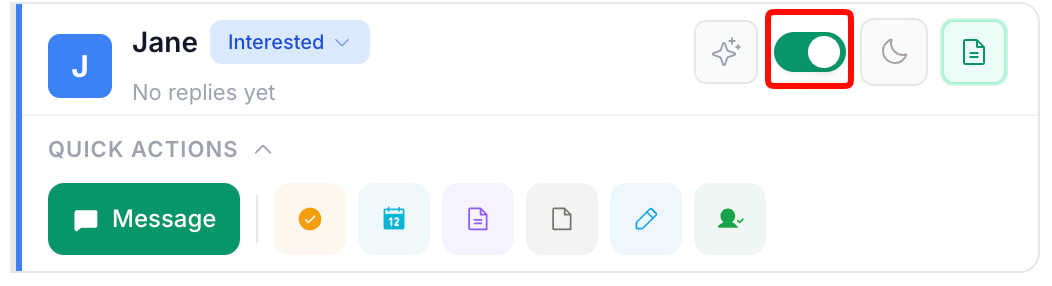
You can turn the AI on or off at any time using the toggle in the top-right corner of the lead card.
This is especially useful when your onsite team wants to take over communication with a prospect directly.
When the AI is turned off, it will stop handling automated interactions for that prospect until re-enabled.
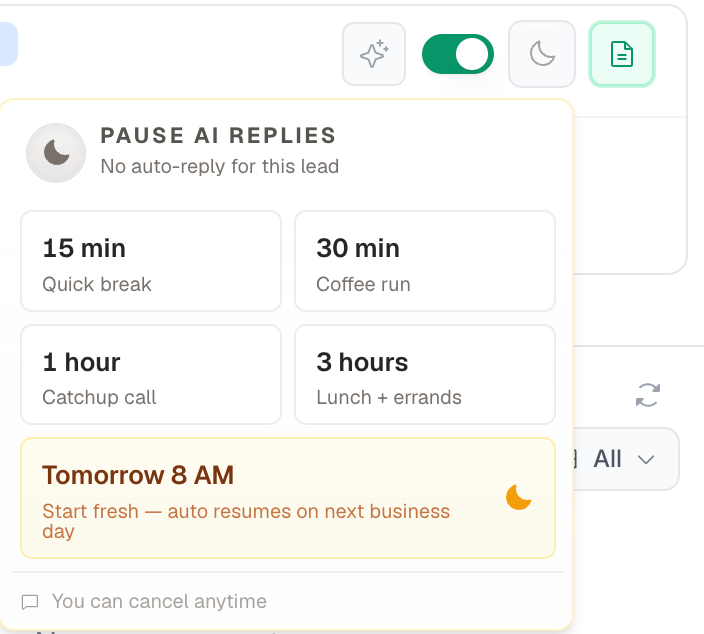
If you're actively communicating with a prospect and want to temporarily prevent the AI from responding, you can use the Snooze feature.
Snoozing pauses automated AI replies for a selected period of time.
You can choose from several preset durations, including short breaks or resuming the following morning.
This is particularly useful when a team member is having an active conversation with a prospect and doesn't want the AI interrupting or sending additional follow-ups.
Once the selected period expires, AI responses will automatically resume.
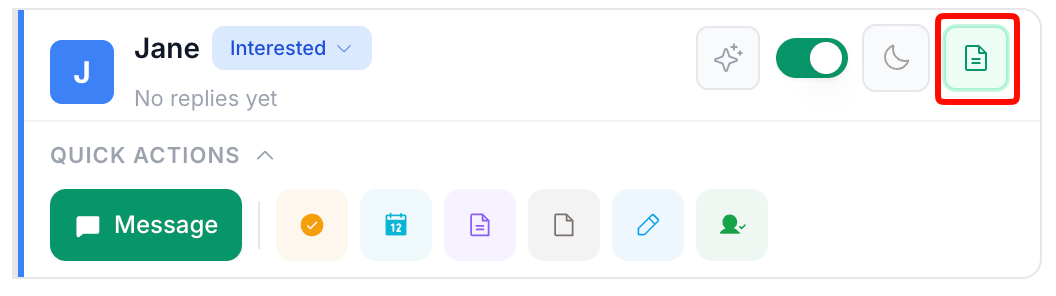
The Quote Context setting controls whether the AI retains context from quotes previously sent to a prospect.
We recommend keeping this enabled.
This allows the AI to reference previously shared quotes when answering questions about pricing, fees, and other quoted details.
It also helps maintain continuity when prospects follow up about information they've already received.
Below the AI controls, you'll find a collection of Quick Actions that allow your team to take common actions directly from the prospect's lead card.
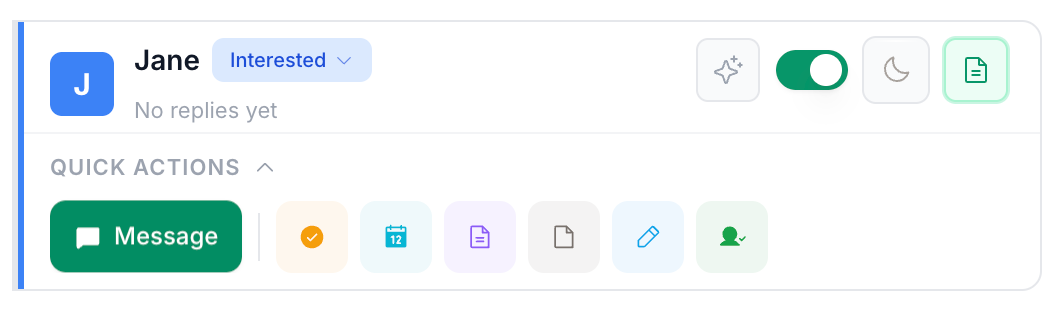
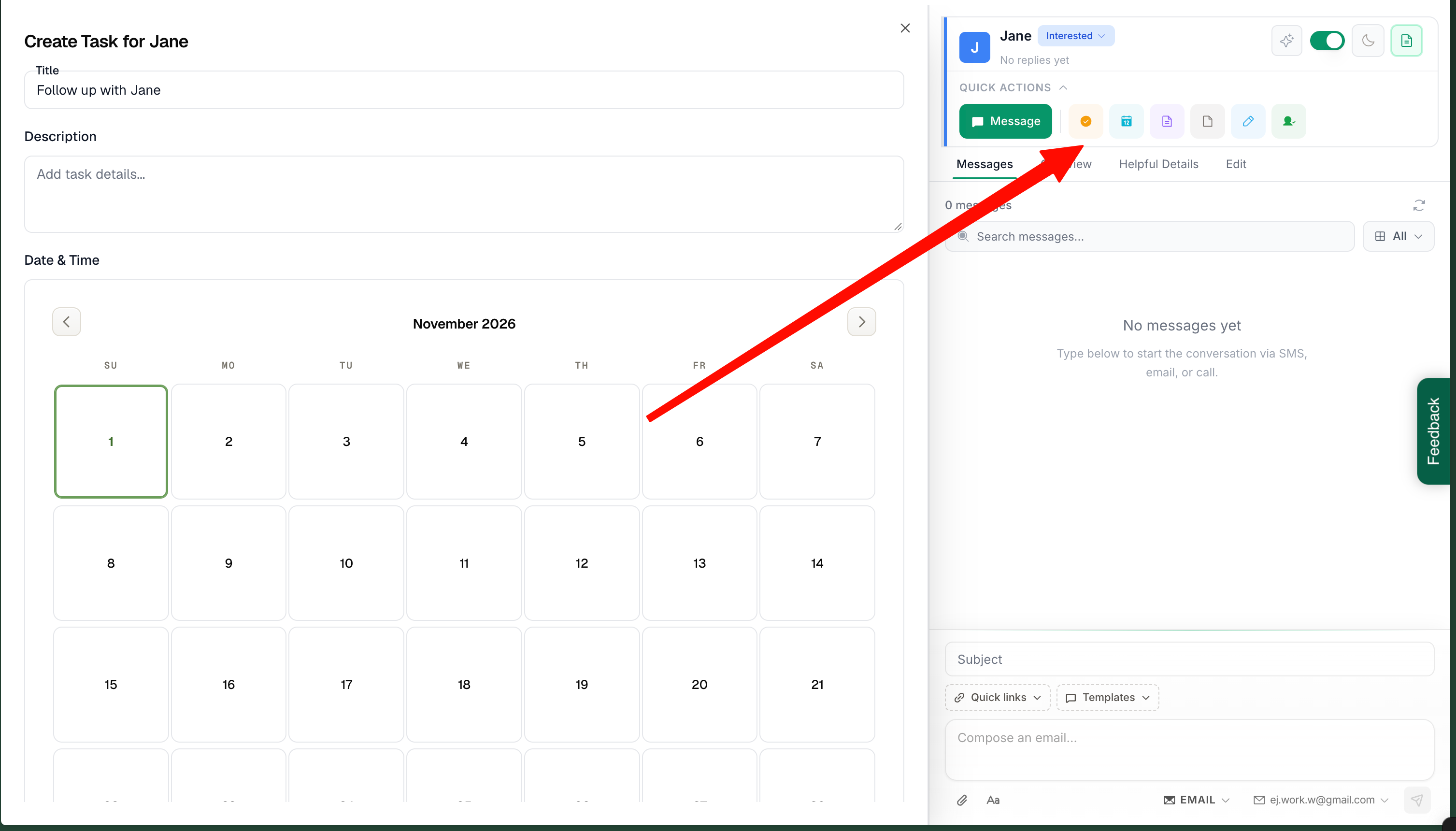
You can create tasks directly from a prospect's lead card to keep track of important follow-ups and responsibilities.
For example, you might create tasks to:
Follow up with a prospect.
Confirm a scheduled tour.
Send additional property information.
Check on an application.
Complete an internal follow-up.
Simply select the task action, enter a title and description, and choose the date and time.
Once created, the task will be associated with that prospect.
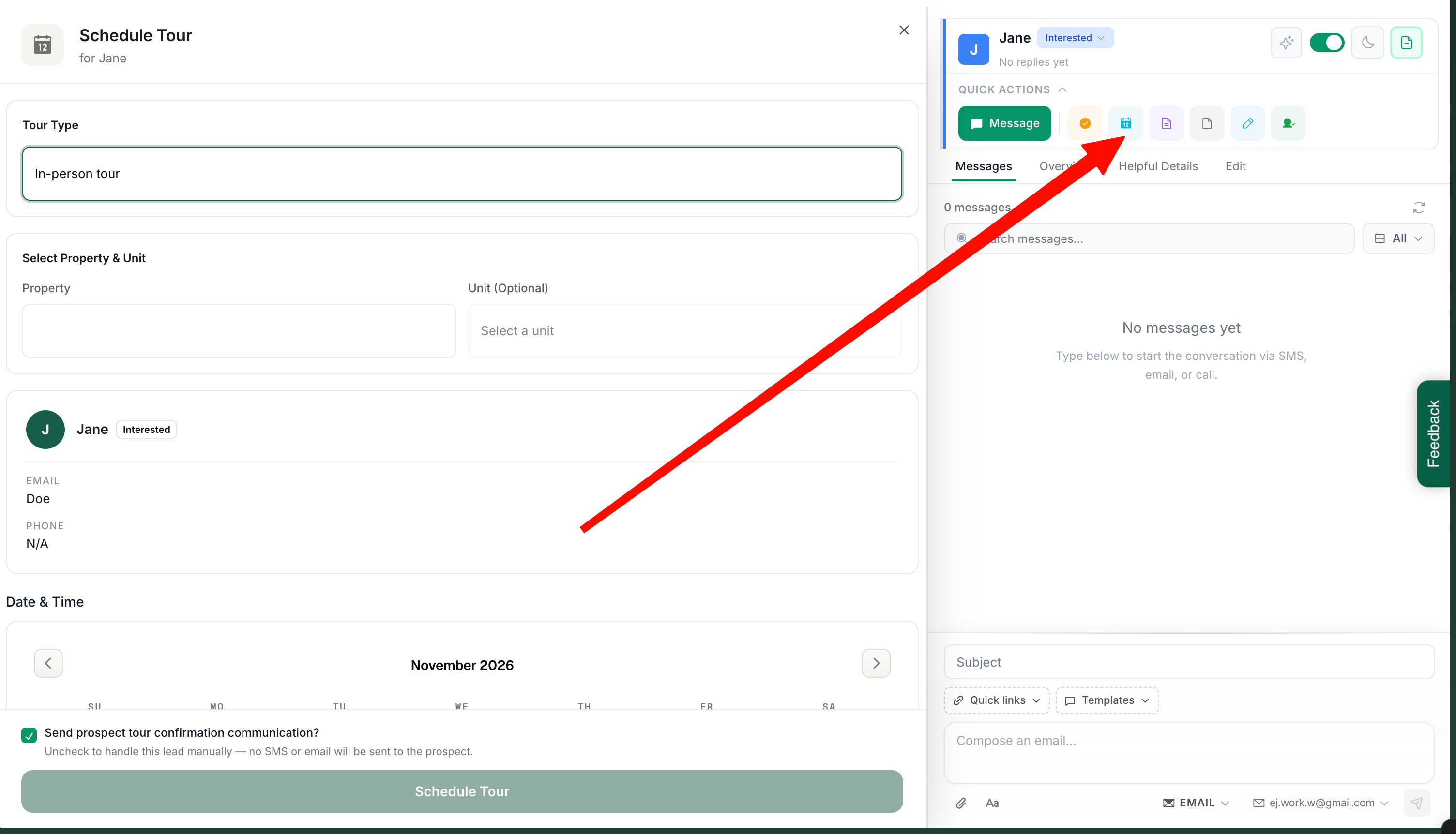
You can schedule tours directly from a prospect's lead card.
Select the Schedule Tour action to open the scheduling window.
From here, you can:
Choose between an in-person or virtual tour.
Select the property and unit.
Choose an available showing time.
Assign the appropriate showing agent.
This makes it easy to coordinate tours without leaving the prospect's profile.
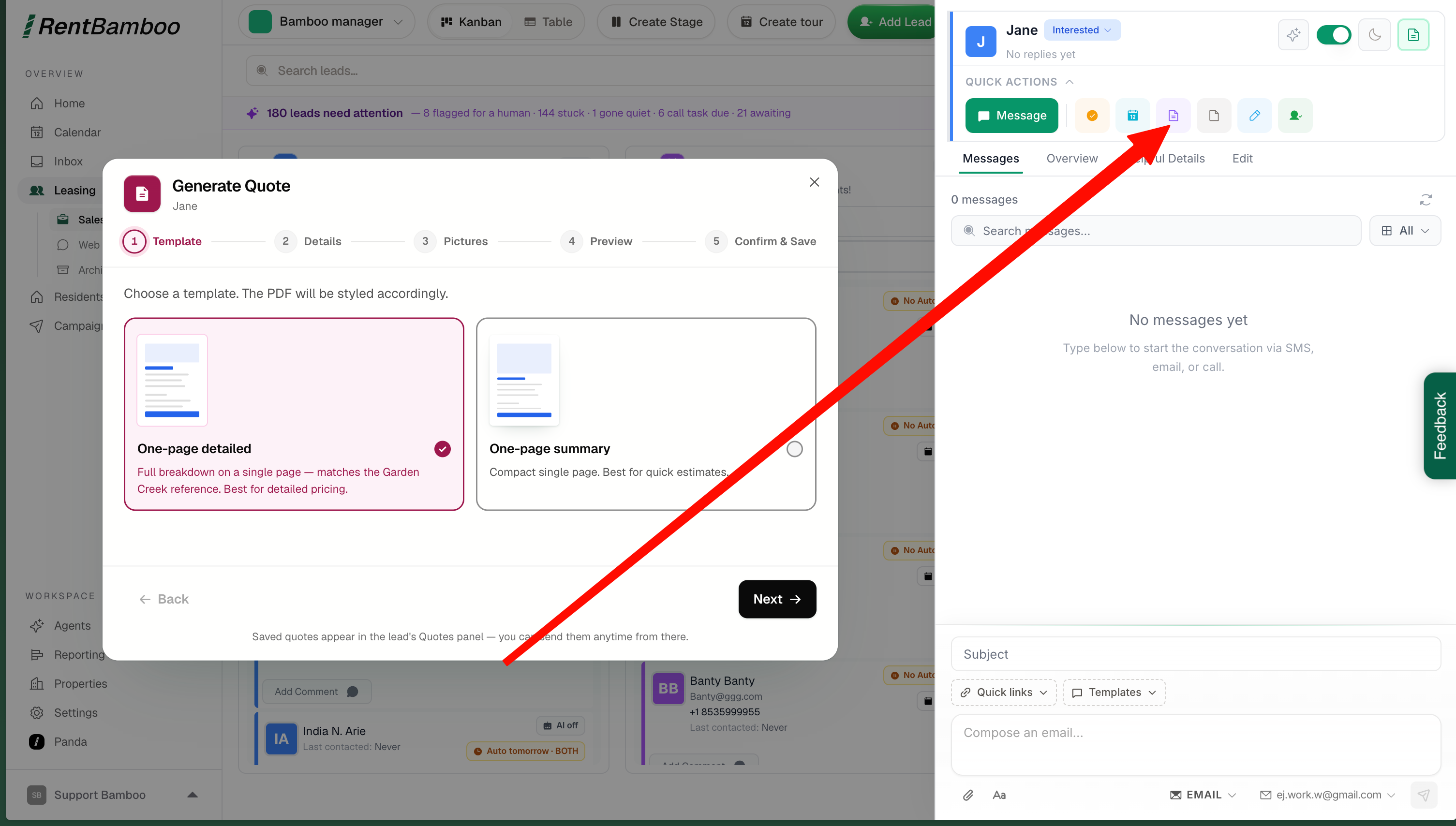
You can create and send quotes directly to prospects from their lead cards.
Quotes are especially useful when providing a more formal breakdown of leasing costs, fees, and other property information.
Select Generate Quote to get started.
From there, you can select a quote template, customize the details, add pictures, and preview the quote before sending it to the prospect.
This is a great way to give prospects a clearer understanding of the costs associated with leasing a unit and help guide them toward submitting an application.
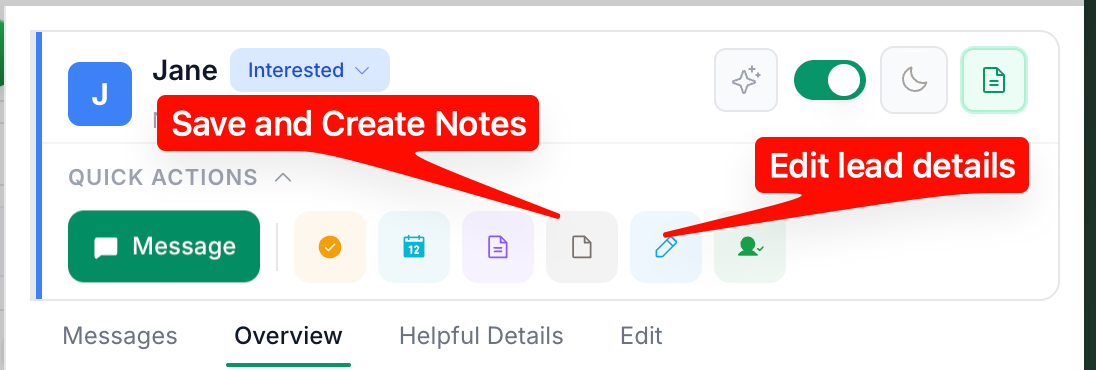
You can also add internal notes and update prospect information directly from the lead card.
Use notes to document important conversations, prospect preferences, special requests, or other details your team should know.
You can also edit the prospect's information as needed.
The Messages section provides a unified view of your communication history with each prospect.
Here, you can view and manage text messages, emails, and calls in one place.
You can also initiate new conversations, send templates, share links, and use AI to help generate messages.
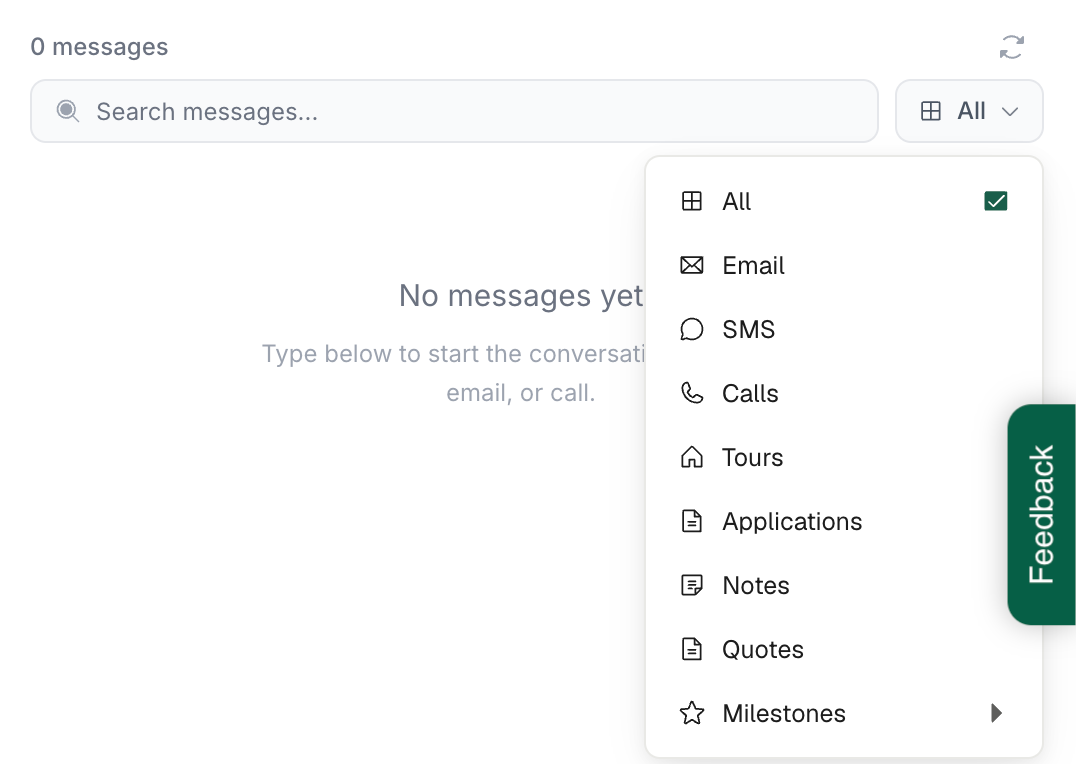
You can easily search and filter the prospect's communication history.
Use the search bar to find specific messages or keywords.
You can also filter by communication type to quickly find:
All interactions
SMS messages
Emails
Phone calls
Other available communication events
This makes it easier to review previous conversations and find important information without scrolling through the entire timeline.
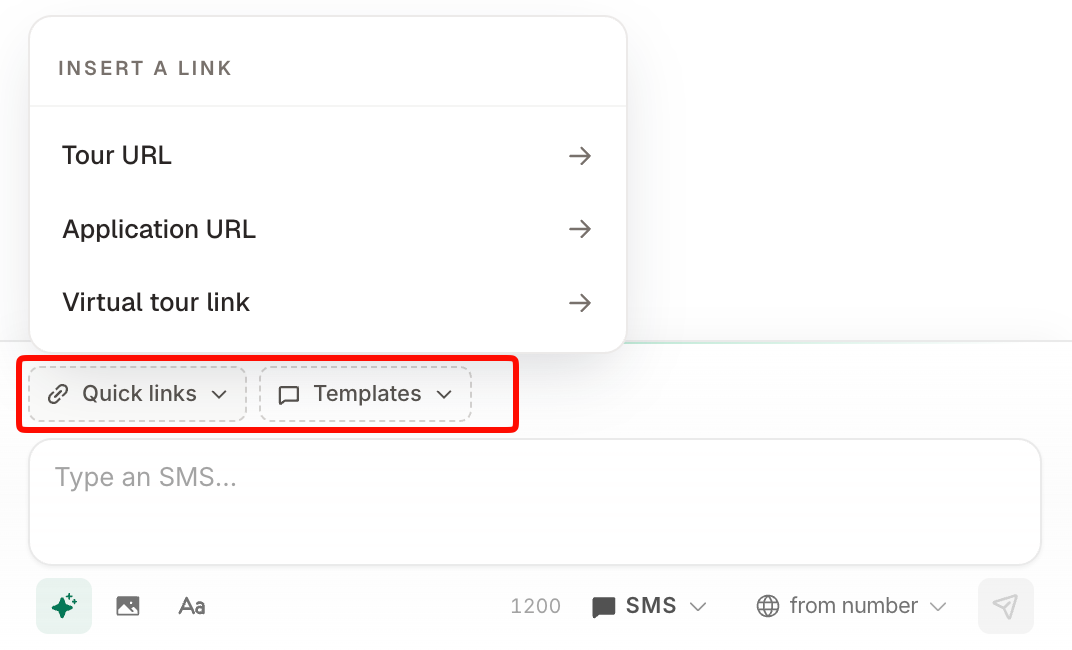
Above the message composer, you'll find Quick Links and Templates.
These tools make it easy to send frequently used messages and share important property information.
You can quickly insert links such as:
Tour scheduling links.
Application links.
Virtual tour links.
This allows your team to share important resources without manually copying and pasting URLs.
You can access saved message templates to quickly respond to common prospect questions or send standardized follow-ups.
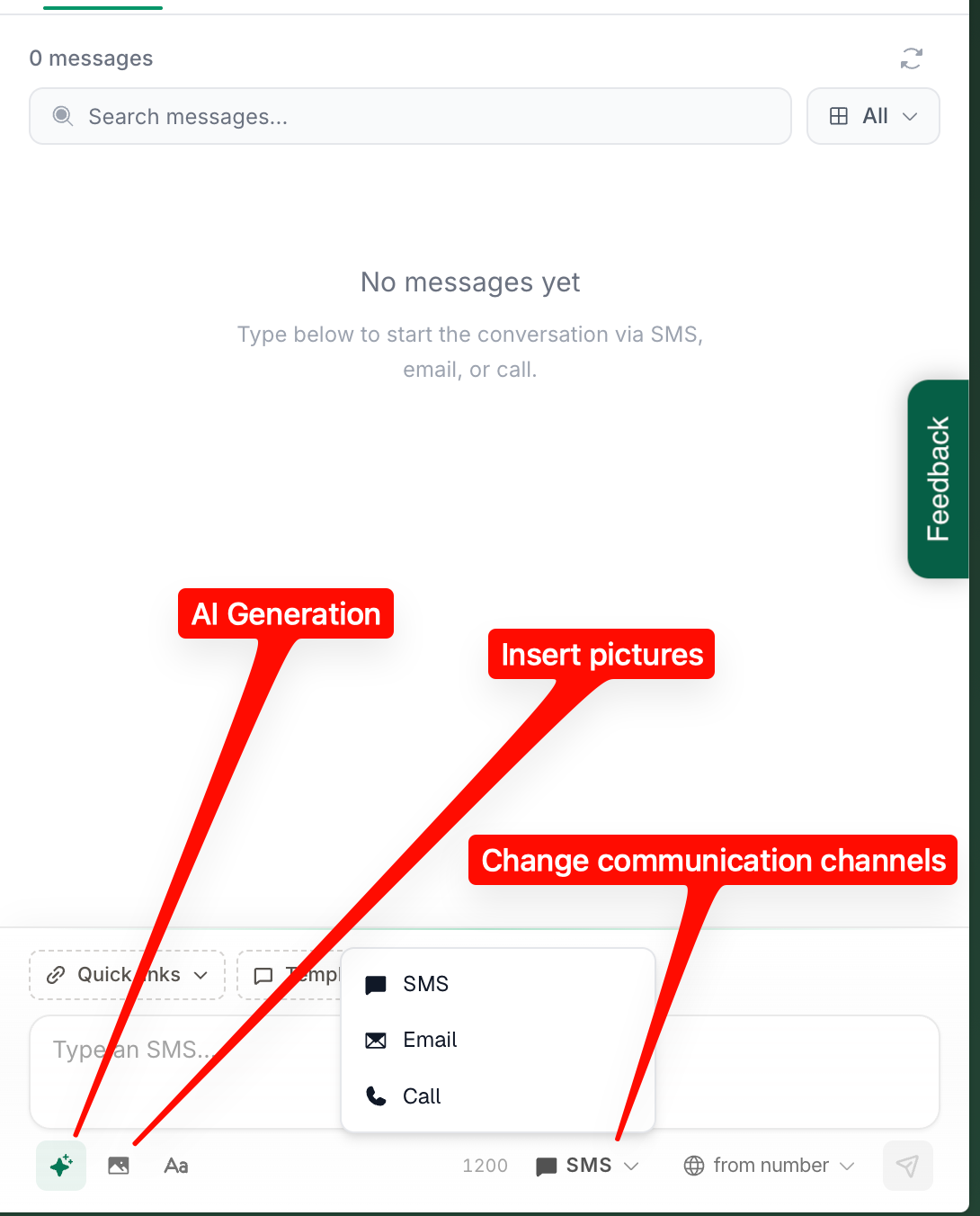
The message composer allows you to communicate with prospects through multiple channels.
You can:
Send SMS messages.
Send emails.
Initiate phone calls.
Insert pictures and other attachments where supported.
Use AI message generation to help draft responses.
You can switch between available communication channels directly from the message composer.
The AI generation feature can help you create responses more quickly while allowing your team to review and customize messages before sending them.
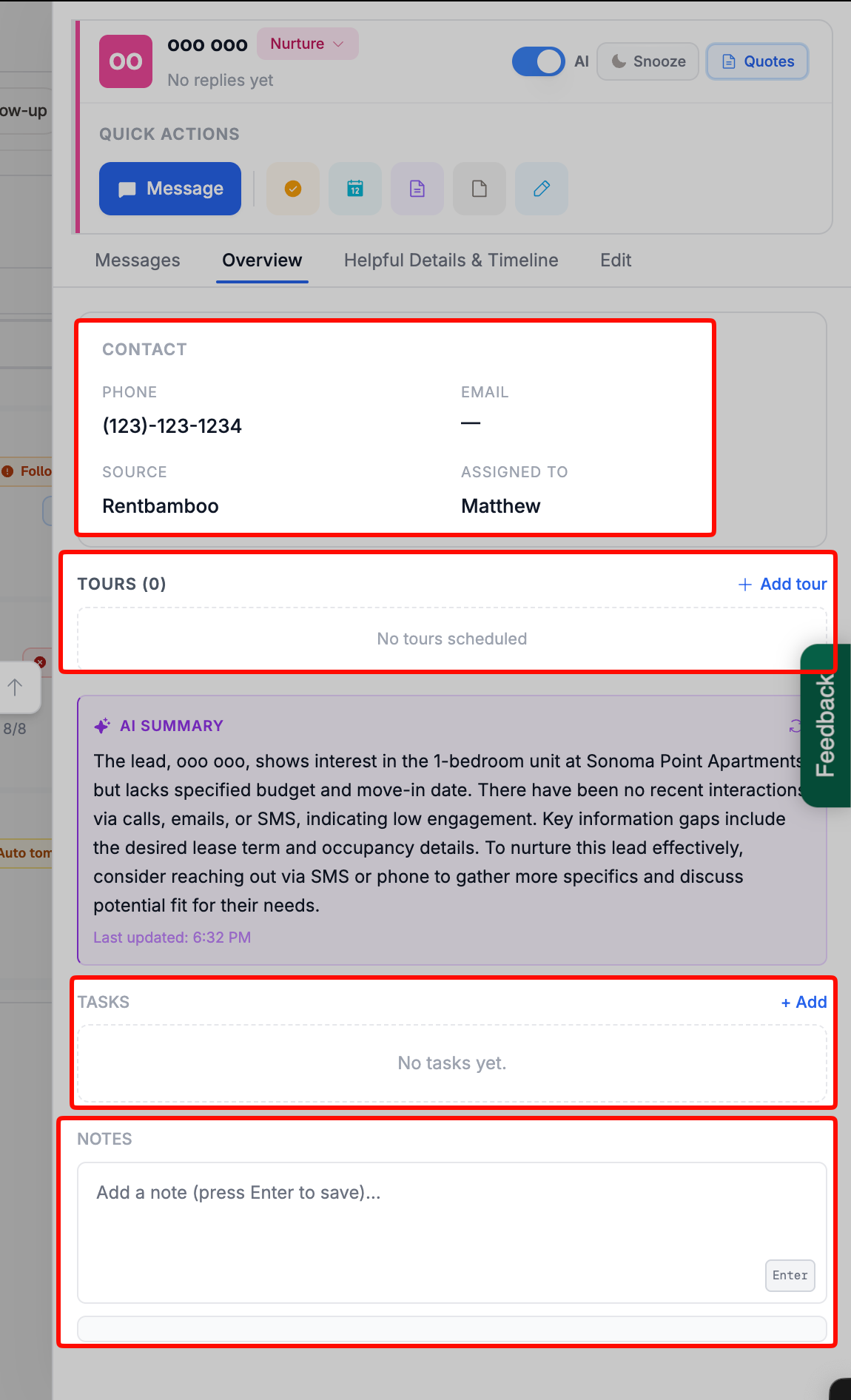
The Overview tab provides a quick look at important prospect-related activities.
From here, you can view upcoming tours, schedule new tours, create tasks, and add notes.
This is a useful place to manage upcoming activities and stay organized without navigating through multiple sections of the lead card..
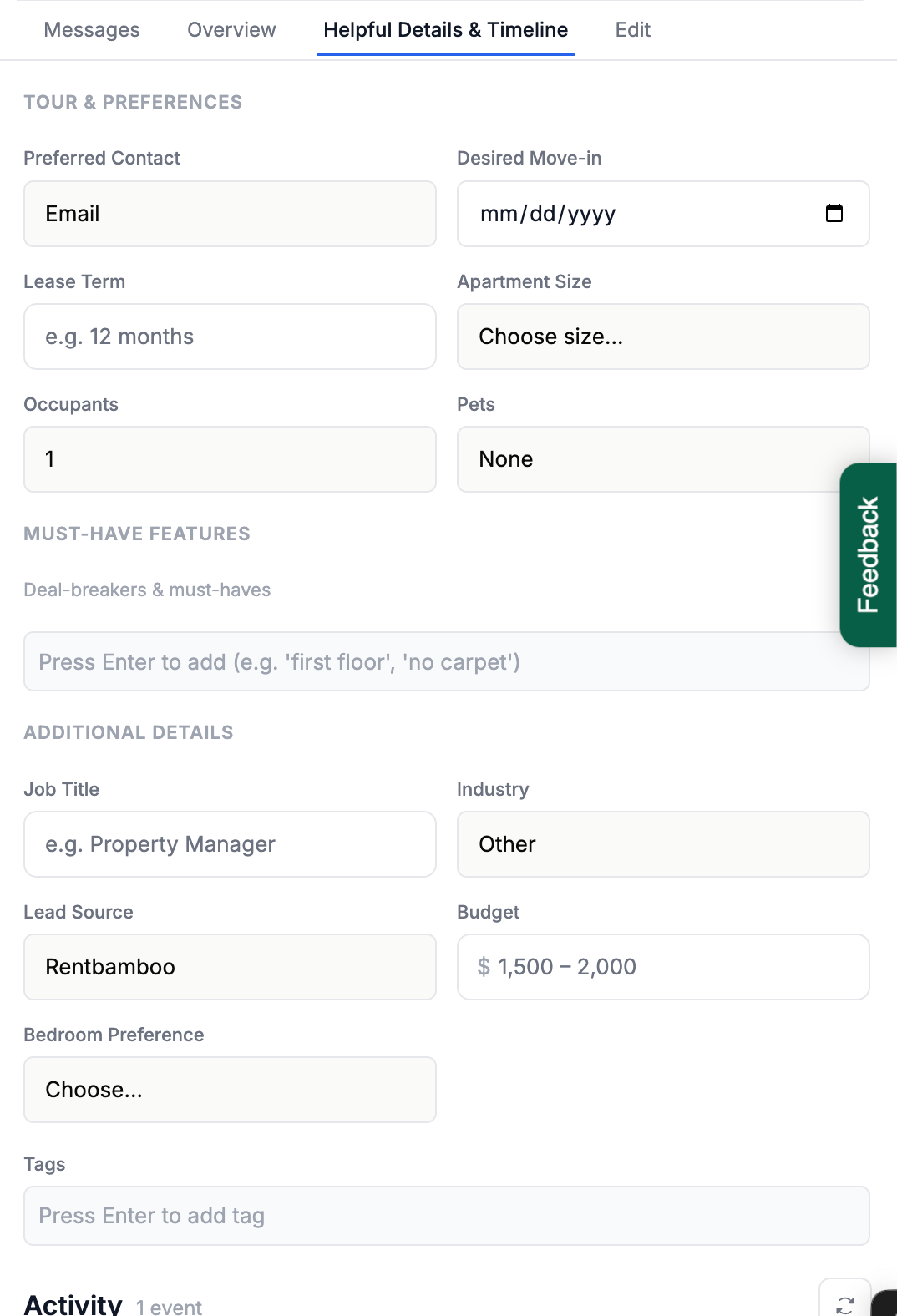
The Helpful Details tab provides a consolidated view of the information RentBamboo's AI has gathered about a prospect.
This includes important details collected through conversations and other interactions.
You can review the information the AI has identified and make direct edits when necessary.
As you scroll down, you'll also find the prospect's activity timeline, giving you a historical view of their interactions and progress.
This is a great place to quickly understand where a prospect stands and review what has happened throughout their leasing journey.
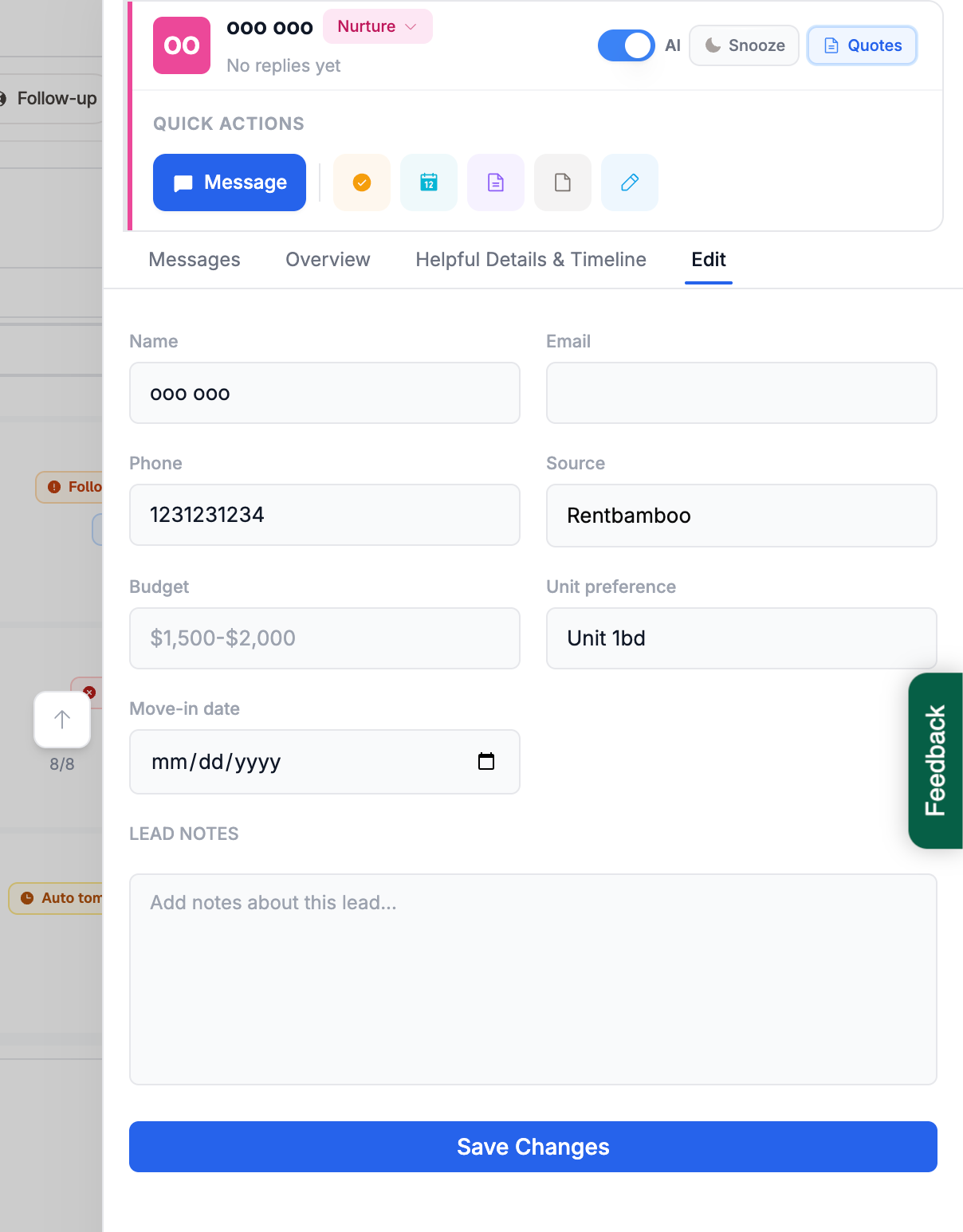
The Edit tab allows you to directly update information associated with a prospect.
You can modify prospect details as information changes or as your team learns more about their needs.
Keeping this information accurate is important because RentBamboo uses prospect details to determine how the AI communicates and follows up.
For example, updating a prospect's move-in date may influence their follow-up strategy and how frequently the AI reaches out.
We recommend keeping prospect information up to date so the AI can tailor its outreach based on the prospect's current situation.