You can prevent prospects from booking tours during specific dates or times by adding blocked times to your agent's availability settings.
Follow the steps below to manage blocked times.
Go to Settings and select Agent Availability.
Here, you can configure weekly tour windows, blocked times, and calendar sync settings that determine when prospects can book with each agent.

Scroll down to the Weekly Availability section.
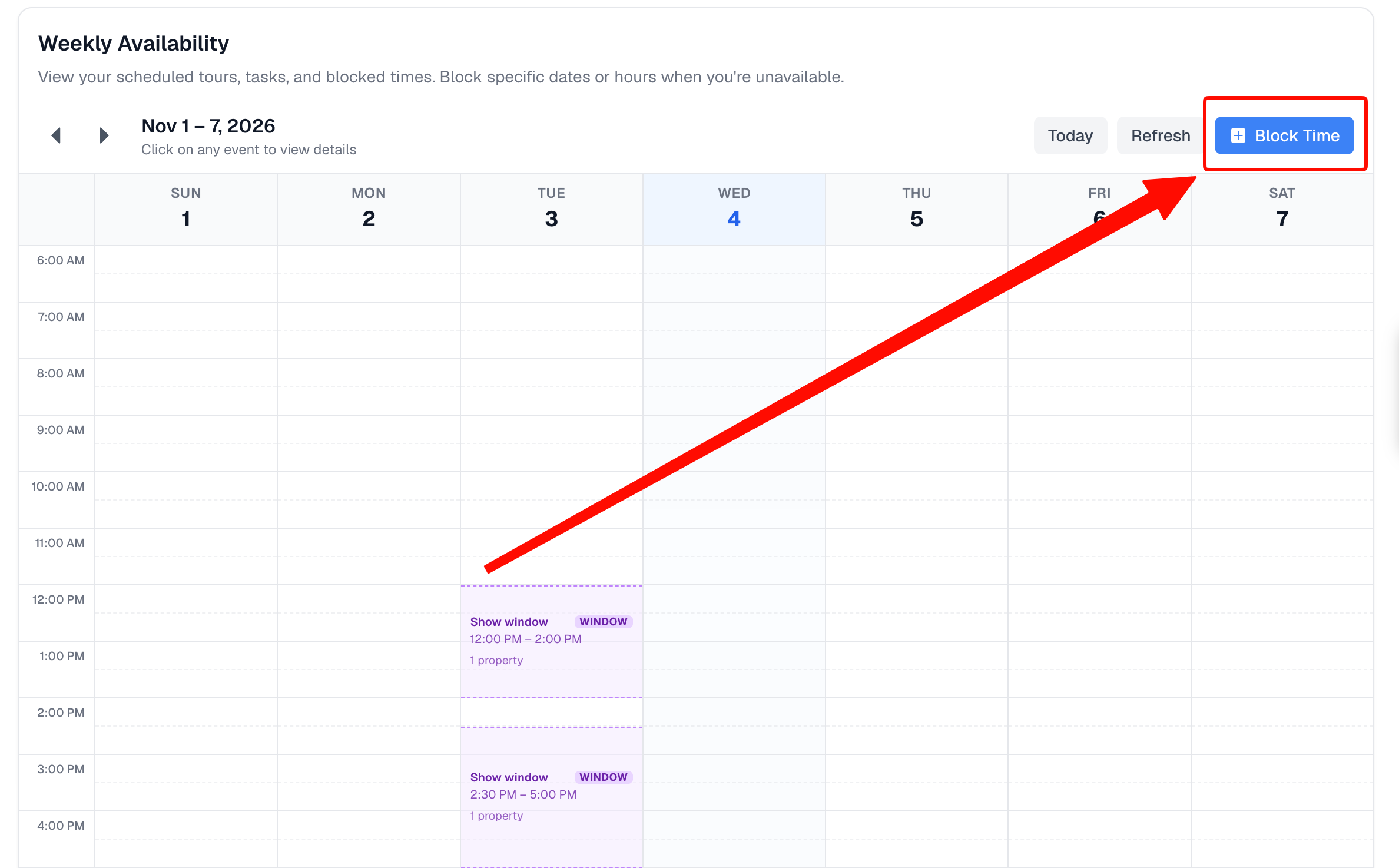
Select Blocked Times to add a date or time when the agent will be unavailable for tours.
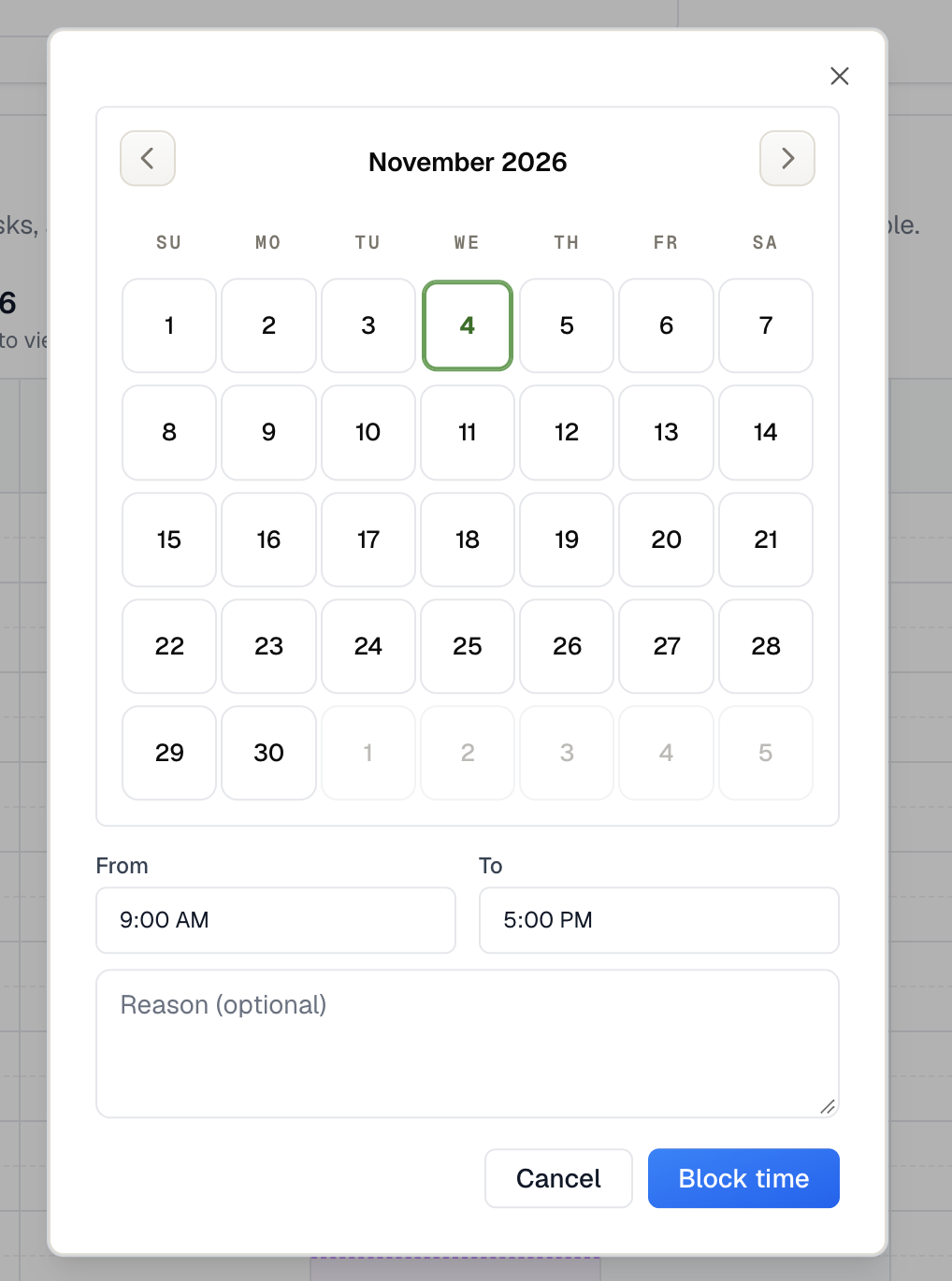
Select the date you want to block, then enter the start and end times.
You can also add an optional reason to identify why the time is blocked.
Once you've entered the details, save the blocked time.
After saving, your blocked times will appear in the Blocked Times section under Weekly Availability.
From here, you can:
Remove an individual blocked time.
Clear All to remove all blocked times.
That's it! Your blocked times can be managed directly from Agent Availability whenever your schedule changes.